With remote meetings and online presentations becoming increasingly common, many people face a shared challenge: how to maintain smooth delivery during Zoom calls? Whether you're demonstrating product features, giving sales pitches, or recording instructional videos, forgetting your points or hesitating frequently can significantly impact your professional image.
A teleprompter is exactly the tool you need to solve this problem. FlowPrompter, as an outstanding teleprompter app, works seamlessly with Zoom, helping you deliver your online meetings with confidence and fluency.
Why Zoom Meetings Need a Teleprompter?
Enhance Presentation Professionalism
Reduce forgotten words and hesitations: Prepared scripts keep you confident
Maintain eye contact: FlowPrompter's transparent floating design doesn't interfere with eye contact in video
Control speaking rhythm: Adjustable scrolling speed helps you maintain steady expression
Ideal Use Cases
Product demonstrations and feature introductions
Online course recording
Sales proposals and client meetings
Job interviews and team training
Live streaming podcasts and interview shows
Perfect Integration: FlowPrompter & Zoom
Core Features of FlowPrompter
FlowPrompter is a smart teleprompter app designed specifically for content creators, featuring:
Floating Window Mode: Transparent overlay that doesn't block other applications
Customizable Scrolling Speed: Adjust text flow speed according to your speaking pace
Adjustable Font Size: Adapt to different screens and visual needs
Multi-Platform Support: Full coverage for Mac, Windows, iOS, and Android
Real-Time Editing: Modify scripts anytime during meetings
Installing FlowPrompter
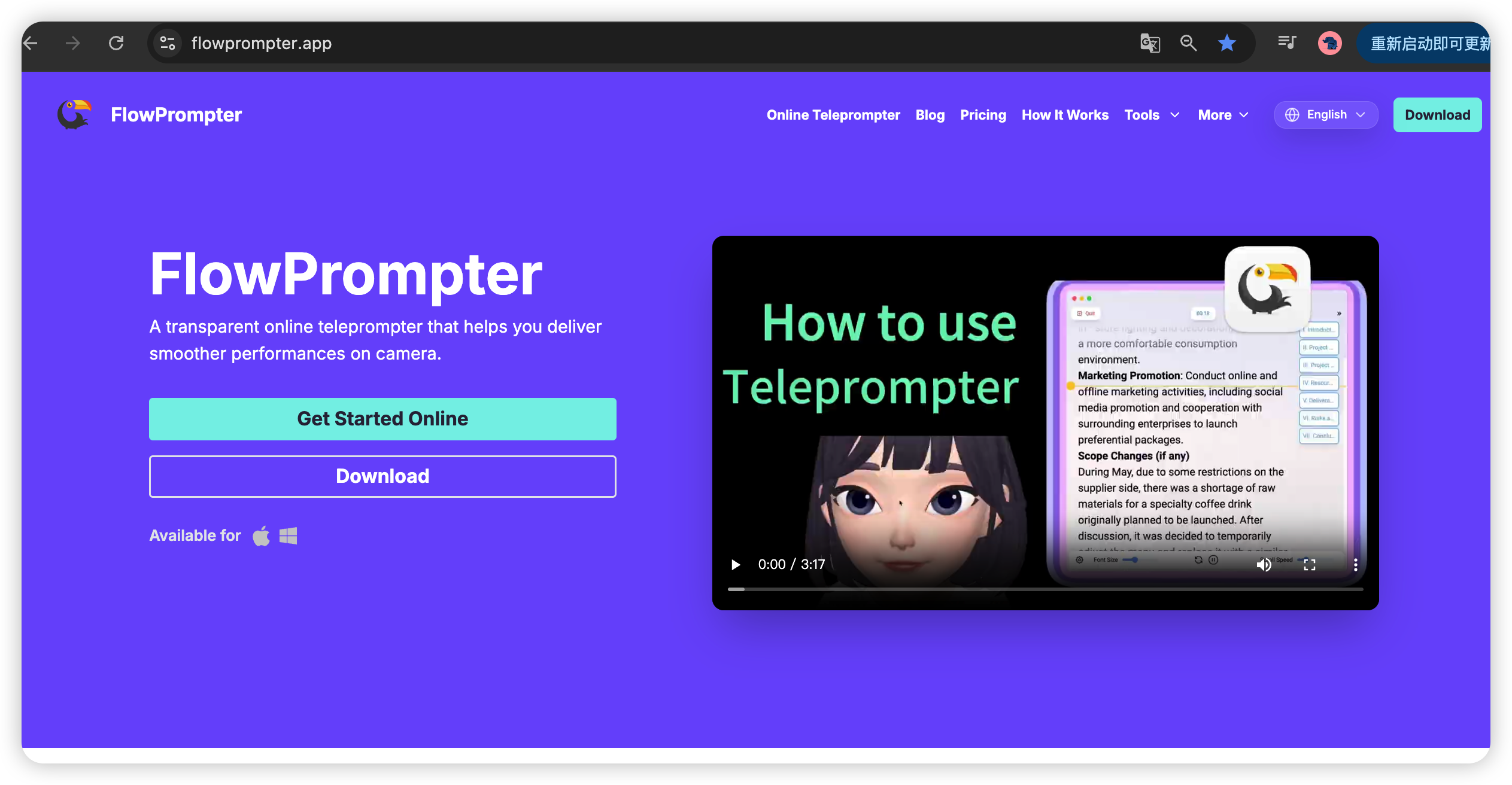
Visit FlowPrompter official website to download appropriate version
Use the Web version;No installation required.
Adjust font size, scrolling speed, and other parameters in settings
Step-by-Step Tutorial: Using FlowPrompter in Zoom Meetings
Step 1: Prepare Your Script
Create a new script in FlowPrompter, or import existing text content.
We recommend:
Segment your content: Break long content into multiple paragraphs, each focusing on one key point
Use cue words: Bold important numbers or key terms for quick identification
Add markers: Use special symbols to mark places where you need to pause or emphasize
Step 2: Set Up Teleprompter Window
Open FlowPrompter and select floating window mode
Adjust window position: We recommend placing it near the camera or at the top of your screen
Set transparency: 80-90% transparency allows you to see text clearly while being subtle
Preset scrolling speed: Start with slow speed to test and find most comfortable rhythm

Step 3: Start Your Zoom Meeting
Open Zoom app and create or join a meeting
Check camera and microphone settings
Move FlowPrompter window outside camera's field of view (or use transparent mode)
Step 4: Begin Your Presentation
Click play button in FlowPrompter to start scrolling
Maintain natural eye contact, occasionally glancing at the teleprompter
Adjust scrolling speed or pause in real-time as needed
For impromptu interactions, you can pause scrolling and speak freely
Advanced Tips: Professional-Level Presentations
Multi-Monitor Setup
If you have multiple monitors, this is the optimal configuration:
Primary Monitor: Run Zoom and display presentation content
Secondary Monitor: Place FlowPrompter floating window
Advantage: The teleprompter is completely outside video frame, making it more discreet
Single Monitor Techniques
When using a single monitor:
Place FlowPrompter at top or side of screen, avoiding camera's capture area
Use high transparency mode (85% or higher)
Adjust font to smaller size to reduce visual distraction
Working with Presentation Slides
When using PPT or Keynote presentations simultaneously:
Mark slide transition cues in FlowPrompter
Use markers like "next slide" or "important chart"
Rehearse a few times beforehand to familiarize yourself with the rhythm
Frequently Asked Questions
Q: Can teleprompter be seen in video conferences?
A: When using floating window mode with proper positioning, FlowPrompter won't enter camera's field of view. Even with transparent mode, high transparency settings make it nearly invisible.
Q: What's the best scrolling speed setting?
A: We recommend starting at 50% speed and adjusting based on your speaking pace. Normal speech rate is about 120-150 words per minute, which can help you calculate scrolling speed.
Q: Can I edit script in real-time?
A: Absolutely. FlowPrompter supports real-time editing during meetings, so you can adjust content anytime based on the meeting's progress.
Q: Is it suitable for recording Zoom meeting replays?
A: Perfect for that. Using a teleprompter during recording ensures smooth delivery and avoids multiple re-takes, saving significant time.
Usage Tips for Different Scenarios
Sales Presentations
Prepare detailed product features and pricing information
Mark common customer questions and standard answers
Rehearse Q&A session beforehand
Online Courses
Organize course outline into sections in FlowPrompter
Use pause markers to leave time for interaction
Record positions of key knowledge points for easy review
Job Interviews
Prepare company introduction and position highlights
List interview questions
Mark skills requirements that need emphasis
Conclusion
Using FlowPrompter teleprompter in Zoom meetings can significantly enhance your presentation quality and professional image. Whether you're in sales, teaching, content creation, or business management, this tool can help you:
✅ Maintain confident and fluent delivery
✅ Avoid forgotten words and hesitations
✅ Improve meeting and presentation efficiency
✅ Reduce recording time and costs
Try FlowPrompter now and make your next Zoom meeting even better!
Tags: FlowPrompter, Zoom, Teleprompter, Remote Meetings, Online Presentation, Video Recording, Sales Demo, Online Courses