Giving a polished presentation on Zoom without constantly glancing at your notes is a skill that separates good speakers from great ones. Whether you're hosting webinars, teaching online courses, or delivering remote presentations, using a teleprompter can help you maintain eye contact with your audience while delivering your message confidently.
In this guide, we'll walk you through how to use FlowPrompter as your teleprompter during Zoom meetings and presentations.
Why Use a Teleprompter for Zoom?
Using a teleprompter during Zoom calls offers several advantages:
Better Eye Contact: Keep your gaze focused on the camera, not on off-screen notes
Professional Delivery: Maintain smooth, uninterrupted speech patterns
Confidence Boost: Never worry about forgetting your key points
Time Management: Control your pace and stick to your time limits
Reduced Anxiety: Focus on connecting with your audience, not memorizing lines
Method 1: Using FlowPrompter on a Separate Monitor
This is the most common and reliable method for Zoom presentations.
Setup Requirements
A dual-monitor setup (one for Zoom, one for FlowPrompter)
FlowPrompter installed on your device
Zoom desktop client
Step-by-Step Instructions
Position Your Monitors: Place your secondary monitor directly below or beside your webcam. The goal is to minimize the distance between your reading script and the camera lens.
Set Up FlowPrompter:
Open FlowPrompter on your secondary monitor
Upload your script or paste it directly
Adjust font size and scrolling speed to your comfort level
Test the scrolling before your meeting
Configure Zoom for Dual Monitors:
Go to Zoom Settings → Video
Enable "Use dual monitors"
Select which monitor displays your video preview
Position Your Camera:
Place your webcam at eye level
Ensure your secondary monitor with FlowPrompter is as close to the camera as possible
Practice glancing from script to camera naturally
During the Meeting:
Start your Zoom meeting as usual
Share your screen if needed (only share the content monitor, not your FlowPrompter)
Read from FlowPrompter while maintaining eye contact with the camera
Method 2: Floating Teleprompter Window
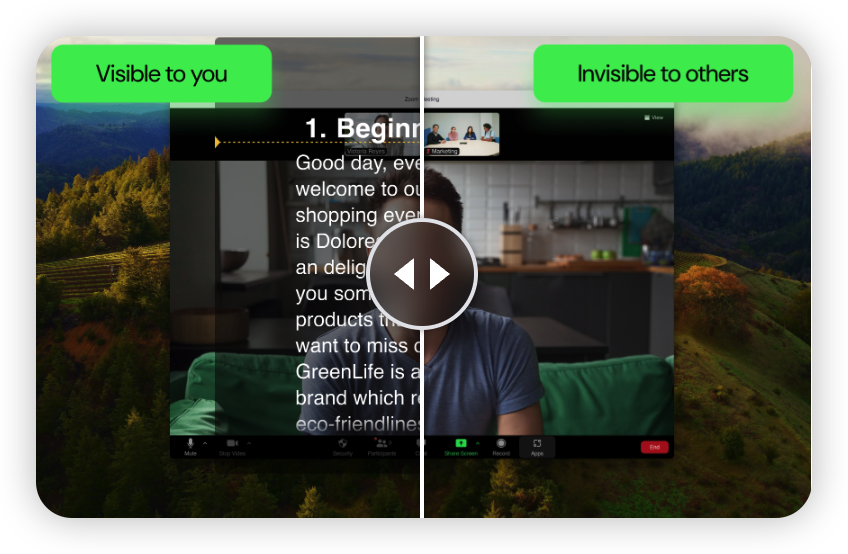
If you have a single monitor but need teleprompter functionality, FlowPrompter's floating window feature is your best option.
How to Use the Floating Window
Enable Floating Mode:
In FlowPrompter, select the floating window option
Resize the window to fit in the corner of your screen
Adjust opacity so it doesn't distract from your presentation
Positioning Tips:
Place the floating window near your camera
Keep it small enough to avoid obstruction
Position it so your natural gaze path passes through the camera
Practice Your Delivery:
Record yourself delivering your presentation
Watch the playback to check your eye contact
Adjust the floating window position as needed
Best Practices for Zoom Teleprompting
1. Customize Your Script for Speaking
Write your script in conversational language rather than formal writing. Use shorter sentences and natural phrasing that you would actually say out loud.
2. Adjust Font and Speed
Font Size: Large enough to read comfortably (18-24pt minimum)
Scroll Speed: Match your natural speaking pace
Line Length: Keep lines short for easier scanning
3. Practice, Practice, Practice
Rehearse with FlowPrompter before your actual Zoom meeting. Get comfortable with the scrolling and practice making natural transitions between looking at your script and looking at the camera.
4. Use Highlighting and Notes
FlowPrompter allows you to:
Highlight key points
Add personal notes
Mark sections for emphasis
Create chapter breaks for longer presentations
5. Manage Screen Sharing Wisely
When sharing your screen in Zoom:
Only share content that's meant for your audience
Never share your teleprompter screen
Use Zoom's "Share portion of screen" feature if needed
6. Test Your Setup Beforehand
Always conduct a test run:
Check audio and video quality
Verify screen sharing works correctly
Ensure FlowPrompter scrolling is smooth
Test your internet connection stability
Advanced Tips for Professional Presentations
Use Mirroring for Physical Teleprompter
If you're using a physical teleprompter setup with a reflective glass, enable FlowPrompter's mirroring feature so the text appears correctly when reflected.
Create Multiple Scripts for Different Segments
For longer presentations or webinars:
Create separate scripts for different segments
Label them clearly (Intro, Main Content, Q&A)
Switch between scripts seamlessly during breaks
Integrate with Your Presentation Slides
Practice transitioning between your slides and teleprompter
Keep your teleprompter visible when showing slides
Time your script changes with slide transitions
Use Keyboard Shortcuts
Master FlowPrompter's keyboard shortcuts to:
Pause and resume scrolling
Adjust speed on the fly
Jump to specific sections
Highlight important points
Common Mistakes to Avoid
Reading Word-for-Word: Use your teleprompter as a guide, not a script to be read verbatim. Maintain natural speaking patterns.
Ignoring Camera Position: Even with a teleprompter, remember to make genuine eye contact by looking at the camera lens.
Too Fast or Too Slow: Adjust your scrolling speed to match your natural speaking rhythm.
Forgetting to Practice: A teleprompter is a tool, not a substitute for preparation. Always rehearse.
Poor Lighting: Ensure good lighting so you're clearly visible on camera.
Troubleshooting Common Issues
Teleprompter Text Too Small
Increase the font size in FlowPrompter settings or move your monitor closer to the camera.
Can't See Both Screens
Check your display settings and ensure Zoom recognizes both monitors properly.
Scrolling Too Fast/Slow
Adjust the speed setting in FlowPrompter and practice during your rehearsal.
Eye Contact Still Looks Unnatural
Practice shifting your gaze naturally between the teleprompter and camera. Your eyes should pass through the camera when moving from one line to the next.
Conclusion
Using FlowPrompter as your teleprompter for Zoom presentations can significantly improve your delivery and audience engagement. The key is proper setup, thorough practice, and finding the right balance between reading and genuine communication.
Start with a simple setup, practice regularly, and gradually incorporate more advanced techniques. With FlowPrompter, you'll deliver polished, confident Zoom presentations that keep your audience engaged from start to finish.
Ready to transform your Zoom presentations? Download FlowPrompter today and experience the difference that professional teleprompting can make in your online communication.
About FlowPrompter
FlowPrompter is a modern, intuitive teleprompter app designed for content creators, educators, and business professionals. With features like floating windows, customizable scripts, and seamless integration with video conferencing platforms, FlowPrompter makes professional teleprompting accessible to everyone.
Key Features:
Intuitive interface with customizable settings
Floating window mode for single-monitor setups
Script highlighting and organization tools
Keyboard shortcuts for hands-free control
Compatible with all major video conferencing platforms
Get Started with FlowPrompter Today:Visit FlowPrompter.com to start improving your presentations now.