Introduction
You're sitting in front of your Mac, camera ready to record your YouTube video or online course. But there's one problem - you keep forgetting your lines. You glance at your notes, look back at the camera, glance again... it's obvious on camera. This is where a teleprompter app mac transforms your content creation workflow.
In this guide, I'll show you exactly how to use FlowPrompter on Mac to create professional-looking videos while maintaining natural eye contact with your audience.
Why You Need a Teleprompter on Mac
Let's be honest - even experienced creators struggle with memorization. You've probably experienced these frustrations:
The "reading" problem: Your eyes constantly dart away from camera, making you look unprepared
The "blank" moment: Mid-sentence, you freeze because you forgot what comes next
The "perfectionist" trap: You record take after take, never quite satisfied
FlowPrompter solves these problems by displaying your script directly under your camera, creating the illusion that you're speaking naturally from memory.
Setting Up FlowPrompter on Your Mac
Step 1: Download and Install
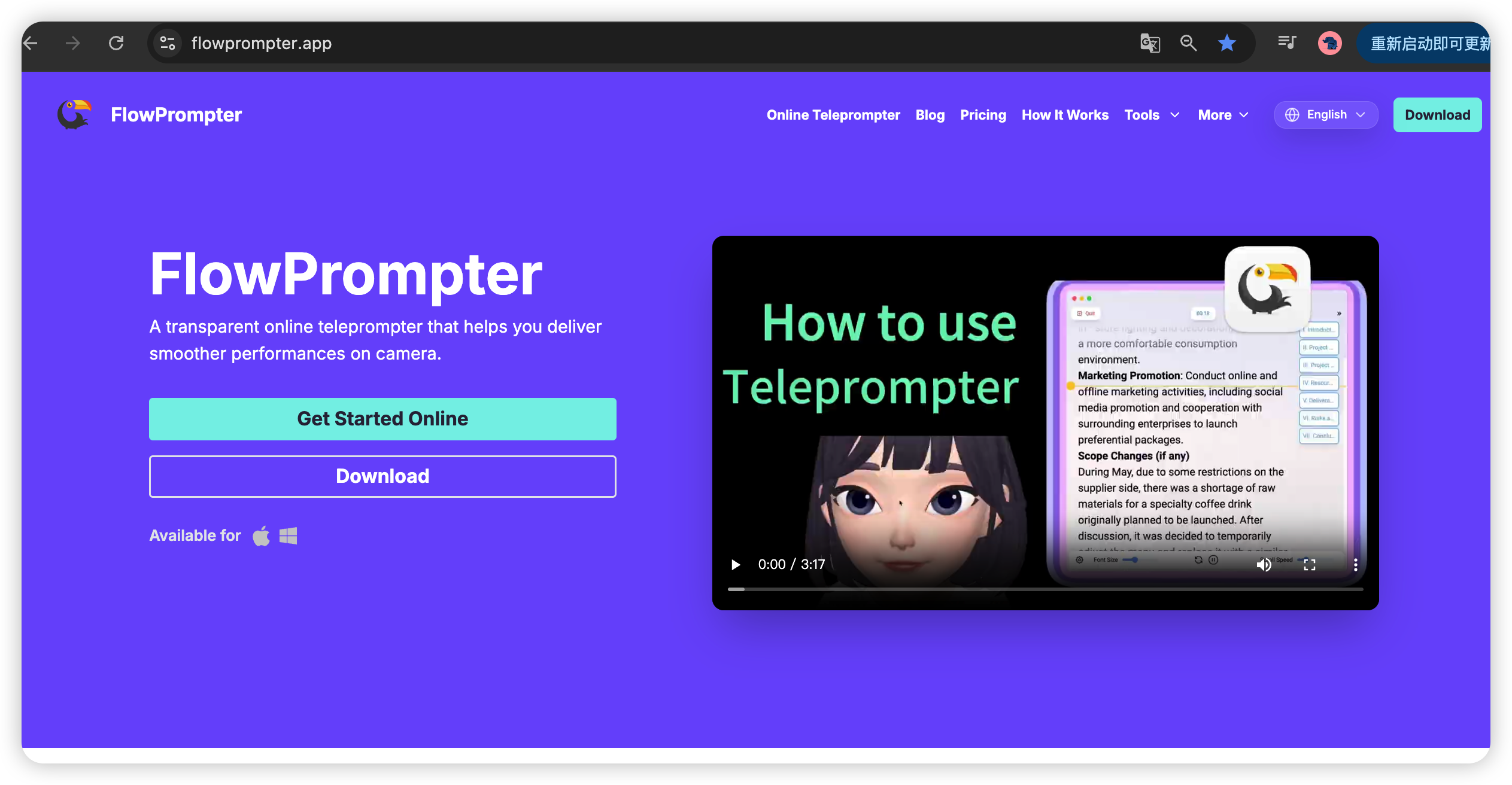
Head to flowprompter.app and download the Mac client. The installation takes less than a minute - just drag the app to your Applications folder.
Step 2: Create Your First Script
Open FlowPrompter and click "New Script." Here's where the magic begins - FlowPrompter's built-in script editor is designed specifically for video recording:
Import from anywhere: Paste your script directly, import from a text file, or sync with Google Docs
Quick formatting: Bold, italicize, and highlight key phrases to remind yourself where to emphasize
Auto-save: Never lose your script - FlowPrompter saves automatically
Step 3: Position Your Camera
This is crucial - place your webcam directly on top of your monitor, centered with FlowPrompter's script window. If using an external camera, position FlowPrompter's window as close to the lens as possible.
Step 4: Configure Scroll Settings
FlowPrompter's scroll control is what sets it apart. Before recording, adjust these settings:
Scroll speed: Start at 30-40 words per minute, adjust based on your natural speaking pace
Font size: Larger fonts (24-32pt) help you read without squinting
Line spacing: Increased spacing makes it easier to track while maintaining eye contact
Recording Your First Video
Scenario 1: Recording a YouTube Intro
Let's say you're recording a tech review video. Your script:
"Hey everyone, welcome back to my channel! Today we're going to take a deep dive into the new iPhone 15 Pro Max. I've been using it for two weeks now, and I have some thoughts you won't want to miss. Let's get started!"
With FlowPrompter on Mac:
Highlight key phrases: Mark "welcome back," "deep dive," "two weeks," and "let's get started" - these are your emphasis points
Practice run: Read through once with FlowPrompter at half speed to get familiar
Start recording: Press record, hit FlowPrompter's play button, and deliver your intro confidently
Keyboard control: Use the spacebar to pause and resume - perfect for dramatic pauses or quick breaths

Scenario 2: Recording an Online Course
You're teaching a complex concept and need to maintain student engagement. Here's where FlowPrompter's features really shine:
Section markers: FlowPrompter lets you mark script sections, so you can jump to different parts of your lecture
Adjustable playback: Slow down during technical explanations, speed up for introductions
Real-time editing: If you discover a mistake, edit the script and continue recording seamlessly
Advanced Techniques with FlowPrompter
Maintaining Natural Eye Contact
The secret isn't to stare at the script - it's to read peripherally while appearing to look at the camera. Here's how FlowPrompter helps:
Mirror mode: Flip the script horizontally so your eye movement feels natural
Transparency control: Adjust script opacity so you can see yourself behind the text
Position memory: FlowPrompter remembers your preferred window position and size for each script
Keyboard Shortcuts for Efficiency
FlowPrompter's keyboard shortcuts make you faster:
Space: Play/Pause
Arrow Up/Down: Adjust scroll speed in real-time
Cmd+R: Reset to beginning of script
Cmd+S: Save script
Real-World Results
"Before FlowPrompter, I'd spend 2 hours recording a 10-minute video. Now I can do it in 30 minutes with better delivery." - David, Educational YouTuber
"My clients noticed immediately - my videos look more professional because I maintain eye contact throughout." - Sarah, Corporate Trainer
Troubleshooting Common Issues
Problem: Script moving too fast
Solution: Use FlowPrompter's speed presets (Slow/Medium/Fast) or manually adjust to your pace. Remember: it's better to be too slow than too fast.
Problem: Eyes darting too much
Solution: Increase font size and decrease line spacing. FlowPrompter's preview mode helps you see exactly how it'll look on camera.
Problem: Script looks too close to camera
Solution: Use FlowPrompter's background color matching to blend the script window with your recording environment.
Taking It Further
Ready to elevate your content? Here's your next steps:
Download FlowPrompter: Try the free version - no credit card required
Start small: Record a 30-second introduction first
Experiment: Try different scroll speeds and font sizes
Join the community: Connect with other creators using FlowPrompter for tips and best practices
Conclusion
Using a teleprompter app mac like FlowPrompter isn't about being fake - it's about being prepared so you can focus on what matters most: connecting authentically with your audience.
The best content creators aren't those who memorize every word. They're the ones who use the right tools to deliver their message confidently and naturally. With FlowPrompter, you can be one of them.
Ready to transform your video content? Download FlowPrompter for Mac today at flowprompter.app and start creating videos that truly connect with your audience.