5 Real Recording Scenarios Where a Teleprompter Saves the Take (and How to Set Yours Up)
If you record yourself speaking — for YouTube, client calls, courses, or live streams — you already know the trade-off: memorize and sound stiff, or read from notes and look like you're reading from notes. Your eyes drift off-camera, your energy drops, and the "um, let me check my notes" moments pile up in the edit.
A teleprompter solves this, but only if it fits the way you actually work. Below are five real scenarios creators and professionals run into every week, what usually goes wrong, and how a modern setup — one that follows your voice and stays invisible to your audience — fixes it.

Scenario 1: The Solo YouTuber Recording a Tutorial
The situation. You're recording a 10-minute software tutorial. You know the material cold, but the intro, the transitions, and the call-to-action never come out the same way twice. Take seven finally sounds natural — except you forgot to mention the free download link.
What goes wrong. Sticky notes around the monitor work for bullet points, not for full sentences. And every glance down at your phone is a visible eye-dart on camera.
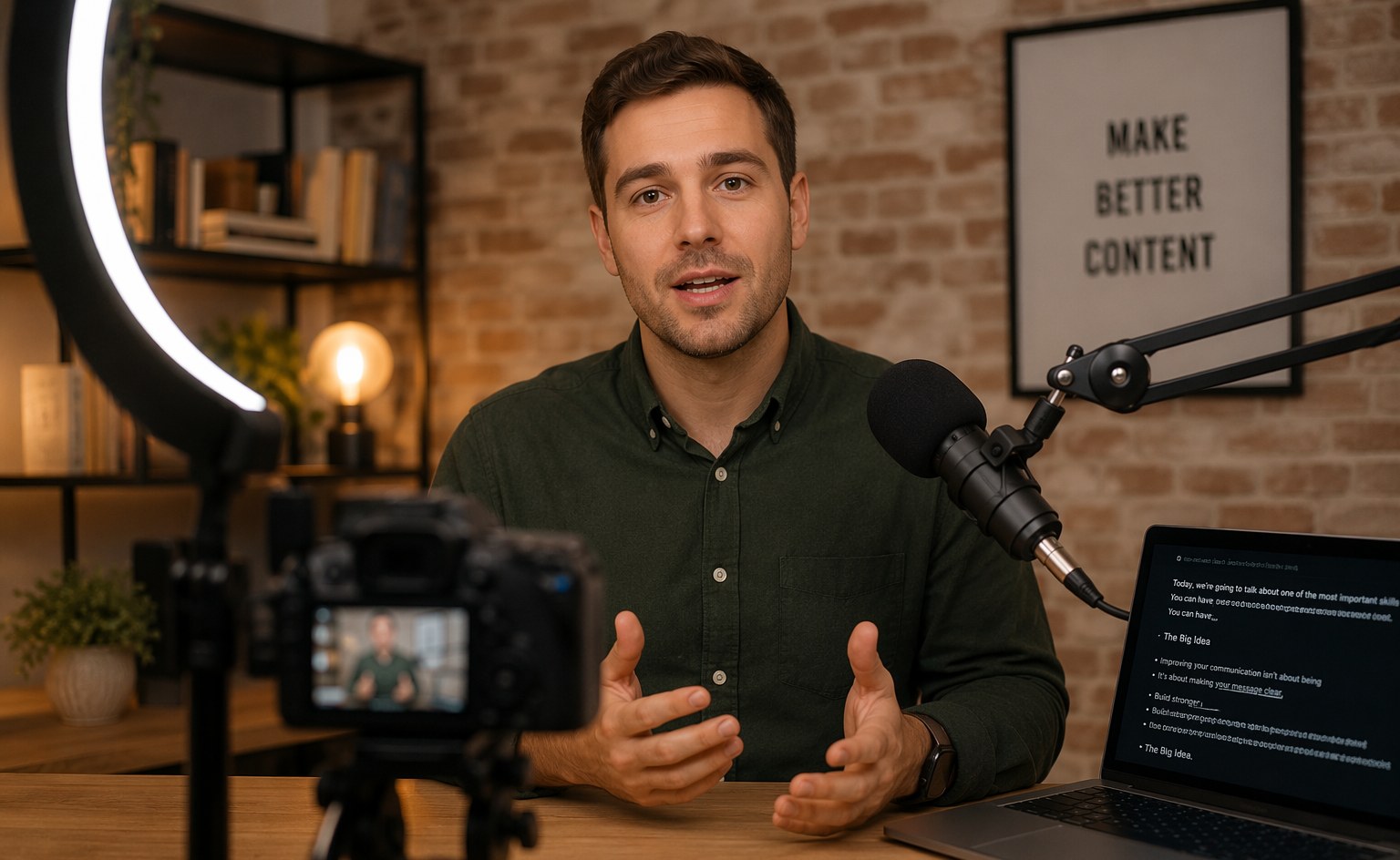
The fix. Put your script in a floating teleprompter window directly under your webcam, so your eyeline stays locked on the lens. With FlowPrompter, the overlay sits on your desktop while you record in OBS, Loom, or QuickTime — and because the window is designed to stay out of screen recordings, your script never leaks into the final capture. Write the full intro word-for-word, bullet the middle, and read the CTA verbatim. Two takes, done.
Scenario 2: Presenting on Zoom While Sharing Your Screen
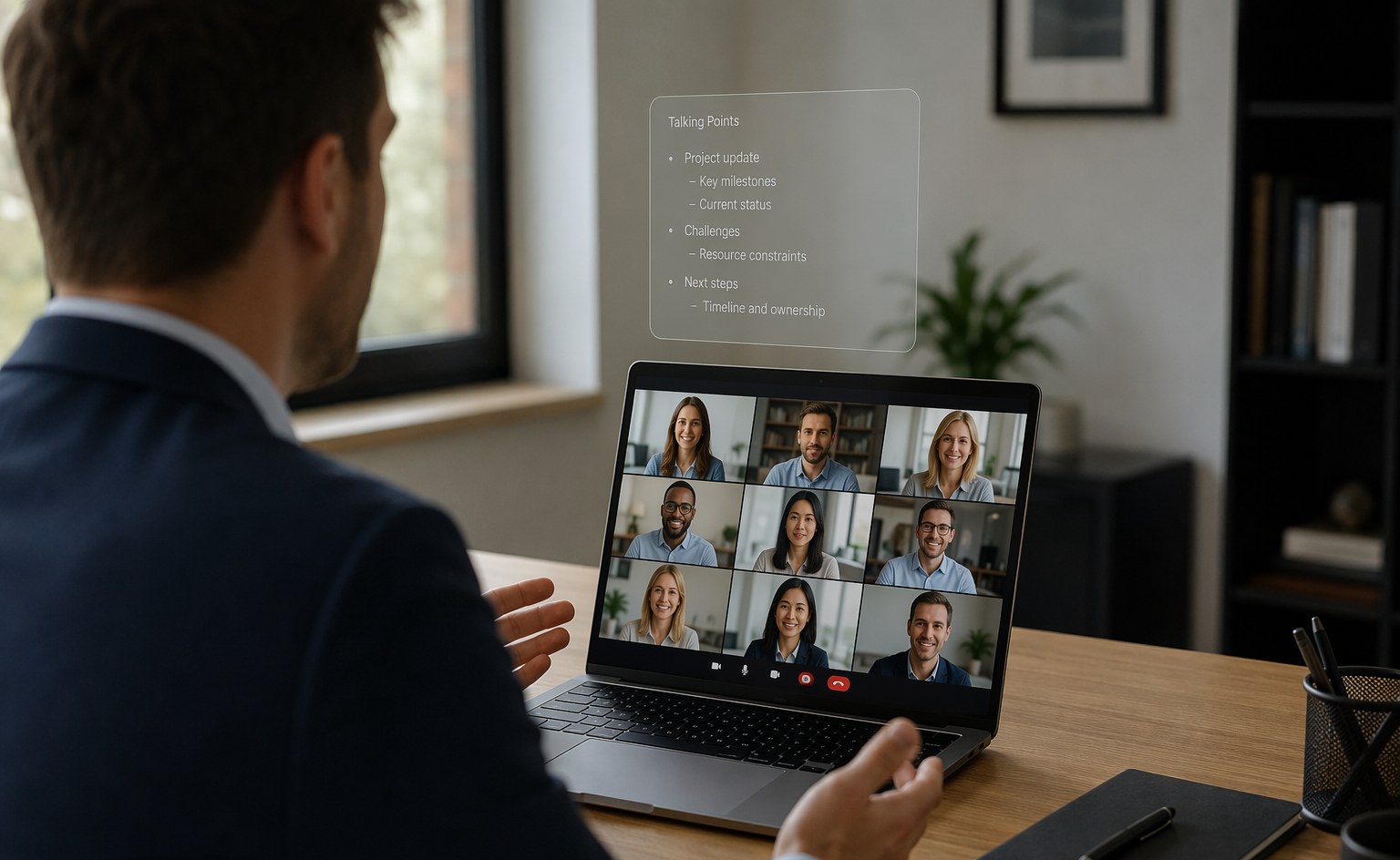
The situation. You're demoing a product to a client on Zoom. You need to share your screen and hit three specific talking points — pricing, the migration timeline, and a competitor comparison you practiced.
What goes wrong. The moment you share your screen, your notes in another window become visible to everyone — or you Alt-Tab away from the demo and the client watches you hunt for your talking points. Neither reads as prepared.
The fix. This is exactly what an invisible teleprompter is for. FlowPrompter's desktop window stays visible to you but hidden from screen sharing on Zoom, Google Meet, and Microsoft Teams. You talk through the demo, glance at your talking points floating over your own screen, and the client sees only a confident presenter who never loses the thread. It also handles screenshots — useful if someone asks you to "just send a quick capture of that screen."
Scenario 3: Recording an Online Course Module
The situation. You're filming a 20-lesson course. Consistency matters: same structure, same energy, no rambling. You scripted every lesson because reshooting module 14 in month three is not an option.
What goes wrong. Reading a script verbatim usually sounds like reading — flat, rushed, robotic. The pause-and-breathe rhythm that makes a teacher sound human disappears when you're chasing a static page.
The fix. Voice-following scroll. FlowPrompter's AI voice tracking listens as you speak and scrolls the script at your pace — in 14 languages, including English, Spanish, French, Japanese, and Chinese. Slow down to explain a hard concept and it waits for you. Ad-lib an example and it holds. Speed up through the recap and it keeps up. You get the precision of a full script with the delivery of someone speaking off the cuff.
Scenario 4: Going Live on a Stream or Webinar
The situation. You're live. There's no edit bay to save you. You have a run-of-show: sponsor read at minute 12, giveaway rules at minute 30, and a very specific way you need to phrase the legal disclaimer.
What goes wrong. Chat moves fast, and it's easy to blow past the sponsor read or mangle the disclaimer. Paper notes on the desk mean looking down — on camera, live.
The fix. Load your run-of-show as a script and let voice tracking carry the fixed segments. Because FlowPrompter syncs scripts across devices, you can draft the show notes on your laptop, then run the prompter on whatever machine is driving the stream. The invisible window means it never appears in your OBS output — your viewers see the show, you see the plan.
Scenario 5: The Podcast Intro and Outro
The situation. Your podcast conversation is unscripted — that's the charm. But the intro, the guest bio, and the outro CTA need to be tight, identical in quality every episode, and delivered while you're looking at your guest (or your camera).
What goes wrong. Even podcasters with 200 episodes flub the guest's book title or their own sponsor URL when they wing it.
The fix. Script only the bookends. Keep the intro, bio, and outro in a prompter; improvise everything in between. Draft the intro on your phone while commuting — scripts sync to your desktop, so it's waiting in the studio when you hit record.
What a Good Setup Actually Costs
Dedicated teleprompter hardware runs $100–$500 and locks you to one camera rig. A software setup costs nothing to start: FlowPrompter is free to try, and the desktop app — the one with the invisible window and voice tracking — runs on Windows, macOS, and iOS. If you upgrade, Plus is $9.9/month or $69.9/year, which is less than a single reshoot afternoon is worth.
The pattern across all five scenarios is the same: the words matter too much to improvise, but your delivery matters too much to read. A teleprompter that follows your voice and hides from your audience is how you stop choosing between the two.
Try FlowPrompter free — draft your first script online in two minutes, then download the desktop app when you're ready for the invisible window.