Loom Teleprompter for Screen Recordings
Use FlowPrompter with Loom to read your script naturally while the teleprompter stays out of the recording.
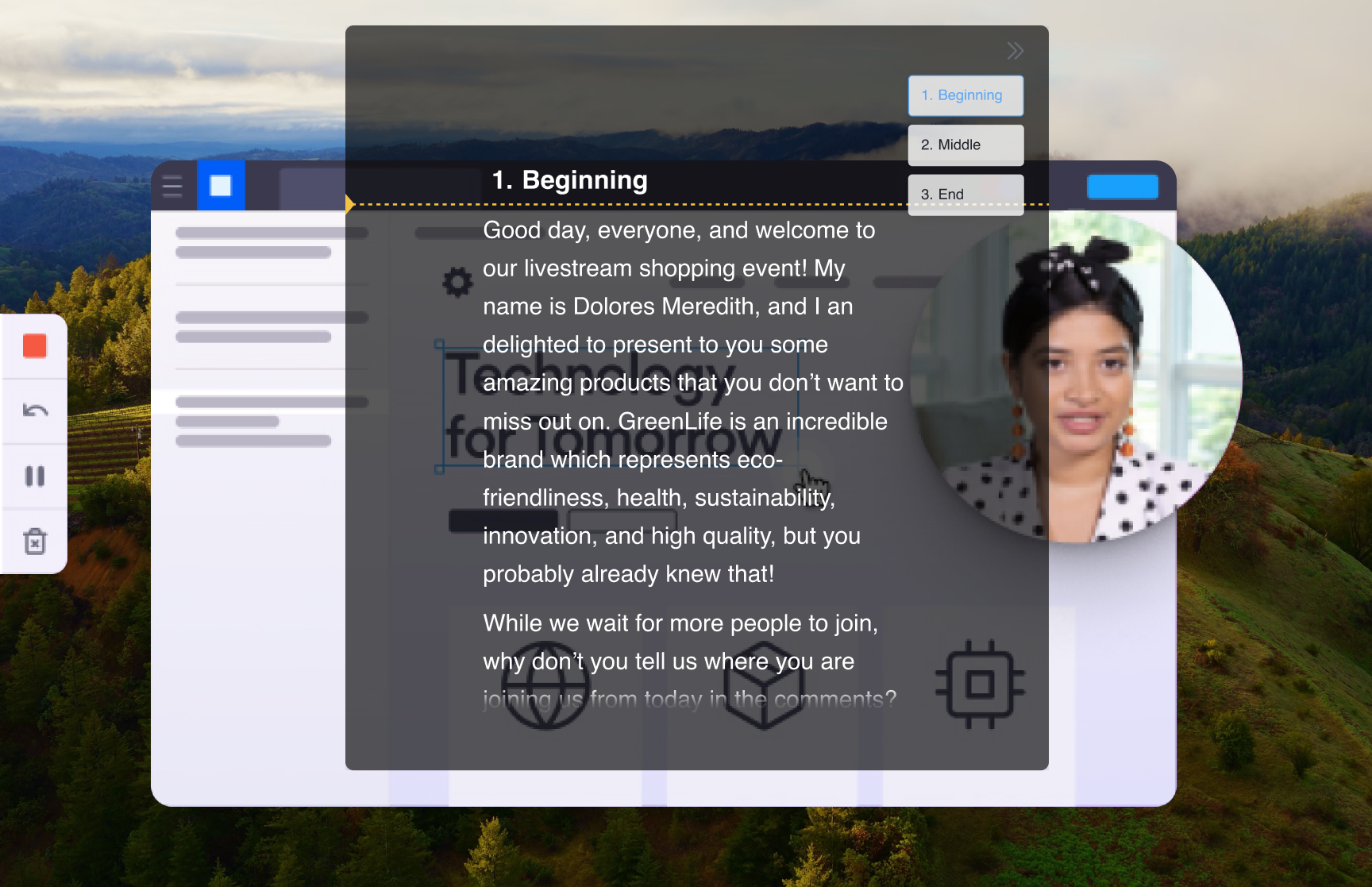
FlowPrompter works as a Loom teleprompter by placing your script beside the Loom camera bubble while keeping the prompt invisible to the final recording. That matters because Loom puts your face in a small camera bubble during a walkthrough, so wandering eyes are easy to notice. If you read notes from a second monitor, viewers see you looking away from both the bubble and the product you are demonstrating. With FlowPrompter, the Loom teleprompter sits where your eyes already need to be, and Window Privacy keeps Loom's screen capture from recording the prompt window. Your viewer sees a clean walkthrough; you see every word.
How to Set Up
Write the walkthrough script in FlowPrompter - one short paragraph per screen you plan to show
Turn on Window Privacy in FlowPrompter's settings so Loom can't capture the prompt window
Start a Loom in screen + camera mode and pick the display you'll present
Drag the prompt next to your Loom camera bubble, so your gaze stays near your own face in the final video
Hit record in Loom, start the scroll, and narrate the walkthrough in one take
Pro Tips
- 💡For the most natural Loom teleprompter setup, park the prompt directly above the camera bubble instead of on a second monitor
- 💡Demoing an app that sits behind the prompt? Enable Click-through so your clicks land on the app without moving the prompt first
- 💡Intelligent Pause halts the scroll when you stop talking — useful while a page loads or you improvise a side note
- 💡Tighten the script in FlowPrompter's editor before recording; cutting words is faster than trimming video afterwards
Common questions about FlowPrompter + Loom
- Will Loom record the FlowPrompter window?
- Enable Window Privacy before starting the Loom recording. FlowPrompter stays visible as your private prompt on your screen, but Loom's screen capture records the walkthrough without the prompt window.
- Where should I place a Loom teleprompter?
- Place the Loom teleprompter next to Loom's camera bubble, ideally just above or beside it. That keeps your eyes near your own face in the final recording instead of drifting to a second monitor.
- Is a Loom teleprompter useful for short async videos?
- Yes. A short script helps you explain the point once, avoid rambling, and finish the recording in one take. For quick walkthroughs, write one paragraph per screen you plan to show.
Best Use Cases for FlowPrompter + Loom
- →Async product walkthroughs and feature announcements recorded with a private prompt
- →Sales prospecting videos that follow a proven script without visible notes
- →Bug reports and code reviews narrated clearly on the first take
- →Onboarding Loom videos new teammates will re-watch for months
Download FlowPrompter for Desktop and use it as your Loom teleprompter
Download Desktop for invisible screen sharing. Use Online when you only need a quick draft.