You just hit "Record" on your webcam and immediately forget the first line of your script. Or worse—you're five minutes into a live Zoom presentation and your notes are buried under seventeen browser tabs. If you've ever stared at a blank screen wondering how people on YouTube deliver flawless takes without memorizing a novel, you're not alone. The good news? You don't need a $500 teleprompter rig or a Hollywood crew to look like you know exactly what you're talking about. You just need the right free teleprompter app for Windows 11.
The tricky part is figuring out which ones are actually useful versus which ones leave you wrestling with clunky interfaces, missing features, or surprise paywalls. I've spent more time than I'd like to admit testing everything from bare-bones browser tools to Microsoft Store downloads that promise the moon. Here's what actually works on a Windows 11 PC in 2026—and what to watch out for before you waste an afternoon on the wrong tool.
What to Look for in a Free Windows 11 Teleprompter

Before you download anything, know what separates a usable tool from digital clutter. At minimum, a decent teleprompter app should let you paste your script, adjust scroll speed, and flip text for physical teleprompter rigs. But if you're recording videos, hosting webinars, or presenting over Zoom, those basics aren't enough.
The feature that changes everything is voice tracking—the app listens to your microphone and scrolls automatically as you speak. Without it, you're stuck manually nudging the scroll wheel or guessing your pacing, which usually ends with you either racing ahead of the text or awkwardly waiting for it to catch up. Unfortunately, most free teleprompter apps for Windows 11 don't include voice tracking at all. They offer manual scrolling, maybe some font customization, and call it a day.
Another must-have for modern creators is screen-share invisibility. If you're presenting on Zoom, Google Meet, or Microsoft Teams, your audience shouldn't see your notes floating on screen. Many apps claim to handle this, but in practice, only a few actually hide the teleprompter window from screen recordings and shared displays. Others simply overlay text on top of everything—including your meeting window—defeating the entire purpose.
The Honest Free Options Worth Trying
If your budget is zero and your needs are simple, there are a few legitimate options to consider.
CuePrompter is the classic browser-based choice. It's completely free, works on any device with a browser, and requires no installation. You paste your script, adjust the scroll speed, and go. The catch? It's purely manual. No voice tracking, no screen-share hiding, no cloud sync. It's perfect for a one-off rehearsal, but if you're creating content regularly, you'll outgrow it fast.
QPrompt is a step up—it's open source, runs natively on Windows 11, and offers features like mirror mode, customizable keyboard shortcuts, and semi-transparent backgrounds. It's a solid manual teleprompter for events or video shoots where you have an operator controlling the scroll. Still, it lacks voice-activated scrolling, which means you're either practicing your pacing to perfection or accepting that your delivery won't feel entirely natural.
Imaginary Teleprompter is another free option that supports Windows and offers both online and downloadable versions. It includes basic voice-activated scrolling, though in our testing it worked best in Google Chrome and struggled with accuracy when background noise was present. If you're in a quiet room with a clean script, it's usable. For anything else, expect to fall back to manual mode.
The honest truth? Every free teleprompter app for Windows 11 makes a trade-off. You either get simplicity with no advanced features, or you get features that work inconsistently enough to break your flow mid-recording.
Where Free Apps Hit a Wall
Here's the part most roundup articles won't tell you: the gap between "free" and "actually useful" is wider than it looks.
Voice tracking that actually works is almost never free. PromptSmart, one of the better-known names in this space, charges $60 for its Pro version and limits its VoiceTrack feature to English only. If you record in Spanish, French, or any of the other dozen languages creators commonly use, you're out of luck. BIGVU starts at $17.91 per month and centers on mobile workflows, which means you're exporting footage between devices rather than recording directly on your PC. VoicePrompter and Notchie solve the screen-share invisibility problem beautifully—but they're macOS-only, leaving Windows users with no equivalent.
Cloud sync across devices is another premium feature. If you write your script on your desktop but film on your phone, free apps typically force you to email yourself the file or copy-paste between windows. It's not the end of the world, but it's friction you don't need when you're trying to batch-produce content.
Integration with recording tools is where most free options completely fall apart. You need your teleprompter to play nice with OBS, Streamlabs, Loom, Zoom, or whatever stack you're using. Browser-based free tools often show up in screen recordings whether you want them to or not, and native Windows apps frequently lack the transparency controls needed to layer your script cleanly over your camera feed.
Why FlowPrompter Changes the Free vs. Paid Equation
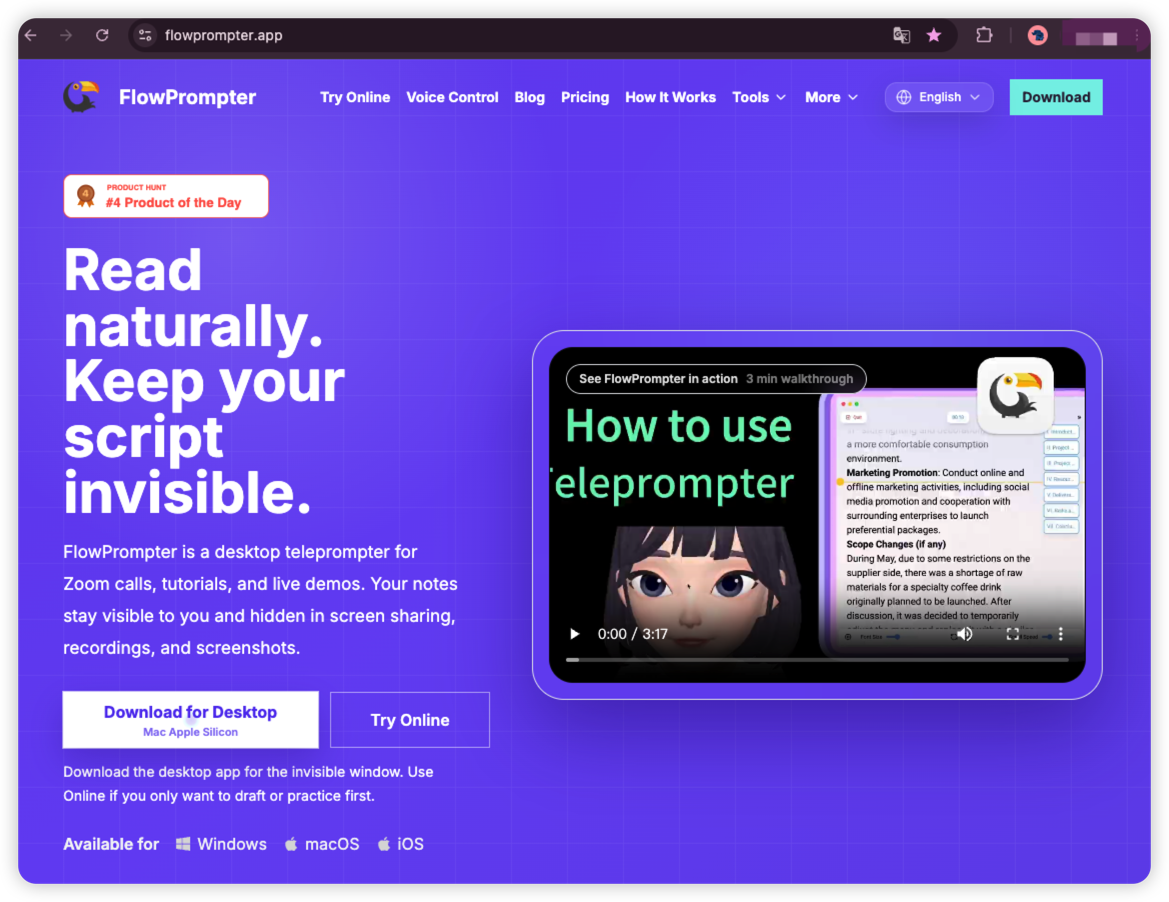
We built FlowPrompter because we got tired of choosing between "free but limited" and "expensive but overkill." Here's how it fits into the Windows 11 landscape without forcing you into a subscription from day one.
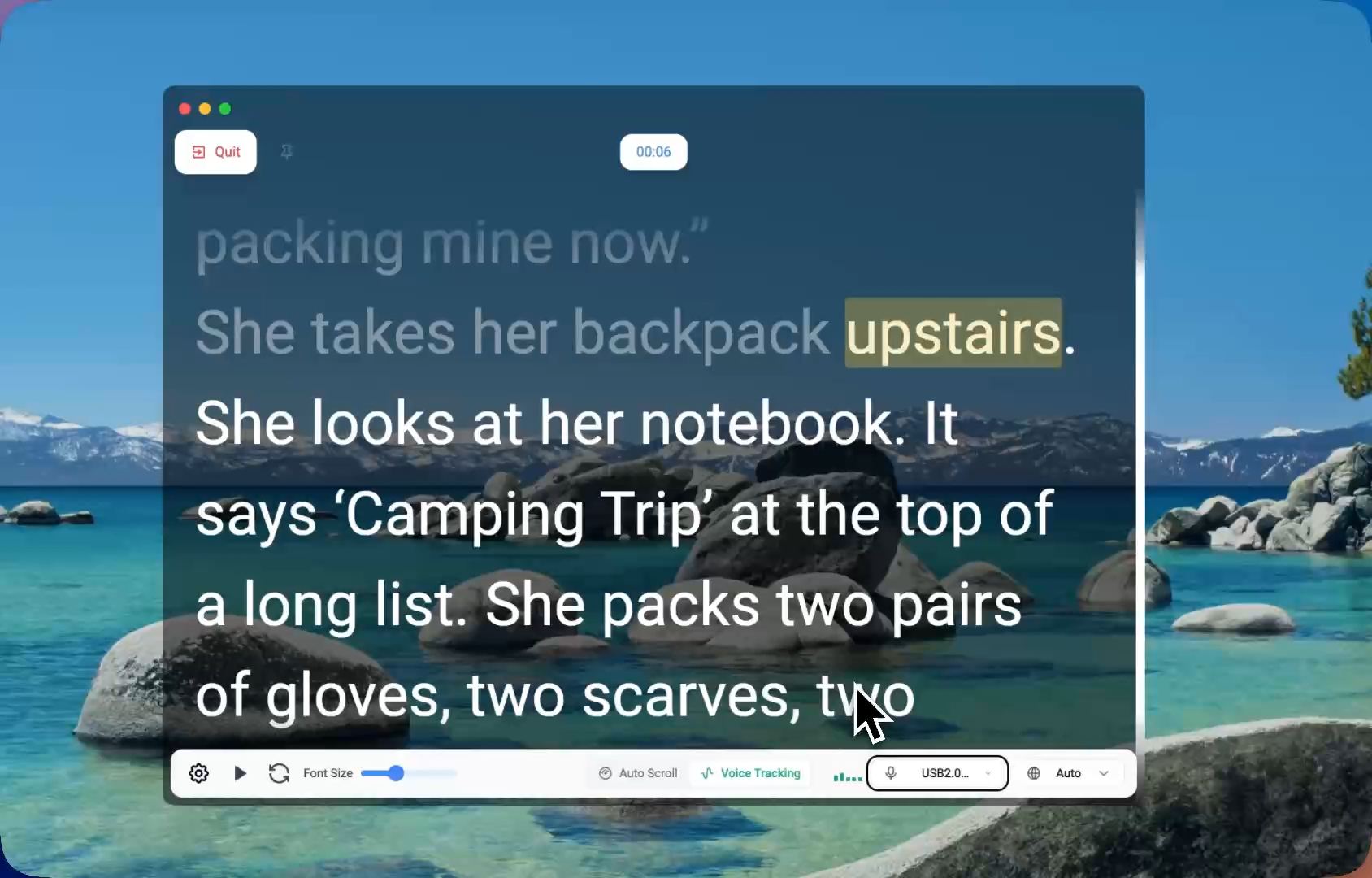
Free to start. FlowPrompter offers a genuinely free tier that gets you a native Windows 11 desktop app with AI voice tracking across 14 languages—not just English. The voice recognition follows your actual speaking pace, pauses when you pause, and resumes when you pick back up. Go off-script for a tangent? It waits. Return to your script? It picks up exactly where you left off. This isn't a gimmick. It's the difference between sounding rehearsed and sounding natural.
Invisible during screen share. FlowPrompter's floating overlay stays hidden from your audience when you're presenting on Zoom, Google Meet, or Microsoft Teams. You control whether it appears in screen recordings with a simple toggle, so you're never accidentally broadcasting your notes to a client or a live audience.
Works with your existing setup. Whether you're using OBS, Streamlabs, Loom, QuickTime, or just your webcam software, FlowPrompter sits on top without hijacking your workflow. No need to learn a new video editor or export files between apps.
Cross-device sync. Write your script on your Windows 11 desktop, rehearse on your iPhone, and record on either. Your scripts sync in real time across devices under the same account. It's a small thing until you've experienced the alternative—copy-pasting scripts between four different apps because nothing talks to each other.
If you eventually want more, the Plus plan is $9.9 per month, with quarterly and annual discounts that bring it well below the cost of competitors like BIGVU or PromptSmart. But the free tier is designed to be genuinely usable, not a teaser that locks the good features behind a paywall.
Quick Setup: Getting Started on Windows 11
If you want to test a free teleprompter workflow right now, here's the fastest path.
Pick your tool. For a quick one-off, try CuePrompter in your browser. For a native Windows app with more control, download QPrompt. If you want voice tracking without paying upfront, grab FlowPrompter's free tier.
Write or import your script. Most apps accept plain text copy-paste. FlowPrompter also integrates with its own AI Script Generator and Script Timer if you need help figuring out how long your video will run.
Position your teleprompter window. Place it as close to your camera lens as possible—ideally directly below or above it. The farther your eyes drift from the lens, the more obvious it is that you're reading.
Test your microphone and scroll speed. If you're using voice tracking, speak at your natural pace during a test run. If you're using manual scroll, find a speed that matches your rhythm without forcing you to rush or drag.
Do a 30-second trial recording. Play it back and check whether your eyes look engaged or whether you're clearly reading. Adjust font size, window position, and scroll speed until you pass the "doesn't look scripted" test.
FAQ
Is there a completely free teleprompter app for Windows 11 with voice control?
Most free options like CuePrompter and QPrompt offer manual scrolling only. FlowPrompter provides AI voice tracking on its free tier, which is rare among native Windows apps. If you find another truly free Windows app with reliable voice control, let us know—we haven't seen one yet.
Can I use a teleprompter during a Zoom call without others seeing it?
Yes, but only with apps designed for screen-share invisibility. FlowPrompter hides its overlay from shared screens and recordings. Browser-based tools and standard window overlays typically appear to your audience unless you use OBS with complex scene layering.
Do I need a second monitor to use a teleprompter on Windows 11?
No. A single monitor works fine if you position the teleprompter window near your webcam. A second monitor helps if you want to keep your script on one screen and your meeting or recording software on the other, but it's not required.
What's the difference between a browser teleprompter and a desktop app?
Browser tools work anywhere without installation but usually lack advanced features like voice tracking, offline use, and screen-share invisibility. Desktop apps like FlowPrompter and QPrompt run natively on Windows 11, offer better performance, and can integrate more deeply with your recording and meeting software.
Final Thoughts
If you're searching for a free teleprompter app for Windows 11, you'll find plenty of options that work for basic script reading. CuePrompter and QPrompt are honest, no-cost tools that serve specific use cases well. But if your goal is to record professional-looking videos, deliver confident presentations, or batch-create content without memorizing every line, the free tier that actually includes voice tracking, screen-share invisibility, and cross-device sync is FlowPrompter. Try it free and see if your next take is the one you actually want to publish.