The best teleprompter app on iPhone is the one that keeps your eyes close to the camera, moves the script at your speaking pace, and lets you record without building a complicated studio. For most creators, that means using one device for prompting and filming, then rehearsing until the words sound spoken rather than read.
This guide shows a repeatable setup for YouTube videos, TikToks, Reels, online courses, product demos, sales messages, and self-tape auditions. It also explains when an iPhone only setup is enough, when teleprompter glass helps, and how FlowPrompter fits into a cross device workflow.
Key takeaways:
Write or sync the script before opening the camera.
Place your iPhone at eye level and enlarge the type until it is readable without squinting.
Place the highlighted line near the camera, rehearse once, and record in short sections.
What should an iPhone teleprompter app do?
A useful iPhone teleprompter should solve four practical problems:
Eye line. The reading area should stay close enough to the camera that viewers perceive eye contact.
Pacing: the content should move at a speed you can speak naturally, rather than forcing you to race.
Readability. Font size, line spacing, colors, and a cue line should remain legible at your filming distance.
Workflow. Creating, editing, syncing, prompting, recording, and exporting should not require unnecessary copying between apps.
FlowPrompter is available on iPhone and iPad, requires iOS 15.2 or later, and is listed in the Photo & Video category. Its current App Store listing describes full-screen prompting, AI Voice Follow, recording, mirror mode, countdown, looping, and cloud script sync. You can verify the current compatibility and version information on the official FlowPrompter App Store page.
1. Read from a clean full-screen teleprompter
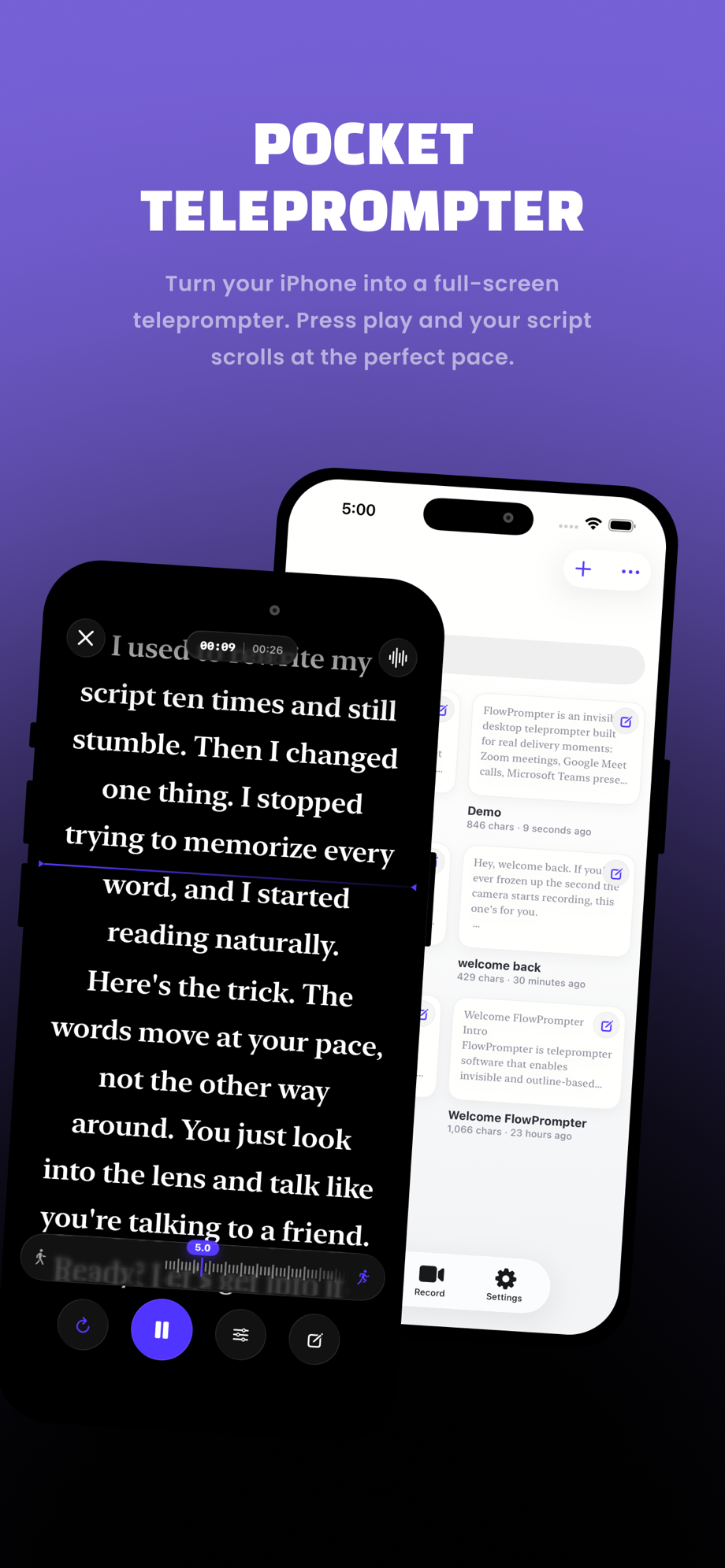
Pocket Teleprompter: the current FlowPrompter iPhone app combines a script library with a full-screen reading view.
Start by making each line easy to scan. A common mistake is fitting too many words on the screen. Smaller text may show more of the script, but it also increases eye movement and makes it more obvious that you are reading.
Recommended starting settings
Use a font size that shows roughly 5 to 8 short lines at your actual filming distance.
Choose high contrast: light text on a dark background often works well in a dim room.
Place the active reading line in the upper half of the screen, closer to the camera lens.
Break long paragraphs into one or two-sentence blocks.
Add punctuation where you want to breathe, pause, or change emphasis.
The goal is not to maximize the number of visible words. It is to minimize visible eye travel while keeping enough context on screen to speak confidently.
2. Use Voice Follow when fixed-speed scrolling feels unnatural
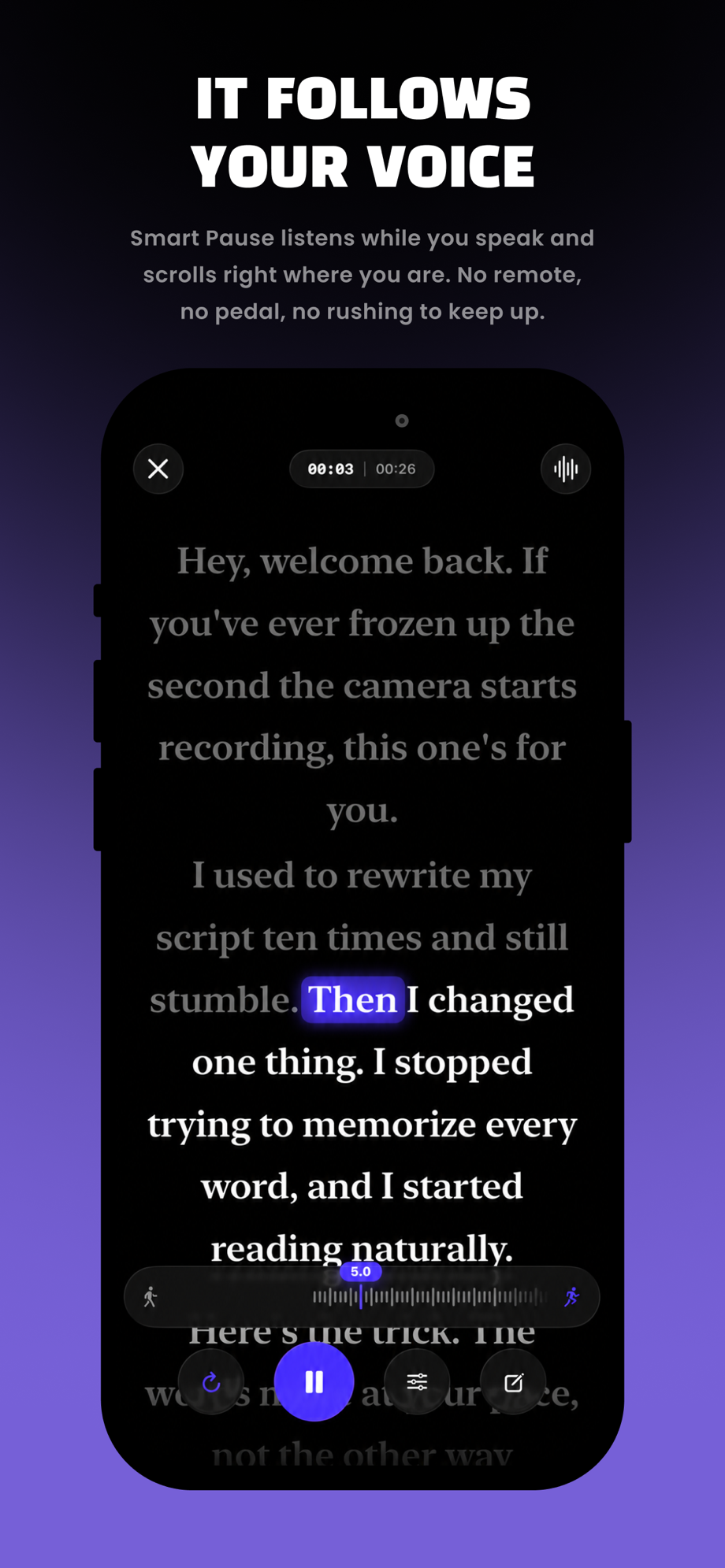
Voice Follow: FlowPrompter highlights the current phrase and advances the script as you speak.
Traditional auto-scroll uses a fixed speed. It works well when your delivery is consistent, but it can become distracting if you pause for emphasis, improvise, or restart a sentence.
FlowPrompter’s AI Voice Follow is designed to advance the script according to what you say. The current product documentation lists support for 14 languages: English, Spanish, German, French, Portuguese, Dutch, Russian, Japanese, Korean, Simplified Chinese, Traditional Chinese, Arabic, Hindi, and Malay. That makes voice-paced prompting useful for multilingual creators and teams, not only English-language videos.
How to get better voice-follow results
Write the words you actually plan to say; large improvisations make any script-matching system less predictable.
Test your microphone in the real room before the final take.
Reduce background speech, loud music, and echo.
Speak through punctuation instead of stopping after every line.
Keep manual scrolling available as a fallback for names, abbreviations, or specialized terms.
If you prefer strict timing, such as a 30 second ad, fixed-speed scrolling may still be the better choice. Use voice following for conversational delivery and fixed speed for tightly timed scripts.
3. Record on the iPhone while keeping your place

Record Mode: the script stays over the live iPhone camera view while you record.
An iPhone only setup is attractive because it removes device handoffs. You can prepare the script, read near the lens, record, and export from one device. FlowPrompter’s record mode places the prompt over the live camera view so you can monitor framing while reading.
A reliable recording sequence
Clean the rear or front camera glass.
Enable Do Not Disturb or a Focus mode to prevent interruptions.
Lock the handset at eye level on a stable tripod.
Frame slightly wider than the final crop so small movements are safe.
Record a 10-second test and check audio, exposure, focus, and eye line.
Record in sections instead of forcing a perfect multi minute take.
Export the clip and confirm it saved before changing apps or deleting anything.
Apple explains that camera access is controlled in iPhone Privacy & Security settings. If recording does not start, check that the app has camera and microphone permission. Photo Library permission may be required when saving directly to Photos; exporting to Files can use a different path.
How to position an iPhone teleprompter for natural eye contact
Placement matters as much as software. Use this checklist:
Lens height. Position the camera at eye level or slightly above it.
Reading zone. Place the active line as close to the top edge as the interface allows.
Distance. Increase the filming distance away before shrinking the font excessively.
Orientation. Use portrait for Shorts, Reels, and TikTok; use landscape for YouTube, courses, and presentations.
Framing. A medium shot usually hides small eye movements better than an extreme close-up.
A practical test is to record 15 seconds, mute the playback, and watch only your eyes. If they sweep noticeably from side to side, increase the font size, narrow the text column, move the reading line upward, or increase the distance from the screen.
Write scripts that sound natural on camera
Teleprompter delivery problems often begin in the script. Written prose and spoken language are different. A camera-ready script should use short sentences, direct verbs, and visible pauses.
Before
“Our platform provides creators with a comprehensive range of advanced features that are designed to facilitate the production of engaging video content.”
After
“FlowPrompter helps you record better videos. Your script stays in view, so you can focus on the front lens and your audience.”
The revised version is shorter, easier to breathe through, and easier to deliver with emphasis. Read every script aloud once before recording. If a sentence is difficult to say, rewrite it rather than practicing the awkward version repeatedly.
Common iPhone teleprompter problems
The delivery sounds robotic
Slow the scroll speed, add punctuation, and mark two or three words per paragraph for emphasis. Do not place the same pitch at the end of every sentence.
Your eyes visibly move across the screen
Increase font size, reduce line width, increase the filming distance, and place the active line near the lens.
You keep losing your place
Use shorter paragraphs, a cue line, or Voice Follow. Also remove stage directions from the main sentence flow; put them on their own lines.
The prompt moves ahead during a pause
Use Voice Follow or reduce fixed speed. If timing is strict, rehearse with the same pause pattern you will use in the final take.
The recording workflow causes too many retakes
Record in sections. Leave a silent beat before and after each section so the clips are easier to edit together.
iPhone only app or physical teleprompter?
Setup | Best for | Main advantage | Trade-off |
|---|---|---|---|
iPhone app only | Reels, TikTok, Shorts, quick updates | Fast, portable, one-device workflow | Reading area is offset from the lens |
iPhone plus teleprompter glass | Courses, YouTube, interviews, ads | More direct eye contact with a separate camera | More equipment and setup time |
Desktop transparent prompter | Webinars, meetings, screen recordings | Read while presenting on a computer | Not designed for handheld phone filming |
Frequently asked questions
Can I use my iPhone as a teleprompter without extra hardware?
Yes. Mount your iPhone at eye level, keep the highlighted line close to the lens, and record in the same app. Extra teleprompter glass is optional.
Can I write my script on a computer and read it on my iPhone?
Yes. FlowPrompter is designed to keep scripts available across devices when you sign in, allowing you to draft with a keyboard and present from the phone.
Should I use automatic scrolling or voice tracking?
Use automatic scrolling for tightly timed delivery. Use voice tracking when you pause, vary your pace, or want the prompt to follow your speech.
How close should the reading line be to the iPhone camera?
As close as practical. Place the active line near the top of the screen and use larger text so your eyes do not scan across long lines.
Does FlowPrompter work on iPad?
Yes. The App Store listing identifies it as a universal iPhone and iPad app. An iPad offers a larger reading area and can also work well with larger teleprompter rigs.
Final recommendation
Choose an iPhone teleprompter app based on delivery quality, not the number of settings. A clean reading view, flexible pacing, recording support, mirror mode, and script sync solve the problems creators encounter most often.
FlowPrompter combines those tools in one workflow on iPhone, iPad, web, and desktop. Start with a short script, test your eye line and audio, and improve the setup one variable at a time. The best result should look less like reading and more like speaking directly to one person.