Best Teleprompter for Screen Sharing: How to Present Naturally Without Showing Your Script
If you give online presentations, record videos, host webinars, teach classes, or join client meetings, you have probably faced the same problem: you want to speak clearly from a script, but you do not want your audience to see the script on your shared screen.
That is exactly where a screen-sharing teleprompter becomes useful. Instead of memorizing every line or constantly looking down at notes, you can keep your talking points visible to you while presenting naturally to everyone else.
FlowPrompter is a transparent teleprompter designed for online meetings, screen sharing, recordings, and professional presentations. It helps you read your script smoothly while keeping the prompt hidden from your audience during screen sharing, recording, and screenshots.

What Is the Best Teleprompter for Screen Sharing?
The best teleprompter for screen sharing should do more than display text. It should help you stay natural, focused, and confident while protecting your script from being shown to viewers.
A good screen-sharing teleprompter should have these features:
A transparent or overlay-style prompt window
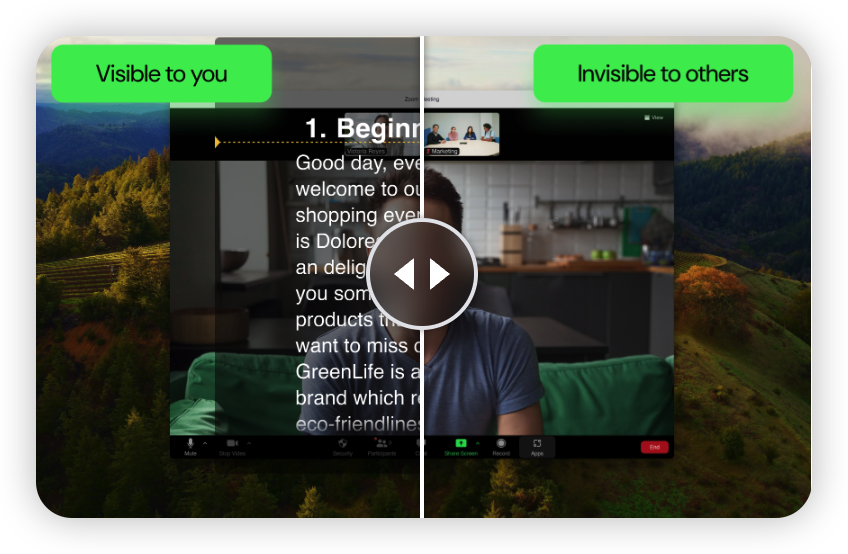
The ability to stay visible to the presenter but hidden from the shared screen
Voice tracking or auto-scroll support
Script syncing across devices
Support for meetings, recordings, webinars, and online courses
Easy script drafting and editing
FlowPrompter is built around these needs. It is especially useful for people who need to speak on camera or during screen sharing without appearing to read from a document.
Why Traditional Notes Do Not Work Well in Online Presentations
Many presenters use a second monitor, printed notes, sticky notes, or a document placed beside the meeting window. These methods work, but they often create problems:
Your eyes move away from the camera too often
Your delivery sounds less natural
You lose your place while switching windows
Your notes may appear accidentally during screen sharing
You spend too much time memorizing instead of communicating
For creators, educators, sales teams, coaches, and remote professionals, this can affect trust and clarity. A teleprompter designed for screen sharing solves this by letting you keep your message in front of you while maintaining a more natural delivery.
How FlowPrompter Helps You Present Without Showing Your Script
FlowPrompter is designed for situations where the presenter needs private access to a script while sharing a screen or recording content. On desktop, FlowPrompter’s invisible window lets you see the prompt while keeping it hidden from your audience during screen sharing, recording, and screenshots.
This makes FlowPrompter useful for:
Zoom presentations
Google Meet calls
Microsoft Teams meetings
Webinars and online workshops
YouTube video recording
Online courses and tutorials
Sales demos and investor pitches
Livestreams and remote interviews
Key Feature 1: Invisible Teleprompter Window for Screen Sharing
The most important feature for online presenters is privacy during screen sharing. FlowPrompter’s desktop workflow is designed so your prompt stays visible to you but does not appear to others when you share your screen, record, or take screenshots.
This is especially helpful when you need to read structured talking points while showing slides, software demos, websites, dashboards, or documents.
Key Feature 2: Voice Tracking That Follows Your Speech
One common problem with teleprompters is scroll speed. If the text moves too fast, you feel rushed. If it moves too slowly, your delivery becomes awkward.
FlowPrompter supports voice tracking, which recognizes your speech and automatically scrolls the script as you speak. This helps you focus on the message instead of manually controlling the prompt.
FlowPrompter’s voice tracking supports 14 languages, including English, Spanish, German, French, Portuguese, Dutch, Russian, Japanese, Korean, Simplified Chinese, Traditional Chinese, Arabic, Hindi, and Malay.
Key Feature 3: Online Drafting and Desktop Delivery
FlowPrompter supports both online and desktop workflows. The online version is useful for quickly drafting, editing, and practicing scripts. The desktop version is designed for real presentation moments, especially when you need the invisible teleprompter window during meetings, recordings, or screen sharing.
This workflow is helpful because writing and presenting are different tasks. You can prepare your message online, then deliver it professionally from the desktop app.
Key Feature 4: Script Sync Across Devices
Presenters often prepare scripts on one device and deliver from another. FlowPrompter keeps scripts available across devices, so you can draft in one place and present from desktop when needed.
This is useful for busy creators, remote teams, teachers, founders, and professionals who work across laptops, desktops, and browsers.
Who Should Use FlowPrompter?
FlowPrompter is useful for anyone who needs to speak clearly while staying on script. It is especially valuable for people who present online or create video content regularly.
Content creators: Record YouTube videos, tutorials, shorts, and social media content with fewer retakes.
Remote professionals: Deliver better meeting updates, client calls, and internal presentations.
Educators and coaches: Teach online classes and workshops without losing structure.
Sales teams: Keep product demos, discovery calls, and pitches more consistent.
Founders and marketers: Present webinars, launches, and product walkthroughs with confidence.
Podcasters and livestreamers: Stay on topic while sounding more natural.
Why FlowPrompter Is Different from a Basic Teleprompter
A basic teleprompter only scrolls text. FlowPrompter is designed for modern digital work, where people present inside video calls, share screens, record tutorials, and create content from their computers.
The key difference is that FlowPrompter focuses on online presentation scenarios:
It supports invisible prompting during screen sharing
It works for recordings and screenshots
It includes voice tracking for natural pacing
It supports multiple languages
It combines online script preparation with desktop delivery
It keeps scripts synced across devices
How to Use FlowPrompter for a Better Online Presentation
Write your script: Start with your key points, introduction, transitions, and closing message.
Practice your pacing: Read through the script once to make sure it sounds natural.
Open FlowPrompter on desktop: Use the desktop workflow when you need to present, record, or share your screen.
Turn on voice tracking if needed: Let the teleprompter follow your speech automatically.
Start your meeting or recording: Share your screen while keeping your script visible only to you.
Speak naturally: Use the script as support, not as a wall of text to read mechanically.
Best Practices for Writing a Teleprompter Script
A good teleprompter script should be easy to speak, not just easy to read. For better results, keep your script conversational and structured.
Use short sentences
Write in a natural speaking voice
Add pauses between important ideas
Use headings to separate sections
Bold important words if it helps your delivery
Avoid long paragraphs that are difficult to scan
Practice once before recording or presenting live
FlowPrompter works best when your script is clear, structured, and written for spoken delivery.
FAQ: FlowPrompter and Screen-Sharing Teleprompters
Can people see FlowPrompter during screen sharing?
On desktop, FlowPrompter is designed so your prompt stays visible to you while remaining hidden during screen sharing, recording, and screenshots.
Is FlowPrompter useful for Zoom or Google Meet presentations?
Yes. FlowPrompter is useful for online meetings, screen sharing, webinars, remote presentations, and video calls where you need to stay on script without showing your notes.
Does FlowPrompter support voice tracking?
Yes. FlowPrompter supports voice tracking that recognizes your speech and auto-scrolls the script as you speak. It supports 14 languages.
Can I use FlowPrompter for video recording?
Yes. FlowPrompter is useful for video recording, tutorials, online courses, YouTube videos, demos, and other content creation workflows.
What is the difference between FlowPrompter Online and Desktop?
FlowPrompter Online is useful for fast drafting and practice. FlowPrompter Desktop is best for real meetings, recordings, and screen sharing because it supports the invisible prompt window workflow.
Is FlowPrompter free to use?
Yes. You can start free and upgrade when you need longer sessions, more control, or the full desktop workflow for professional delivery.
Conclusion: A Better Way to Present on Screen
If you want to speak naturally while staying on message, a teleprompter can make a major difference. But for online meetings and screen sharing, you need more than a simple scrolling text box. You need a teleprompter that works with the way modern presentations actually happen.
FlowPrompter helps presenters, creators, educators, and professionals deliver clearer messages without exposing their scripts to the audience. With invisible screen-sharing support, voice tracking, multilingual recognition, online drafting, desktop delivery, and script sync, it is built for the future of online communication.
Try FlowPrompter today: https://flowprompter.app/