How to Choose Between Voice Tracking and Auto Scroll for Long Video Recordings
If you record long lessons, webinars, tutorials, or talking-head videos, the better choice is usually the mode that can keep up with your real speaking pace. A fixed-speed scroll can work for short, tightly scripted clips, but once a session runs 10 minutes, 20 minutes, or longer, many creators find that speech-aware prompting leads to fewer retakes and a calmer delivery.
TL;DR: Use fixed scrolling for short recordings with a predictable rhythm. Use a speech-aware prompt for long recordings, natural pauses, ad-libbing, and presentations where your pace changes between sections. If your main problem is losing your place while the text keeps moving, the listening mode is usually the better fit.
This guide compares both approaches in practical terms, shows where each one breaks down, and explains what to choose if you want fewer retakes and a more natural on-camera delivery.
How Are the Two Modes Different?
In one mode, the script moves at a pace you choose before recording. After that, you try to keep your reading aligned with the moving text.
In the other mode, the app listens to your delivery and keeps the active line aligned with how you actually move through the script.
That difference sounds small, but during a 15-minute tutorial or a 30-minute lesson, it changes the whole recording experience.
Mode | How it works | Best for | Main weakness |
|---|---|---|---|
Auto scroll | Moves at one preset rate | Short scripts, repeatable intros, simple promos | Gets ahead of you when you pause or improvise |
Voice tracking | Tracks your spoken pace while you read | Long lessons, presentations, webinars, natural delivery | Needs clear speech input and a reliable mic |
Why Fixed-Speed Scrolling Breaks Down in Longer Sessions
A preset pace is not bad. It is simply less forgiving once a recording becomes long enough for your speaking speed to change naturally.
In a short 30-second clip, one setting may be perfectly fine. In a 12-minute explainer, a 20-minute course lesson, or a 45-minute webinar section, small timing mismatches start adding up.
You may slow down to emphasize a point. You may pause to breathe. You may repeat a sentence because the first delivery felt off. The text keeps moving anyway.
Pauses break sync: even a 2-second pause can push the text ahead of you.
Section changes break rhythm: intros, examples, and summaries rarely use the same speaking speed.
Manual correction adds stress: once you start chasing the moving prompt, delivery usually gets worse.
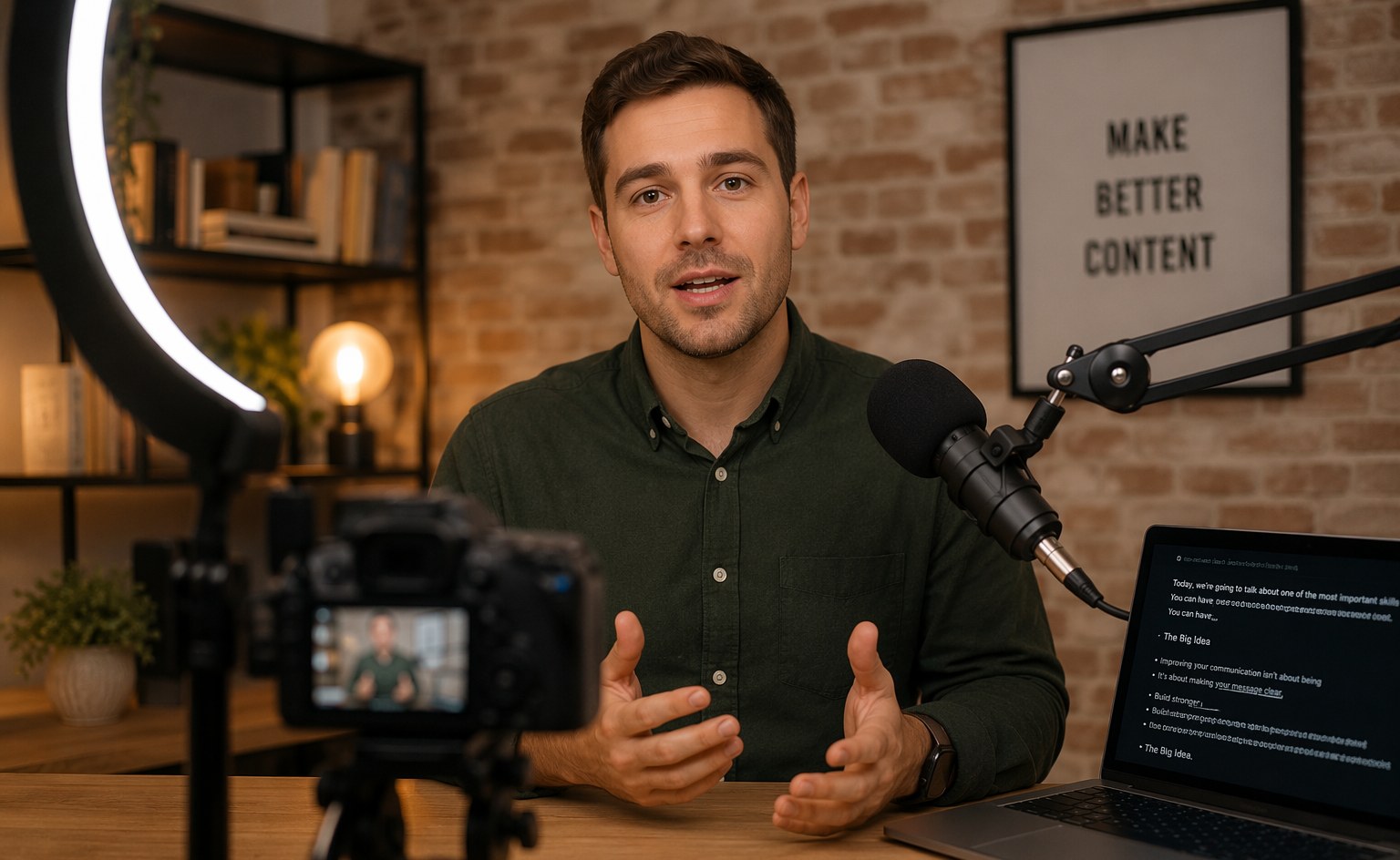
Long-form recordings are where one-speed prompting usually becomes harder to manage.
Why Speech-Aware Prompting Often Feels More Natural
This approach is more forgiving because it respects how people actually speak. Real delivery is uneven in a good way. You pause for emphasis, slow down for definitions, and speed up when covering familiar material.
That is especially helpful when you are recording educational content, screen-share presentations, client demos, or any video longer than a few minutes.
Instead of thinking, “I need to keep up with the script,” you can focus on whether the explanation sounds clear, calm, and believable.
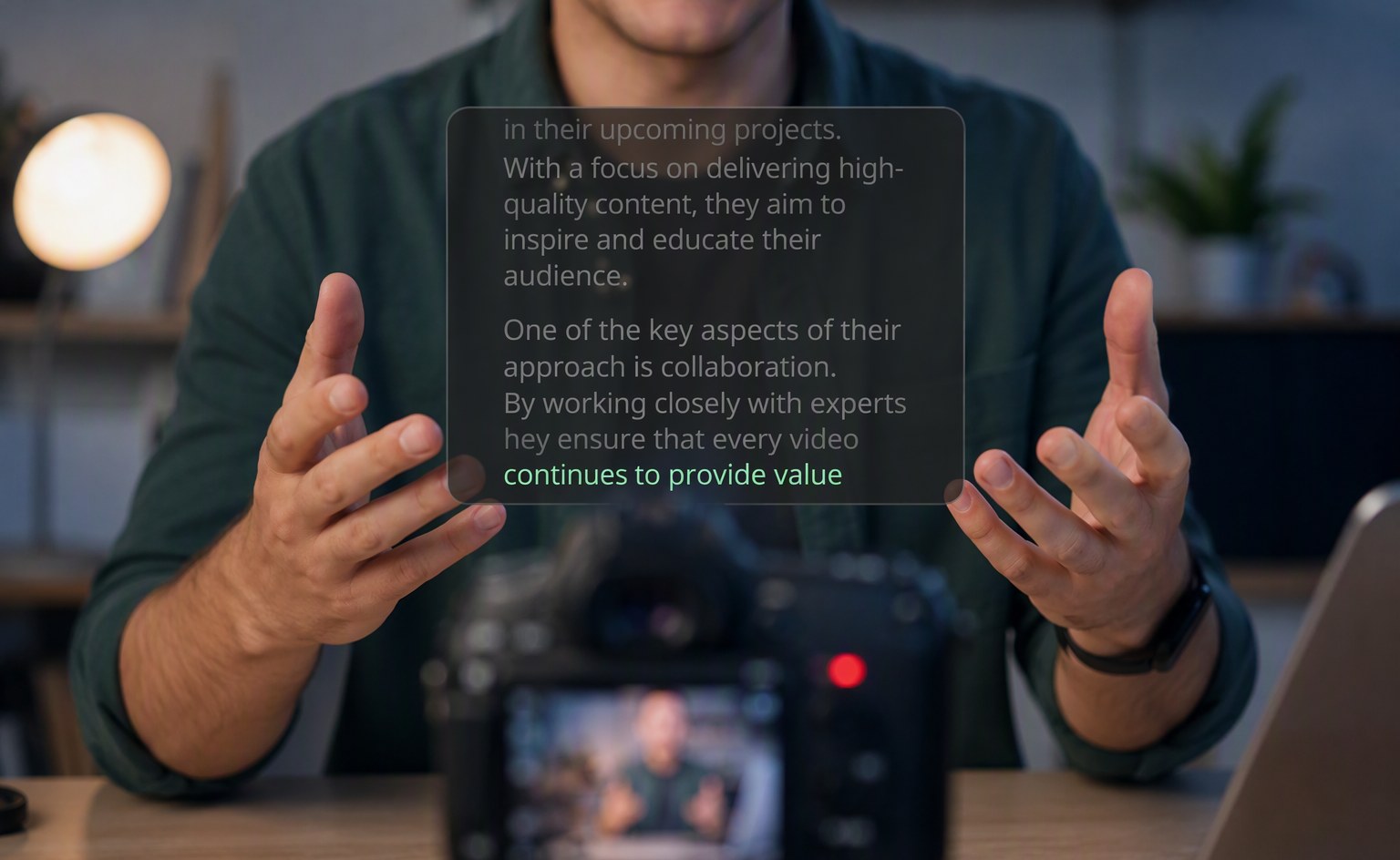
When the prompt follows your speech, it is easier to stay relaxed and keep your delivery natural.
Which One Fits Different Recording Scenarios?
Short Social Videos Under 1 Minute
The preset option can be enough if the script is tight and your rhythm is predictable. For quick promo clips, short updates, or simple intros, the lighter setup may be all you need.
5- to 10-Minute Talking-Head Videos
This is where the choice becomes more personal. If you speak in a very even rhythm, preset movement may still work. If you pause often or like to ad-lib between points, the mode that follows your speech usually feels easier.
10- to 30-Minute Lessons or Tutorials
The speech-aware option is usually the safer choice. Long educational recordings include more pace changes, more section transitions, and more chances to fall out of sync with automatic movement.
Live Presentations and Webinars
The listening mode is often better because live speaking is less predictable. If you respond to the audience, adjust your phrasing, or pause between slides, a rigid timer becomes harder to manage.
How Should You Decide?
Pick the mode based on how variable your delivery is, not just on what sounds more advanced.
Choose auto scroll if your script is short, your pace is steady, and you want a simple setup.
Choose voice tracking if you record longer content, pause naturally, or often fall behind when the text keeps moving on its own.
Test both with a 30-second sample before a full recording. That quick test usually makes the better option obvious.
What Matters in a Good Speech-Aware Teleprompter?
If you decide this approach is the better fit, the details matter. A good implementation should do more than just sound impressive on a feature list.
Fast alignment: the prompt should stay close to your current line without obvious lag.
Clear visual focus: you should always know what line is active.
Manual fallback: playback and scroll controls still matter when you want extra control.
Readable layout: larger text, spacing, and contrast help a lot during 20-minute-plus sessions.
How FlowPrompter Fits This Workflow
FlowPrompter is designed for creators who need more than a basic scrolling script window. Its setup is especially useful when you record on desktop, teach through longer scripts, or need a prompt that feels less rigid during screen sharing and on-camera delivery.
In practice, that makes it a stronger fit for people recording lessons, demos, webinars, and professional talking-head videos where ordinary fixed pacing often becomes frustrating.
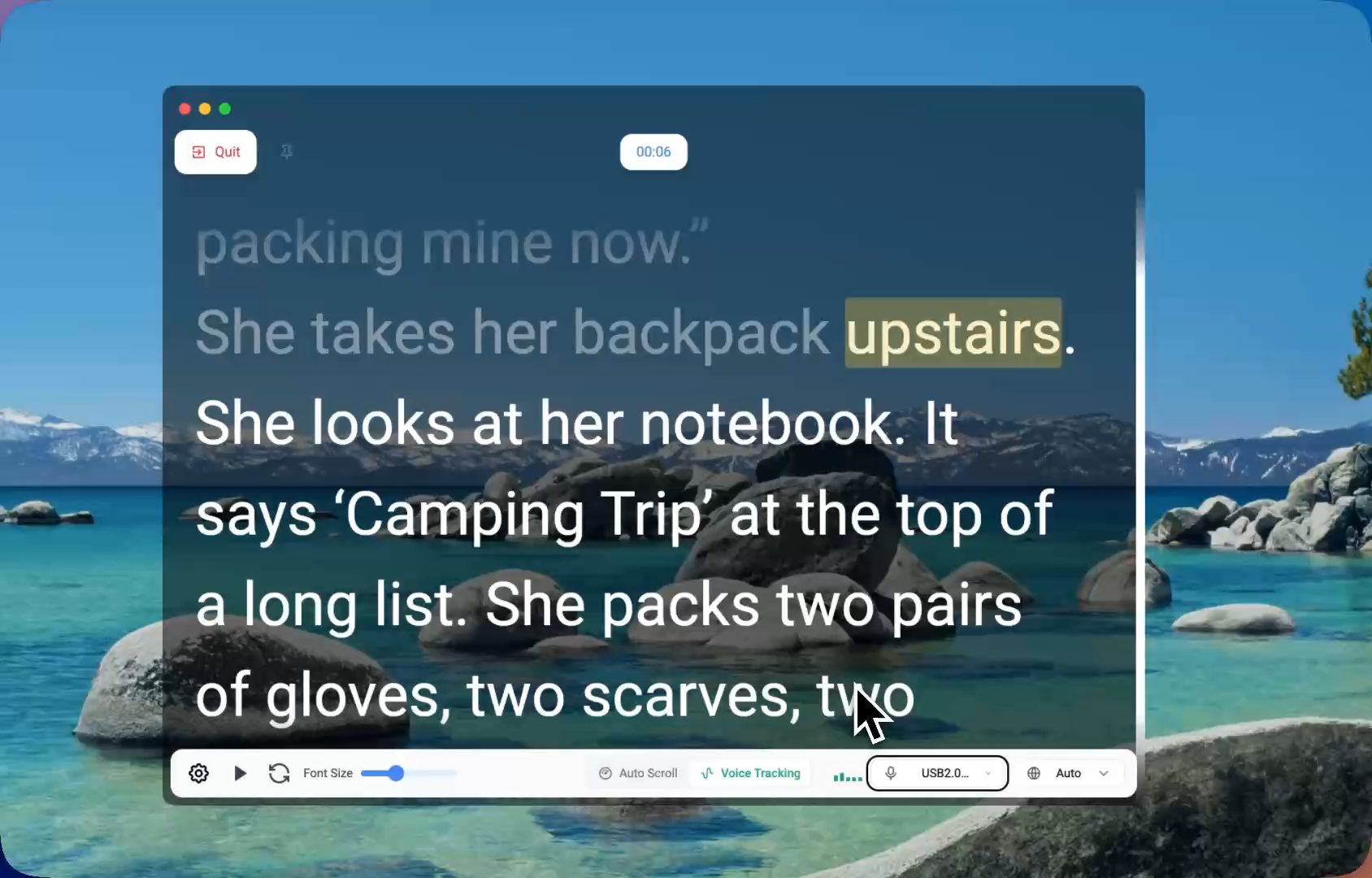
A workflow built for long recordings matters more than features that only look good in a short demo.
When Is the Simpler Mode Still Better?
Yes, there are cases where the simpler option still wins. If your script is extremely short, highly rehearsed, and unlikely to change pace, a standard scrolling setup can be faster to set up. Some creators also prefer it for repeated formats where every video follows the same structure and timing.
A prompt that listens to your pace is not automatically better in every case. It is better when your delivery is dynamic enough that rigid timing becomes the problem.
Where the Evidence Comes From
These recommendations line up with how major presentation and recording tools describe live presentation workflows, especially where pacing, rehearsal, and speaker control matter. You can compare presentation guidance from Zoom support, screen-recording workflow guidance from OBS Studio, and presentation best practices from Google Meet help.
For creators evaluating responsive prompting, the most useful evidence usually comes from actual recording behavior: longer sessions create more timing drift, and more timing drift makes automatic scrolling harder to manage.
Final Verdict
If your recordings are longer than a few minutes, include natural pauses, or require a more conversational style, voice tracking is usually the better option. Auto scroll still has a place, especially for short, repeatable scripts, but it becomes much less forgiving as recording length increases.
If your biggest frustration is losing sync with the prompt, switching from rigid timing to a prompt that follows your speech is often the most practical improvement you can make.
Try FlowPrompter: https://flowprompter.app/