How to Use a Teleprompter in Microsoft Teams Without Showing Your Script
Key takeaways:
Keep a narrow reading panel close to the webcam.
Share only the presentation window when possible.
Verify the attendee view from a second device before the meeting.
FlowPrompter adds a transparent desktop prompt for Windows and Mac, so you can read talking points while continuing to see Teams, PowerPoint, a browser, or a product demo.
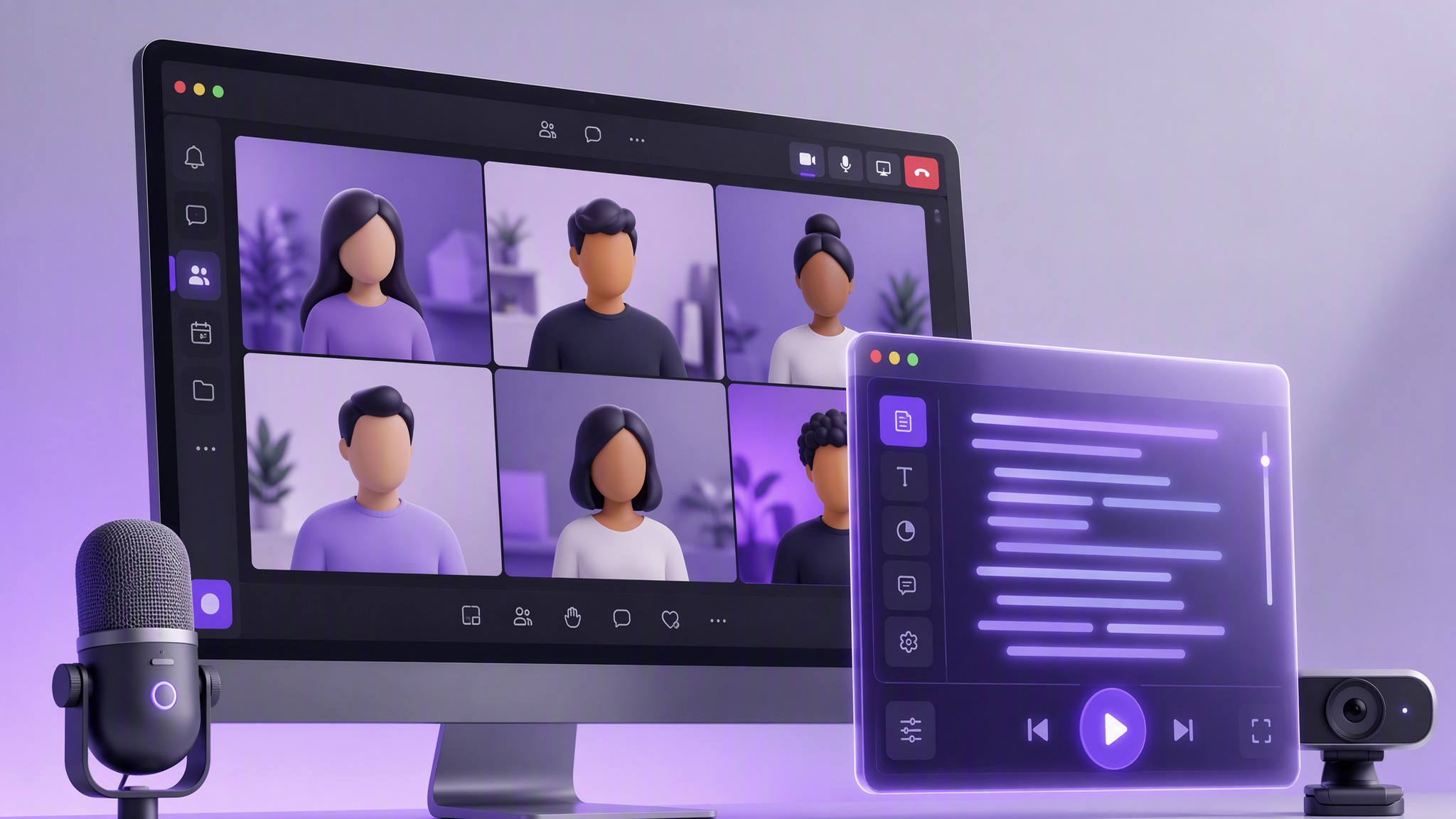
This guide covers three common Teams workflows: speaking on camera without sharing, presenting a specific window, and sharing an entire desktop. It also explains why “invisible” should never mean “untested.” Teams offers several sharing modes, and the content visible to participants depends on what you choose to share.
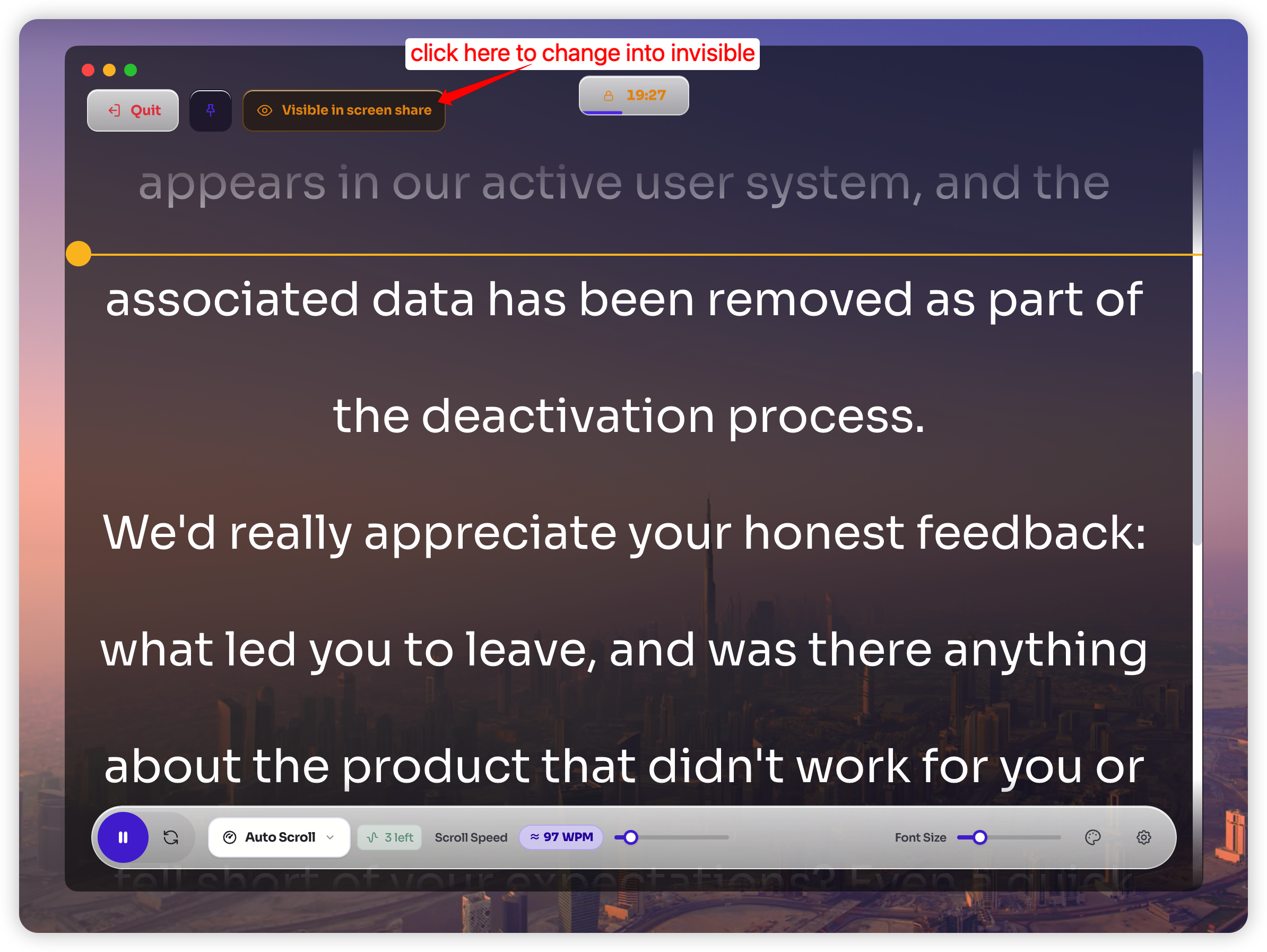
Quick Setup: Teams Teleprompter in 6 Steps
Turn a written script into short spoken phrases instead of long paragraphs.
Open the script in FlowPrompter on Windows or Mac.
Start the transparent prompt and resize it to a narrow column.
Place that column directly beneath or beside the webcam.
In Teams, share a specific window instead of the whole desktop when that fits the presentation.
Join from a phone or second computer and confirm exactly what an attendee can see.
That final check matters because Microsoft Teams can share an entire screen, one window, PowerPoint content, and other sources. Microsoft’s own documentation distinguishes between sharing a screen and sharing a window; your choice changes the audience view. See Microsoft’s guide to presenting content in Teams.
Why a Teleprompter Helps in Microsoft Teams
Reading from a document at the bottom or side of a monitor creates visible eye movement. The audience sees you look away from the camera, scan a line, return to the lens, and repeat. A teleprompter reduces that movement by moving the words toward the webcam instead of requiring you to memorize every sentence.
Use the script as a delivery rail instead of reading every word mechanically. For most Teams meetings, the prompt should function as a delivery rail: opening line, 3 to 5 evidence points, transitions, numbers that must be exact, and a closing request. This preserves natural speech while protecting the details that are easiest to forget under pressure.
A useful camera-distance rule is geometric: the farther your eyes move from the lens, the more obvious the reading becomes. A narrow prompt near the webcam usually looks more natural than a wide script centered lower on the display, even if both contain exactly the same words.
Feature 1: Use FlowPrompter’s Transparent Desktop Prompt
FlowPrompter’s desktop prompt sits above your working apps as a movable, transparent reading layer. You can keep the Teams controls or presentation visible behind the text, then adjust the panel’s width, font size, opacity, and scrolling behavior for the room and camera position.
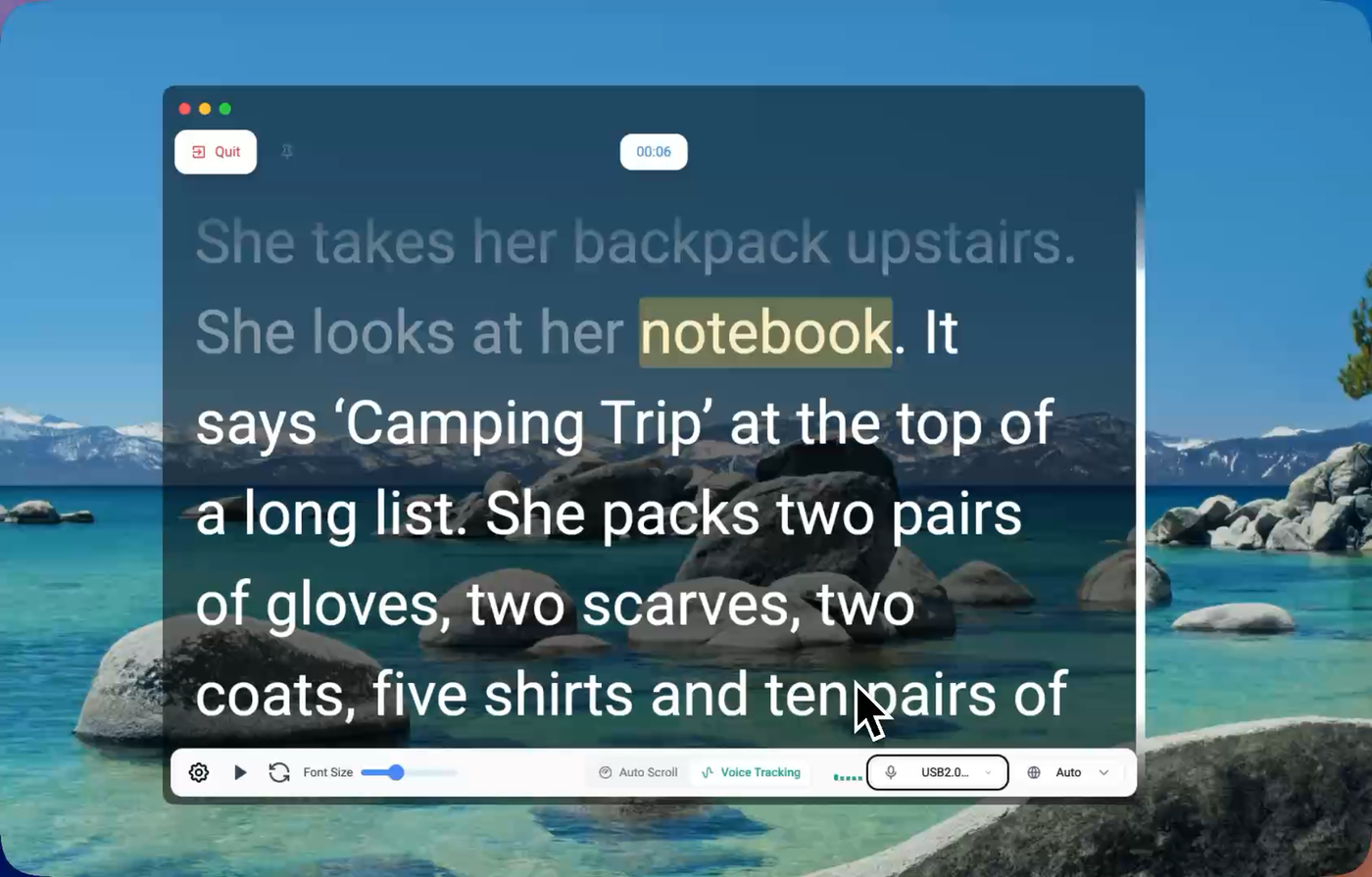
A transparent desktop prompt keeps speaking notes near the camera while the meeting remains visible.
Recommended layout
Width: 5 to 9 words per line is a practical starting point.
Position: directly below the webcam on a laptop; beside the physical lens for an external camera.
Font: large enough to read without leaning forward or narrowing your eyes.
Opacity: high enough for reliable reading, but low enough to retain context from Teams.
Text blocks: one claim or spoken beat per paragraph.
Do not stretch the prompt across the entire monitor. Long horizontal lines make the eyes travel left and right, which exposes the reading pattern. A smaller lens-adjacent box is usually more convincing than a large subtitles-across-the-screen layout.
Feature 2: Choose Voice Tracking or Auto Scroll
FlowPrompter supports both automatic scrolling and voice-follow prompting. These modes solve different problems.
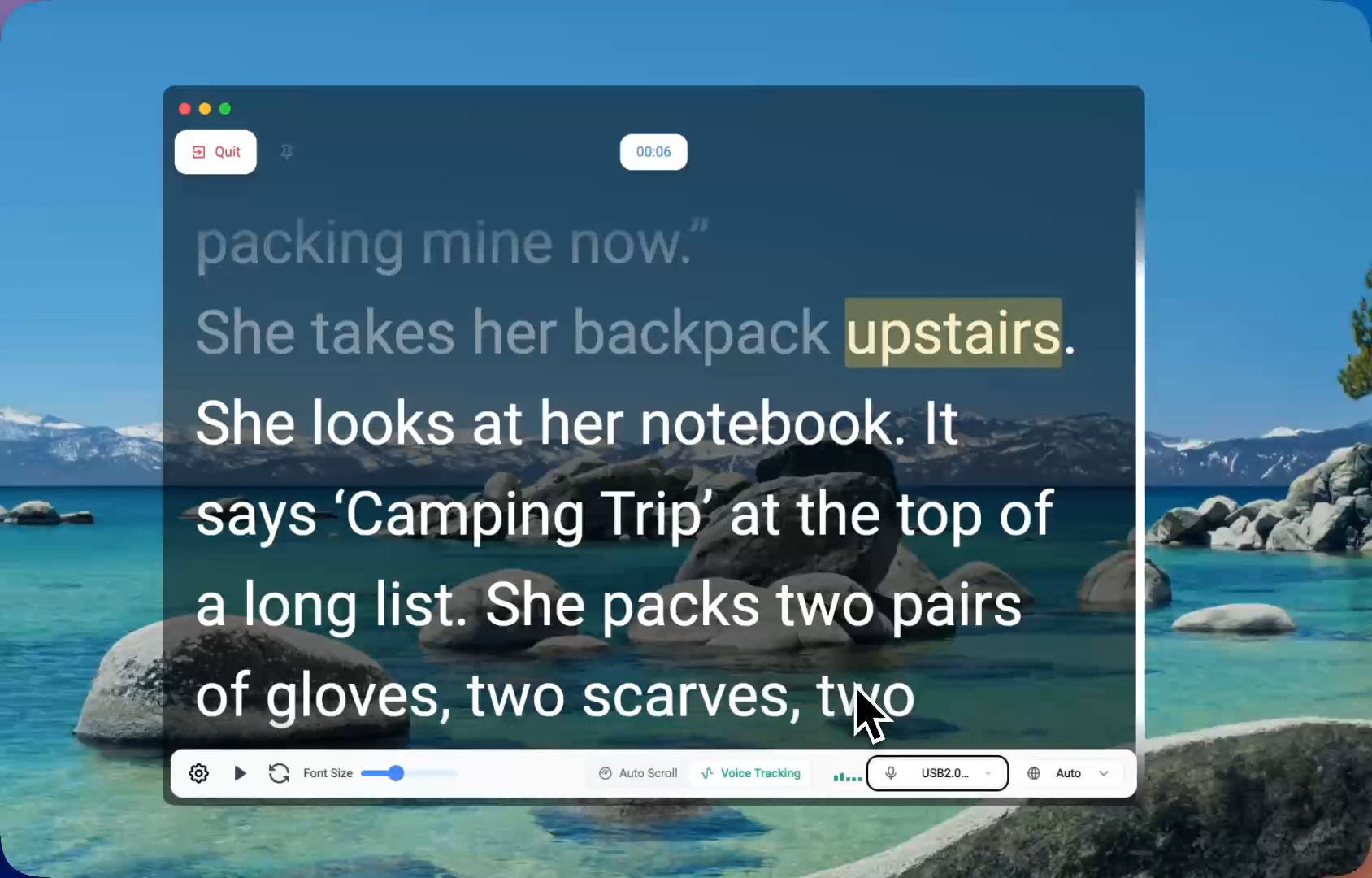
Use a steady auto-scroll for rehearsed delivery, or voice tracking when timing may change during questions and discussion.
Use auto scroll for a fixed opening, webinar introduction, executive update, or recorded announcement with predictable timing. Rehearse once, set a comfortable speed, and leave pauses between sections.
Use voice tracking when you may pause, repeat a point, answer a question, or move through the script at an uneven pace. The text follows the spoken delivery instead of forcing you to catch up with a timer. Voice tracking is often the better fit for an interactive Teams meeting, but it requires microphone access and should be tested with the exact audio input you will use.
Three Microsoft Teams Sharing Scenarios
Scenario 1: Camera on, no screen sharing
This is the simplest setup. Place FlowPrompter near the webcam and keep Teams behind it. Participants receive only your camera and microphone feed, not your desktop. Use this for interviews, status updates, sales conversations, and prepared responses.
Keep the Teams participant area close to the prompt so you can notice reactions without looking far away from the lens. If the meeting is conversational, prompt with bullets instead of a full script. A teleprompter should improve eye contact, not prevent you from listening.
Scenario 2: Share one PowerPoint, browser, or application window
For most presentations, this is the most controlled workflow. Teams lets you select a window as the shared source. Open your slides, browser, spreadsheet, or demo app, then share that source while FlowPrompter remains a separate desktop window.
Microsoft notes that giving slide control is tied to a presentation started from Teams desktop and that window sharing differs from whole-screen sharing. If another presenter needs control, decide that workflow before the call instead of improvising while the teleprompter is running.
Best for: product demos, customer onboarding, quarterly reviews, training, and any session where the audience needs one application but not the rest of your desktop.
Scenario 3: Share the entire desktop
Whole-desktop sharing is useful when you must move among several apps, but it creates the highest disclosure risk. Notifications, private tabs, notes, and prompts may all become relevant depending on the operating system and capture behavior.
If you need the full desktop, enable FlowPrompter’s privacy-oriented desktop workflow, close unrelated apps, disable notifications, and perform a complete attendee-view test. Do not rely on the host preview alone. Join the meeting from a second device using a different account or ask a colleague to confirm the feed.
How to Test Whether the Script Is Visible
Run this 60-second test before an important meeting:
Create a Teams meeting and join as the presenter.
Join from a phone or second computer as an attendee.
Start FlowPrompter with a test phrase that is impossible to miss.
Test the exact sharing mode you intend to use: window, PowerPoint, or full desktop.
Move the teleprompter window across the shared area and watch the attendee device.
Record a short sample if the meeting will be recorded.
Repeat after changing Teams, macOS, Windows, capture, dock, or display settings.
This test provides stronger evidence than assumptions about how a “transparent” or “invisible” window should behave. Capture behavior can change with the operating system, Teams version, selected share source, multiple displays, and third-party docks.
Script Template for a Teams Presentation
A Teams script works best when it mirrors the meeting’s decision flow. Use this compact structure:
Opening: “Today I’ll show you [outcome] and the decision we need by the end.”
Context: “The current problem is [one sentence], which affects [audience or metric].”
Evidence: “There are three points: first… second… third…”
Transition: “Now that the problem is clear, let’s look at the proposed workflow.”
Close: “My recommendation is [action]. The owner is [role], and the next checkpoint is [date].”
Write dates, prices, percentages, names, and commitments in full. Shorten everything else. If a sentence does not protect accuracy or improve the transition, it probably belongs in your preparation notes rather than the live prompt.
Common Teams Teleprompter Mistakes
Using a full-width script: it creates obvious side-to-side eye movement.
Writing like an essay: long clauses are harder to speak naturally than short verbal units.
Choosing speed during the live meeting: set and rehearse auto-scroll in advance.
Testing only the presenter view: always inspect the attendee view.
Sharing the whole desktop by habit: share a specific window when it satisfies the task.
Ignoring permissions on Mac: Microsoft states that Teams may need macOS screen-recording permission before sharing content.
Reading during questions: stop the scroll, listen, answer, then return to the next prompt marker.
Teams Teleprompter Pre-Meeting Checklist
Check | Pass condition |
|---|---|
Camera position | The reading panel sits within a small eye movement of the lens. |
Line length | Each line is short enough to scan without moving the head. |
Prompt mode | Auto scroll or voice tracking has been rehearsed with the chosen microphone. |
Share source | The presenter knows whether Teams will share a window, PowerPoint, or the desktop. |
Attendee verification | A second device confirms the script is not visible. |
Notifications | Personal and work notifications are disabled. |
Fallback | A short bullet outline is available if audio, permissions, or scrolling fails. |
Frequently Asked Questions
Does Microsoft Teams have a built-in teleprompter?
Teams provides presentation, screen-sharing, and presenter controls, but a desktop teleprompter is a separate prompting workflow. FlowPrompter supplies the lens-adjacent script window while Teams handles the meeting and content share.
Can participants see my FlowPrompter script?
That depends on the exact sharing and capture configuration. Sharing one application window is generally easier to control than sharing an entire desktop. Always verify the participant view with a second device before relying on privacy behavior.
Should I use voice tracking or auto scroll in Teams?
Use auto scroll for rehearsed, fixed-length delivery. Use voice tracking for interactive meetings where pauses and questions make the pace unpredictable. Test the microphone first.
Where should the reading panel go?
Place it immediately beneath or beside the physical webcam. On a laptop, a narrow prompt at the top center usually minimizes eye movement. With an external camera, align the prompt with that lens instead of the center of the monitor.
Can I use it while presenting PowerPoint?
Yes. Keep FlowPrompter as a separate prompt window and select the intended PowerPoint or presentation source in Teams. Test the exact presentation and sharing mode because PowerPoint Live, window sharing, and full-screen sharing are different workflows.
Final Recommendation
For Microsoft Teams, the best teleprompter setup is not the largest script or the most automated mode. It is a narrow prompt near the webcam, a controlled sharing source, and a verified attendee view. FlowPrompter is designed for this desktop workflow on Windows and Mac, with transparent prompting, adjustable text, auto scroll, and voice tracking.
Prepare a short spoken script, rehearse the timing, and run the one-minute visibility test. Then try FlowPrompter for your next Teams presentation.