How to Use a Teleprompter in PowerPoint Without Showing Your Notes
If you need to present from PowerPoint without exposing your speaker notes, the safest answer is this: use Microsoft's built-in notes workflow when you truly have two displays, or use FlowPrompter when you need your outline visible during screen sharing, recording, or live demos. The key warning is simple but important: always test the exact screen-sharing or recording mode you will use in the real presentation. Do not assume any overlay is hidden in every app, every browser, every meeting tool, or every capture workflow.
TL;DR
Use Microsoft's built-in notes workflow when you have a real second display and can keep your private controls off the audience screen.
Use FlowPrompter when you need your notes near the camera during screen sharing, recordings, webinars, or mixed slide-and-demo presentations.
Before going live, run a 30-second rehearsal from a second device to confirm the audience cannot see your notes or overlay.
Choose the right workflow first
Situation | Best option | Why it fits | Main caution |
|---|---|---|---|
You have a laptop plus projector or external monitor | Microsoft notes workflow | Microsoft designed it to keep notes on your screen while the audience sees only slides | Check which display is assigned to PowerPoint presenter display before you start |
You are screen sharing PowerPoint in Zoom, Teams, Meet, or similar | Usually Microsoft's notes workflow if you can share only audience slides display; otherwise test FlowPrompter | Sharing behavior differs by app and by whether you share a window or an entire screen | Never assume your notes or overlay are hidden until you verify with the exact share mode |
You are recording a tutorial, sales demo, or walkthrough on your computer | FlowPrompter invisible overlay | You can keep your talking points in view while keeping the captured presentation area clean | Some capture tools record overlays depending on source selection and permissions |
You want teleprompter copy close to the camera for better eye contact | FlowPrompter | An overlay can sit near your webcam instead of on a second screen far from the lens | Position and transparency still need rehearsal so your reading looks natural |
You just need a quick draft or rehearsal script | Fast browser-based editing and practice without install | For real delivery, move to the desktop workflow and test your capture setup |
Workflow 1: Use PowerPoint notes with a second display
Microsoft explains that private notes panel lets you see notes on one screen while the audience sees only the slides on the other. It is the right default for conference rooms, classrooms, and standard dual-display webinars.
How the built-in notes workflow works
You add notes inside PowerPoint's Notes pane while editing your deck. When you start on-screen slides with an external display connected, PowerPoint can show the slide full-screen to the audience and place speaker view on your own display. private presentation controls includes your current slide, upcoming slide thumbnails, navigation controls, and a notes pane you can resize. If it lands on the wrong screen, Microsoft provides a swap option in Display Settings inside presenter workspace.
Step-by-step setup for Microsoft's notes workflow
Open your presentation and add notes in the Notes pane below each slide. Keep these notes as speaking prompts, not full essays.
Connect your external monitor, projector, or conference-room display before launching the show.
In PowerPoint, go to the Slide Show tab and confirm Use PowerPoint note display is enabled.
Start the presentation from From Beginning or From Current Slide.
Check which screen shows the slides and which shows notes view. If PowerPoint guessed wrong, use Display Settings and swap the views.
Resize the notes pane if needed so the current talking points are readable at a glance.
If you are in a meeting app, share live slides display or presentation screen window, not the screen that contains notes view, unless you have verified the behavior another way.
When the built-in notes workflow is the better choice
Choose this route if your delivery notes is tightly connected to slide order, you do not need text near your webcam, and your event setup already includes a separate audience display. It is the cleanest choice when you want to stay inside Microsoft's supported presentation workflow.
Limitations to understand before you rely on it
Microsoft's note tools are reliable, but they still depend on correct display assignment. They are also less comfortable if your notes screen is far from the camera, because your eyes may drift away from the lens. Once you move into screen sharing or recording, the real risk becomes choosing the wrong shared source. A rehearsal with the exact hardware, cable arrangement, meeting app, and share mode matters more than theory.
Workflow 2: Use FlowPrompter as an invisible overlay
FlowPrompter is more useful when you are on camera, recording, or screen sharing and need your script visible to you without turning PowerPoint notes into viewer-facing risk.
What makes the overlay workflow different
Instead of relying on PowerPoint's built-in notes area, you run a separate teleprompter window that can sit on top of your work. That means your script is not trapped inside the slide deck. You can keep it near the webcam, adjust opacity and size, and use it while showing PowerPoint, a browser demo, a product walkthrough, or a mixed presentation. This is often more practical for online teaching, webinar hosting, onboarding videos, and narrated screen recordings than trying to read from notes view on a distant monitor.
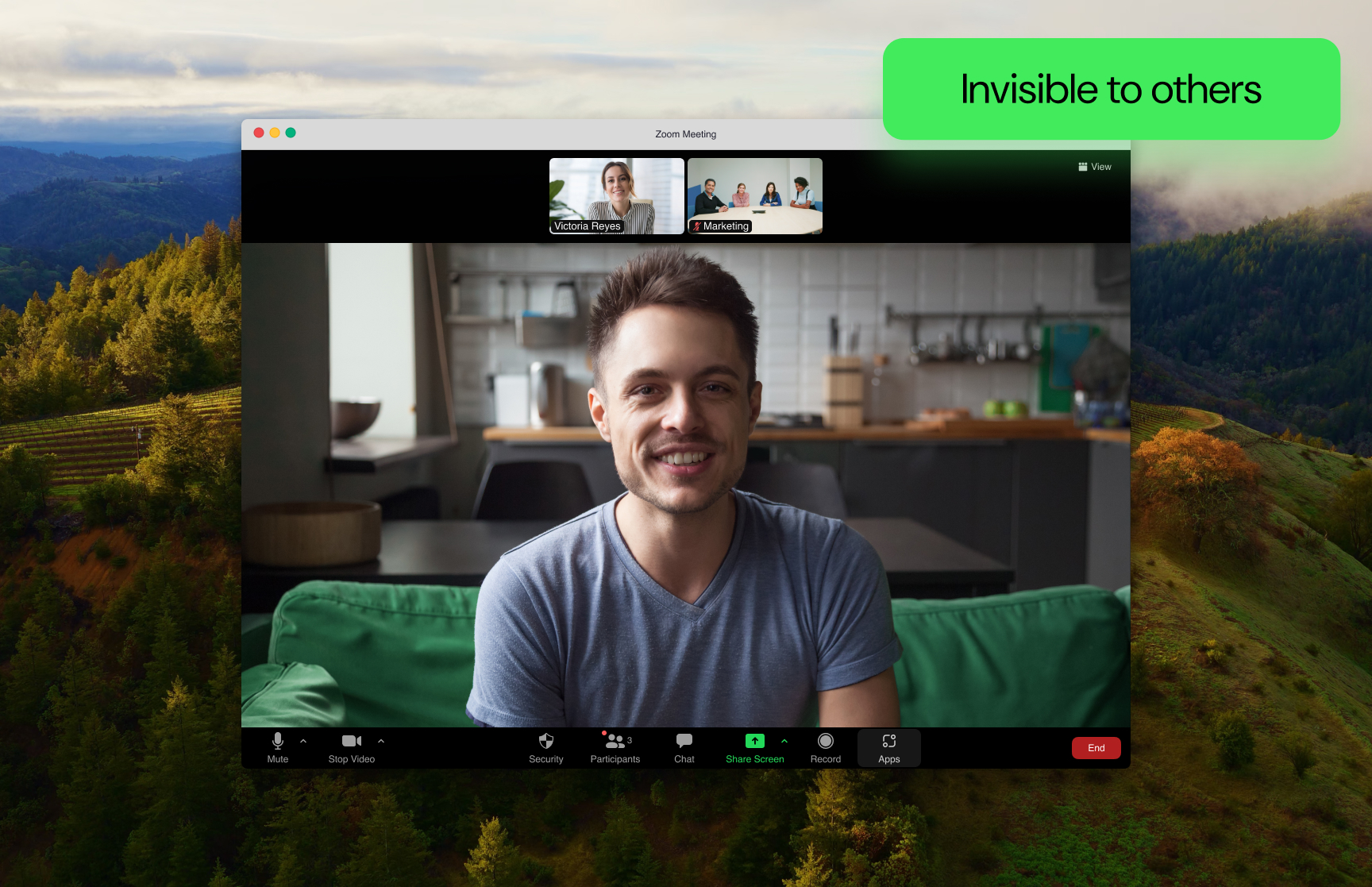
FlowPrompter can place your script over your working screen so you can read naturally while keeping shared slides clean.
Step-by-step setup for PowerPoint plus FlowPrompter
Prepare your slide deck in PowerPoint as usual. You can still keep minimal internal notes, but your main script should live in FlowPrompter for this workflow.
Open FlowPrompter and paste your presentation script. Organize it by slide sections, topic transitions, and demo cues.
Position the teleprompter window close to your webcam so your eye line stays natural. A narrow column of roughly 8 to 12 words per line is usually easier to read than a full-width paragraph.
Adjust text size, line spacing, and opacity so reading text is easy for you to read without covering key slide controls.
Choose how you will advance delivery text: manual scroll, remote control, or voice-based tracking if that fits your speaking style.
Open the exact app you will use to share or record PowerPoint and test the precise capture source: whole screen, PowerPoint window, Slide Show window, browser tab, or selected region.
Record a short sample or join a test meeting from a second device. Confirm that viewers see the slides and do not see the overlay.
Only after that test passes should you rely on the setup for a live presentation.
Important warning about invisible overlays
This is the part many articles skip: an "invisible" teleprompter is not a universal law of screen capture. Different tools capture different layers. Some record a specific app window. Some record the full desktop compositor. Some pick up overlays only after certain permissions are granted. Some remote meeting apps behave differently on macOS and Windows. So never promise yourself that any overlay is hidden everywhere automatically. Test your exact share or capture mode first, then lock in the setup that works.
Useful FlowPrompter features for PowerPoint presenters
FlowPrompter is especially useful when your PowerPoint session includes speaking to camera, not just advancing slides. Three features matter most in that situation.
Voice tracking for hands-free pacing
If you tend to speed up, pause for emphasis, or go off-script briefly, fixed auto-scroll can feel brittle. A voice-aware pacing mode is easier to live with because it follows your delivery more closely than a blind timer. That makes it helpful for webinar intros, training presentations, and narrated slide walkthroughs where your speaking rhythm changes from slide to slide.
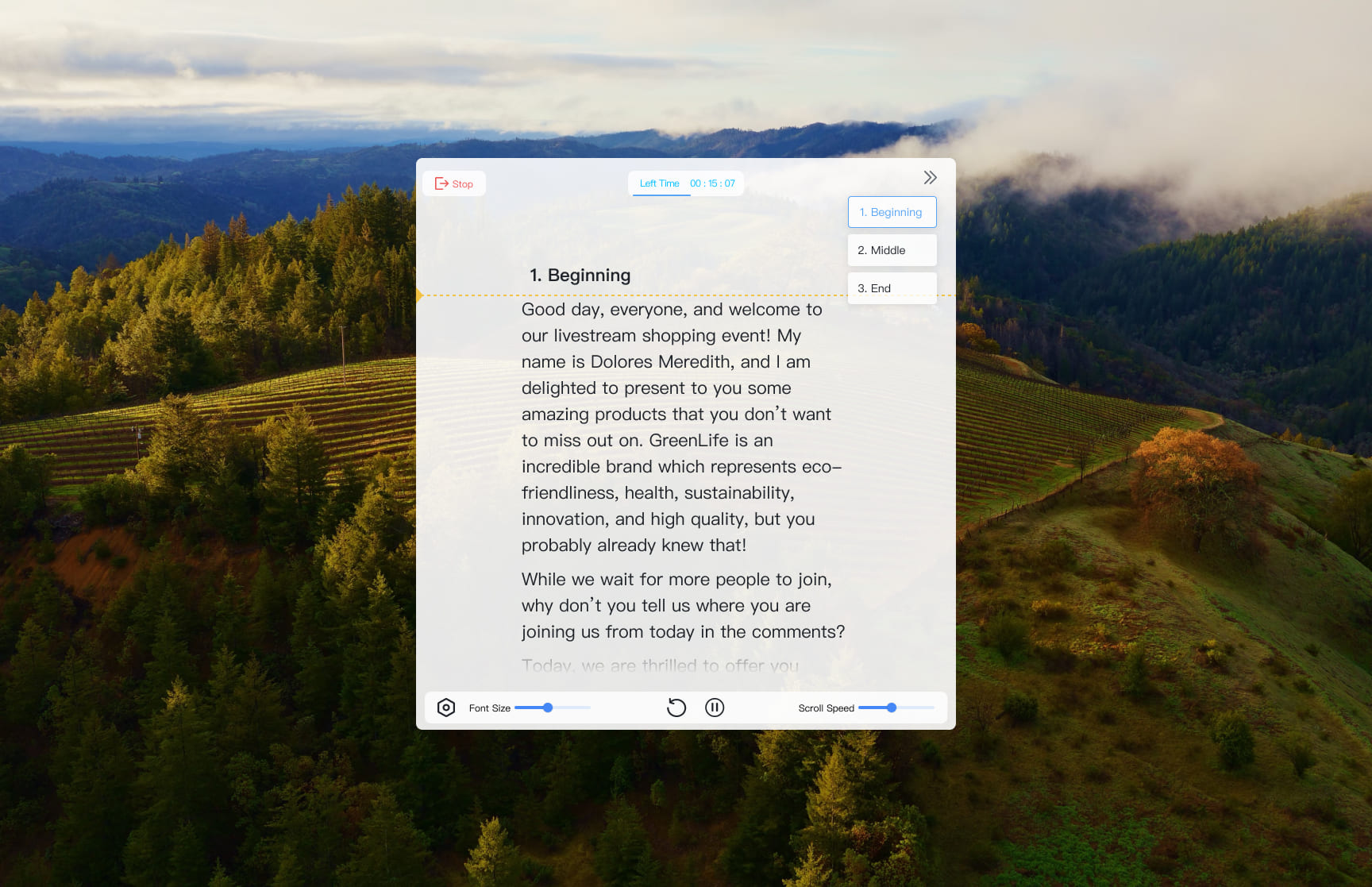
Voice tracking can reduce frantic manual scrolling when your PowerPoint narration speeds up or slows down mid-presentation.
Device sync for remote control and rehearsal
If your keyboard is out of reach, or you prefer to move around while presenting, synced control across devices can help. For example, you might keep the main script on your laptop and use another device to adjust pace or jump between sections. That is useful when your PowerPoint session blends slides, live explanation, and Q&A transitions.
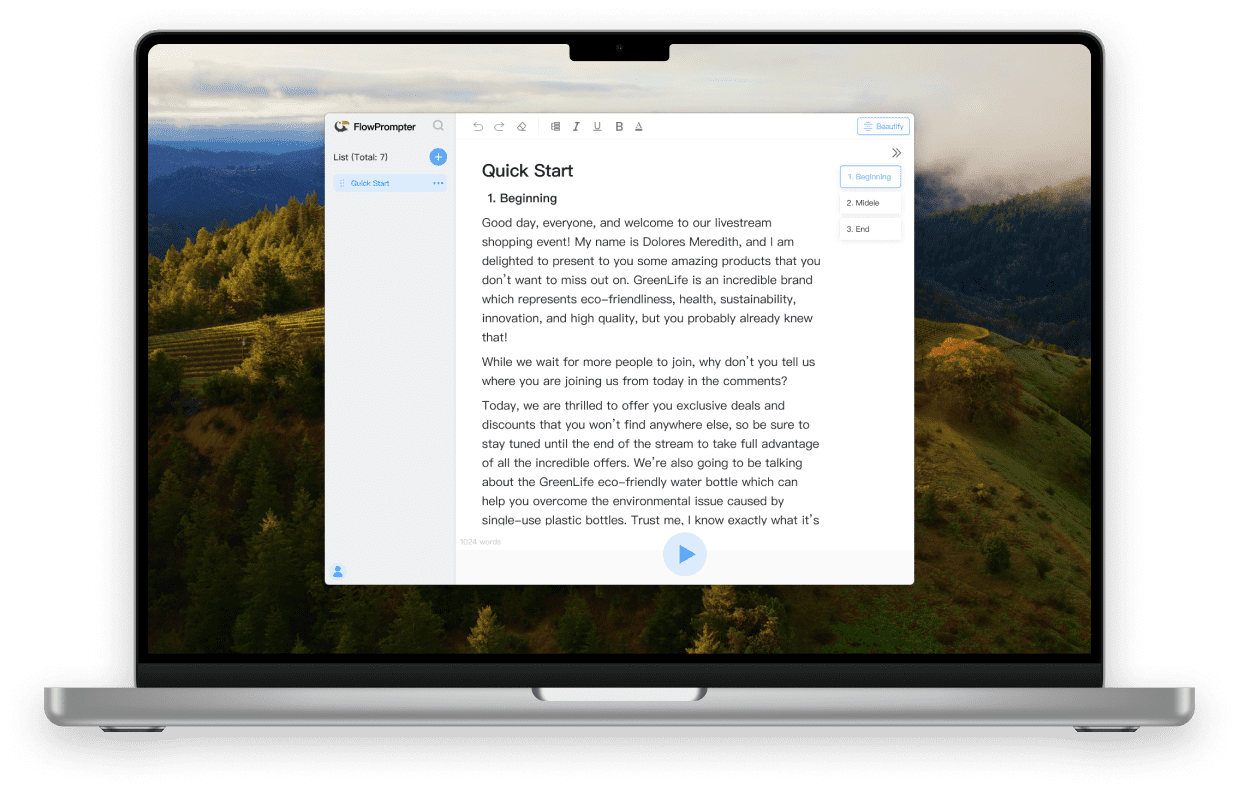
Device sync can make rehearsals and live control easier when your PowerPoint setup is not physically comfortable from the keyboard.
Script preparation tools before you present
If your PowerPoint notes were written like an internal memo, convert them before show time. The browser-based Script Checker is useful for spotting long, dense, hard-to-say lines before they become awkward spoken delivery. And if you want a quick browser rehearsal before switching to the desktop app, the online teleprompter is a fast place to test pacing and structure.
How to format your script so it works in PowerPoint delivery
Whatever tool you use, format the script for speaking rather than reading silently. Numbers also help. For example, keep most spoken lines under about 12 to 16 words, limit one slide to one core idea, and rehearse at least one full run with your real share mode before presenting.
Write in short thought groups, not long paragraphs. One line should usually contain one idea or one breath.
Use plain language for transitions: "Now let me show you," "Here is the key difference," or "This matters because."
Mark emphasis sparingly with all caps, bold words in your source draft, or symbols such as [pause] and [smile].
Separate slide cues from spoken copy. For example: "[Slide 7: pricing table]" on its own line, then the words you will actually say below it.
Spell out anything you might stumble over, including product names, acronyms, and numbers.
Cut sentences that require you to look back halfway through to understand them. If you cannot say it cleanly once, split it.
For demos inside a PowerPoint talk, add action prompts such as "open sample file" or "switch to browser" so you do not lose your place.
A practical pattern is to keep your slides minimal, your slide notes even shorter, and your teleprompter script as the spoken version. That prevents the common failure mode where the slide says one thing, the notes say another, and your live delivery becomes harder instead of easier.
Troubleshooting: what to check when something feels risky
The audience can see my notes or the wrong screen
Stop and verify what is being shared. In a two-display PowerPoint setup, make sure notes view is on your private display and shared slides is on the audience display. In a meeting app, confirm you are sharing shared slides window or the correct display, not your full desktop with notes visible.
The overlay showed up in my recording test
Change the capture source and test again. Recording a specific PowerPoint window often behaves differently from capturing the entire screen. Also verify operating-system permissions for screen recording and overlays, because those can change what gets captured.
My eye contact still looks unnatural
Move the script block closer to the camera and narrow the text width. Huge text stretching across the screen forces side-to-side eye movement. A tighter column near the lens usually looks better on video.
I lose my place when slides change
Add clear slide markers in your script and rehearse slide transitions out loud. If the presentation includes demos between slides, insert stage directions so you know when to click, switch windows, or pause.
The script scroll speed feels wrong
Do not judge pace by silent reading. Test it while speaking at presentation volume. Most presenters need slower movement than they expect, especially during openings, transitions, and explanation-heavy slides. Record a 20- to 30-second sample so you can check both pace and eye movement.
Which method should most PowerPoint users choose?
If you are presenting on a projector or second monitor in a fairly standard setup, start with PowerPoint's built-in notes view. It is native, reliable, and designed for speaker notes. If you are presenting online, recording your screen, mixing slides with demos, or trying to maintain stronger eye contact with the camera, FlowPrompter is often the more practical workflow. It gives you flexibility PowerPoint notes do not, but it also requires more careful testing because capture behavior is not identical across tools.
FAQs
Can I use PowerPoint notes on one screen and show slides on another?
Yes. That is exactly what notes view is for when you have a second display connected and configured correctly.
Is FlowPrompter better than PowerPoint notes?
Not always. It is better for screen sharing, recording, demos, and camera-facing delivery. PowerPoint notes are simpler for classic dual-screen presentations.
Will an invisible overlay always stay hidden in Zoom or screen recordings?
No. You need to test the exact sharing or capture mode you plan to use. Different apps and operating systems can behave differently.
Should I put my full script in PowerPoint notes?
You can, but shorter prompts are often easier to use. For longer spoken delivery, a dedicated teleprompter workflow is usually more comfortable.
What is the fastest way to improve my delivery before a live PowerPoint talk?
Rewrite the script into shorter spoken lines, rehearse with the real display or capture setup, and verify what the audience actually sees from a second device.
Sources and editorial note
This article is based on Microsoft support guidance for PowerPoint, including instructions for speaker notes and notes view, plus FlowPrompter's official homepage and desktop guide.