Laptop Teleprompter Setup: 4 Ways to Keep Your Eyes Near the Camera
You can turn your computer into a teleprompter by placing a narrow script window directly beneath its webcam, increasing the text until each line is readable at a glance, and choosing either speech-following or fixed-speed scrolling. For video calls and screen recordings, use a floating desktop prompt that can stay hidden from screen capture. For a separate camera, put your screen beside the webcam or under beam-splitter glass.
Quick recommendation: Use your webcam setup for meetings, a capture-hidden overlay for screen sharing, a computer below your camera for simple talking-head videos, and reflective glass only when direct lens contact matters enough to justify extra hardware.
Your computer is often the most useful teleprompter you already own: it has a large display, a keyboard for script editing, and enough screen space to keep the reading window close to the recording lens. The real challenge is not making text scroll. It is choosing a layout that prevents visible side-to-side eye movement and does not expose the script to viewers.
Which Laptop Teleprompter Setup Should You Choose?
Setup | Best for | Eye contact | Main trade-off |
|---|---|---|---|
Prompt below your webcam | Meetings, interviews, webinars | Good at normal laptop distance | The window must remain narrow |
Capture-hidden floating overlay | Screen sharing and screen recording | Good | Requires compatible desktop software |
Screen below a separate camera | YouTube and talking-head video | Fair to good | More visible eye-line offset |
Laptop with a hardware prompter | Courses, ads, formal presentations | Best | More hardware and setup time |
Do not choose by production value alone. If a simple window under the built-in camera keeps your gaze steady, adding glass will not automatically improve your delivery. Move to a more complex setup only when your lens lens-to-script offset remains visible in test footage.
Setup 1: Put the Prompt Below the Built-In Webcam
This is the fastest setup for Zoom, Google Meet, Microsoft Teams, remote interviews, and webinars. Open the call first, then place the cue text in a compact window at the top center of the panel, immediately below the lens.
Raise the screen until your webcam is at eye level.
Make the floating window narrow enough to keep each line near the webcam.
Increase the font size instead of widening the window.
Keep the active line in the upper part of the reading area.
Record a 15-second test and watch only your eyes during playback.
Keep the active line close to the webcam to reduce visible eye movement.
A common mistake is maximizing the prompter window. A wider window shows more words, but your pupils must travel farther across every line. A narrow column with larger type usually looks more natural on camera, even if fewer words are visible.
Setup 2: Use a Private Overlay for Screen Sharing
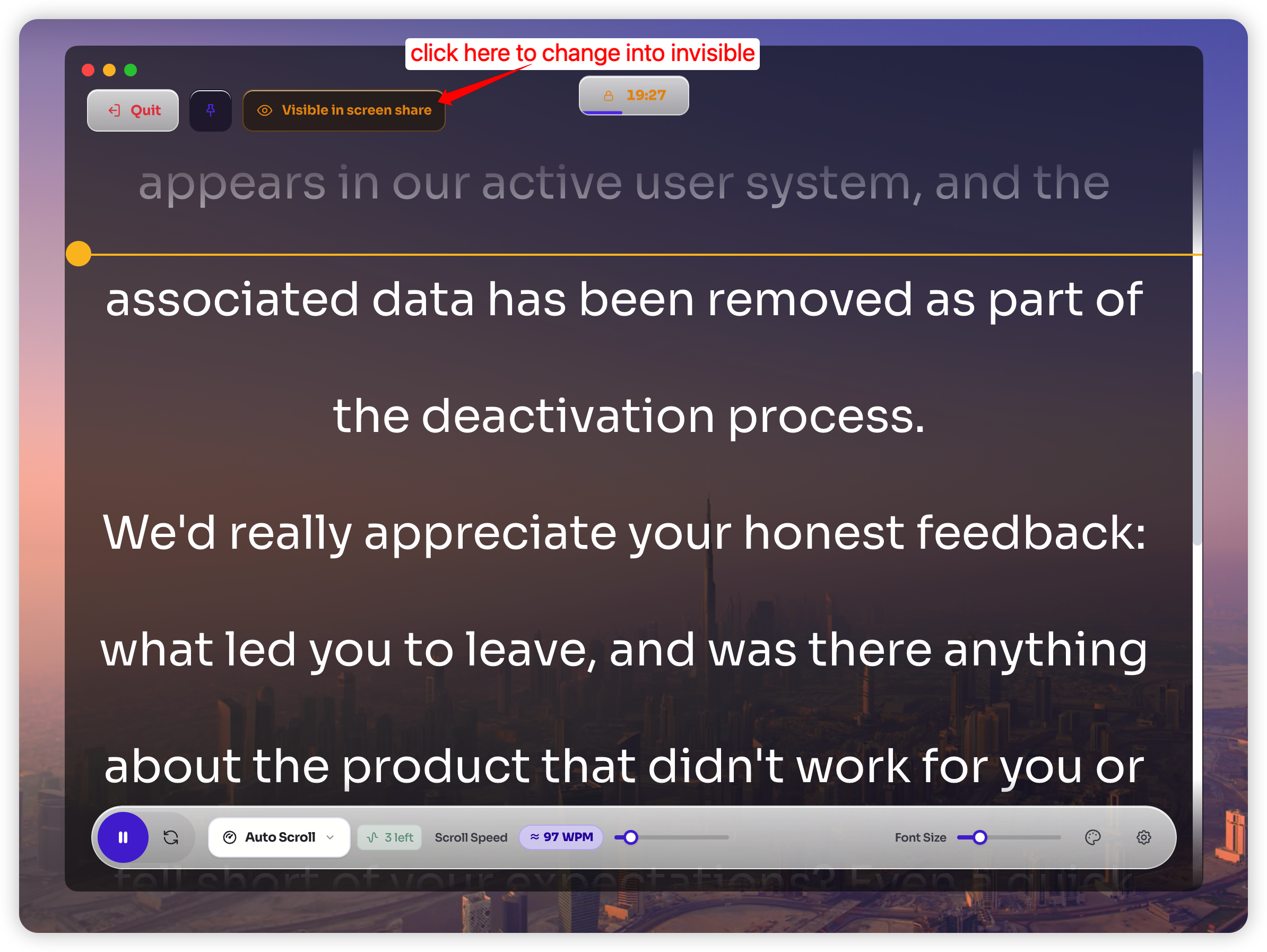
Ordinary notes can appear when you share your desktop or record the screen. A capture-hidden overlay solves a different problem from a basic browser prompt: you continue to see the script, while the audience sees the presentation or application underneath it.
Open the desktop version of FlowPrompter and load your script.
Enter Prompter mode and place the floating window over the app you will present.
Enable the private or capture-hiding option in the reading layer settings.
Start a test recording or test share.
Review the captured output on a second device or in the saved recording.
Compare the presenter view with the captured output before going live.
Always test the exact capture path you will use. Sharing one application window, sharing the full desktop, and recording with third-party software are different paths. A successful test in one does not prove the others behave the same way.
Setup 3: Place the Laptop Below a Separate Camera
For a mirrorless camera, DSLR, or external webcam, place the reading surface directly beneath the optical axis and move it farther away before shrinking the text. Distance reduces the apparent angle between the top-edge camera and your reading line.
This setup works well for medium shots, where small eye movements are less obvious. It is less convincing in a tight close-up. If your eyes still look down in the test clip, try these adjustments in order:
Raise the screen until its top edge is almost touching the recording device support.
Move the full setup farther from you.
Use a longer focal length or crop the wider shot later.
Move the active line to the very top of your script.
Switch to the reflective panel if direct lens contact is essential.
Align the screen beneath the camera and increase distance before reducing text size.
Setup 4: Feed the Script Into Teleprompter Glass
Teleprompter glass reflects the script in front of the lens lens, allowing you to look directly into your lens while reading. This is the strongest option for formal course lessons, sales videos, executive messages, and scripted ads.
Check the hardware input before buying anything. Some rigs accept a computer through HDMI or a capture device; others expect a phone or tablet placed on the tray. The text may also need mirror mode so it reads correctly in the reflected glass.
Glass is not automatically better for every project. It adds alignment, brightness, and hardware constraints. If you mainly record meetings or screen demonstrations, a private desktop overlay is usually faster.
Teleprompter glass places the reflected script on the camera’s optical axis.
How Should You Format a Script for a Laptop Screen?
A large-screen prompt should be designed for scanning, not for fitting the maximum number of words on screen. Start with these settings, then adjust from your actual speaking distance:
Keep each line short enough to read with minimal horizontal eye travel.
Enlarge the text until you can recognize a complete phrase without leaning forward.
Use one or two spoken sentences per paragraph.
Choose high contrast that remains readable over the background.
Keep the active sentence close to the recording lens rather than in the middle of the screen.
Rewrite formal copy before recording. “Our platform provides a comprehensive collection of capabilities” is harder to say naturally than “Here are the three tools you will use.” If you stumble over a sentence twice, edit the sentence instead of rehearsing the stumble.
Should the Laptop Prompt Follow Your Voice or Scroll Automatically?
Use speech-following movement when your pace changes, when you demonstrate something on screen, or when another person may interrupt. Use fixed-speed scrolling for a short, rehearsed script with a strict runtime.
For voice-based control, grant microphone permission and select the language you will actually speak. On a Mac, microphone access is managed under System Settings → Privacy & Security → Microphone. Windows provides equivalent privacy controls for desktop applications in its app-permissions settings.
Speech-following movement helps when pauses and pace changes make fixed scrolling drift out of sync.
How Can You Check Whether the Setup Looks Natural?
Run a one-minute test before the real recording. The test should include a normal sentence, a deliberate pause, a number, and one glance at the presentation or camera controls. Review it once with sound and once muted.
If your eyes sweep sideways, narrow the text column.
If your gaze points below the viewer, move the cue window upward or move your camera farther away.
If you rush punctuation, slow the movement or add more paragraph breaks.
If the prompt appears in the capture, stop and verify the private-window setting and capture source.
If speech following loses its place, check the microphone, room noise, language setting, and script wording.
This test is more useful than choosing a setup from a product feature list. It exposes the specific problem your camera angle, screen size, recording software, and speaking style create together.
Frequently Asked Questions
Can I turn my computer into a teleprompter without extra hardware?
Yes. For calls and screen recordings, place a narrow prompt directly below your webcam. Extra hardware is only necessary when you need the script reflected directly in front of a separate camera lens.
Will viewers see the teleprompter when I share my screen?
A normal window may be visible. Use a desktop prompt with a tested capture-hiding mode, and verify it with the exact screen-sharing or recording method you plan to use.
Is a browser teleprompter enough?
A browser prompt is enough for rehearsal and simple camera recording. A desktop app is more suitable when you need a movable overlay, capture privacy, or prompting above other applications.
Where should the script sit relative to the webcam?
Keep the active line immediately below or beside the optical axis lens. The farther it moves toward the center or edge of your display, the more obvious your reading angle becomes.
Final Recommendation
Start with the least complicated laptop setup that passes a 15-second eye-line test. For meetings, use a narrow prompt below your webcam. For screen sharing, use a capture-hidden overlay and verify the output. For a separate camera, place the monitor close to the lens and increase the distance. Add the glass rig only when the simpler layouts cannot deliver the direct eye contact your project requires.
FlowPrompter supports the desktop workflows that matter most: script preparation, a floating desktop prompt, adjustable readability, speech-following movement, and private prompting for compatible screen-capture scenarios.