Speakflow Alternative Desktop App: Why Browser Teleprompters Fail at Recording
Speakflow earned its reputation as a polished, browser-based teleprompter — clean interface, voice-activated scrolling, team features. If you found it while searching for a prompter, that tracks. But if you're here looking for a Speakflow alternative desktop app, you probably ran into the same wall most creators do: the moment you hit record or share your screen, the browser tab is right there in the frame.
This article breaks down where a browser teleprompter genuinely struggles, what a native desktop app does differently, and who should actually make the switch.

The Browser Tab Problem
Speakflow runs in your browser. That's its convenience — nothing to install, works on any machine — and its structural weakness. Everything a browser tab can't do is exactly what recording and presenting demand:
It's visible in your captures. Share your screen on Zoom or Teams, or record with OBS or Loom, and the prompter tab is part of the frame — along with the tab strip and address bar around it. Your audience can watch you read.
It competes with your other windows. The script sits in one window while your slides, meeting, or recorder lives in another. You either split your screen (half the space, eyes far from the camera) or float a second browser window and hope nothing pops over it.
It needs the internet. A cloud-based tool stops working when your connection does. Hotel Wi-Fi before a big presentation becomes a single point of failure.
The good features sit behind a subscription. Public reviews list Speakflow's paid tiers at around $15/month and up, with voice scrolling and recording limits gated by plan. For a solo creator, the collaboration features those plans bundle are mostly overhead.
None of this makes Speakflow a bad product. It makes it a product built for teams working in browsers — and if that's not you, the friction shows up on every take.
What a Native Desktop App Does Differently
A desktop teleprompter isn't just "the same thing, installed." The architecture unlocks things a browser tab can't offer:
An overlay that's invisible to your audience. A native app can float above any application while excluding itself from screen sharing, recordings, and screenshots. You read; they see a clean frame.
It sits on top of everything. Slides, Zoom, OBS, a browser demo — the prompter overlays whatever you're actually presenting, positioned right next to your webcam for natural eye contact.
Real window control. Always-on-top, resizable, positionable — no browser chrome, no accidental tab switches mid-take.
Your mic, your call. Desktop apps can let you pick exactly which microphone the voice tracking listens to, instead of negotiating browser permissions.
The Desktop Alternative: FlowPrompter
FlowPrompter is a native desktop teleprompter for Windows and macOS (with iOS and Android apps, plus an online web version for drafting and practice). It was built around the two things browser prompters can't do:
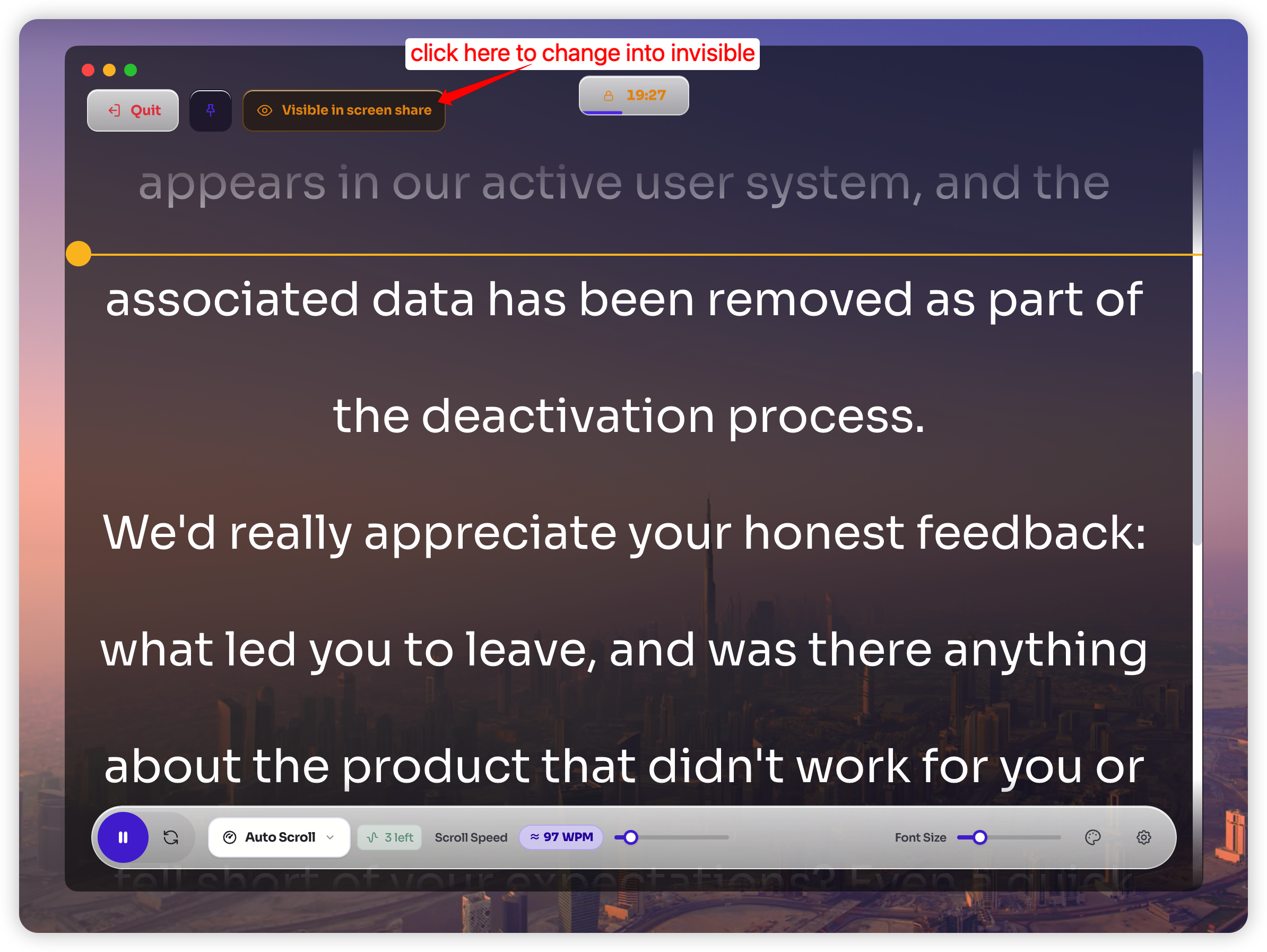
True voice tracking. The AI follows your speech word by word and highlights as you go. Pause to think — the script waits. Improvise a sentence — it holds. Return — it resumes at your exact position. It works across 14 languages, adjustable from the control bar mid-take, alongside a microphone picker, font size slider, Voice Tracking toggle, and session timer.
An invisible floating overlay. The prompter stays hidden from screen sharing, recordings, and screenshots by default, with a "Visible in screen share" toggle for when you want it shown. It works alongside Zoom, Google Meet, Microsoft Teams, OBS, Streamlabs, Loom, and QuickTime — the tools you already record and present with.
And because scripts sync in real time across devices under one account, you can draft on the web version or your phone and record at your desk — no exporting, no copy-pasting between tabs. It's free to start, with Plus plans from $9.9/month.
Who Shouldn't Switch (Honest Take)
A desktop app isn't the right answer for everyone. Stay with a browser tool if:
You're on a locked-down machine. If IT policy blocks installs, a browser prompter is your only option — and Speakflow is a good one.
You run a team workflow. Multi-user script review, approval flows, and client workspaces are genuinely useful for agencies and production teams; FlowPrompter is built around the individual creator instead.
You record inside the browser intentionally. If your whole pipeline lives in web tools and the prompter-in-frame issue doesn't apply to how you record, the browser may be fine.
But if you're a solo creator, presenter, or professional who records or presents weekly — and especially if you've ever had a script visible in a screen share — the desktop overlay model removes friction you'll feel on every single take.
Making the Switch: A Five-Minute Migration
Export or copy your scripts from Speakflow (plain text is fine — paragraph breaks carry over).
Install FlowPrompter on your Windows or Mac machine and sign in.
Paste your script, pick your recording microphone in the control bar, and choose your language.
Position the overlay directly under or over your webcam; size it so your eyes barely move.
Do a 10-second invisibility test — record your screen in OBS or share to a second device and confirm the prompter doesn't appear. Then record for real.
FAQ
Is Speakflow a desktop app?
No — Speakflow is primarily browser-based, which is why it appears in screen recordings and shares. A native desktop alternative like FlowPrompter runs as its own application with an overlay that stays invisible to your audience.
What's the best Speakflow alternative for solo creators?
For solo creators, the priorities are usually voice tracking, invisibility during recording, and price — not team collaboration. FlowPrompter covers all three: word-level voice tracking, an invisible overlay, and a free tier with Plus from $9.9/month.
Can a desktop teleprompter work with Zoom and OBS?
Yes — that's the main reason to use one. FlowPrompter's overlay floats above Zoom, Google Meet, Microsoft Teams, OBS, Streamlabs, Loom, and QuickTime while staying hidden from what your audience sees.
Do I lose anything moving from a browser tool to a desktop app?
You give up nothing-to-install convenience and any team collaboration features. You gain invisibility, always-on-top positioning, and mic-level control. FlowPrompter keeps an online web version for drafting, so quick browser access isn't fully lost either.
The Bottom Line
Browser teleprompters are convenient until you press record. A desktop app that follows your voice and hides from your audience isn't a luxury — it's the difference between reading and presenting.
Try FlowPrompter free — a native voice-tracking teleprompter for Windows and Mac. Install it, paste your script, and share your screen without a second thought.