Teleprompter Invisible During Screen Sharing on Windows: What Actually Works
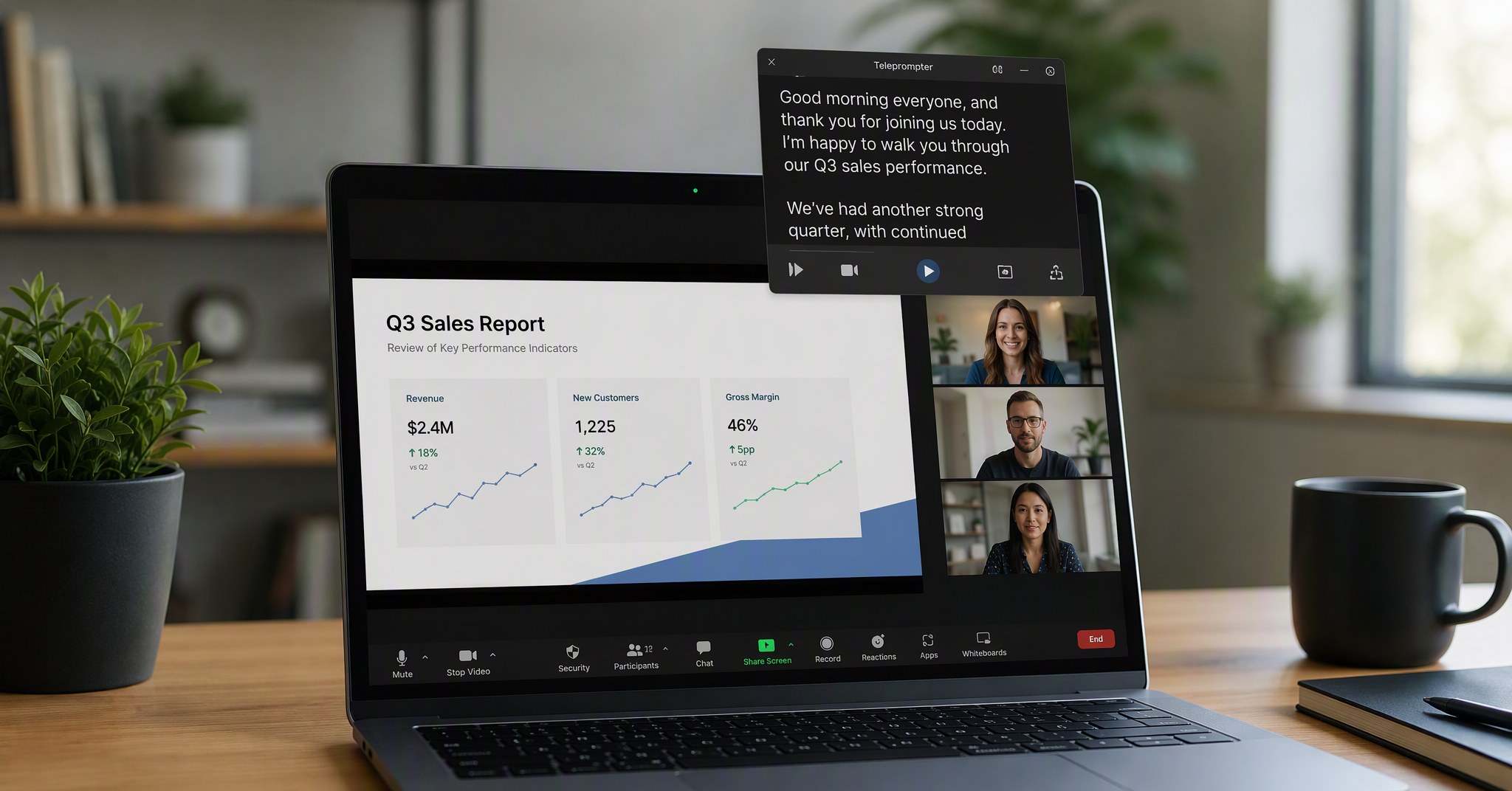
You are five minutes into a Zoom presentation. Your slides are solid, the demo is rehearsed, and your talking points are scrolling smoothly in a small window near the top of your screen. Then a stakeholder asks a question that requires you to share your desktop. You hit "Share Screen" and realize, too late, that your entire script is now visible to everyone on the call. Every bullet point, every note, every line you wrote to keep yourself on track is floating there for all to read.
This is the moment most teleprompter users dread. And if you are on Windows, finding a solution that genuinely hides your script from screen capture is harder than it should be.
Why "Invisible" Is Harder Than It Sounds
Most teleprompter apps create a standard desktop window. They may call it an "overlay," set it to float above other windows, or make it semi-transparent. But here is the truth: screen capture tools like Zoom, OBS, Microsoft Teams, and Loom do not care about transparency or window layering. They capture every visible window on your screen and composite them into the shared frame. If your teleprompter window is rendered on your display, it is in the capture. Full stop.
Some apps attempt workarounds. They move the window off-screen when they detect sharing, reduce opacity to near zero, or shrink it to a tiny size. These tricks are unreliable. Artifacts flicker. Partial text peeks through. The window is still technically part of the captured output, and one missed detection event exposes everything.
True invisibility requires operating system support. The app must tell the OS to exclude its window from the screen capture pipeline entirely. On macOS, this is done through a first-party API called NSWindow.sharingType. On Windows, it requires SetWindowDisplayAffinity with the WDA_EXCLUDEFROMCAPTURE flag. Without these native hooks, a teleprompter is not truly invisible. It is just hard to see.
The Windows Problem: Most Invisible Teleprompters Are Mac-Only
Search for an invisible teleprompter and you will find a pattern. The apps that actually work are overwhelmingly built for macOS.
CueNotch offers "Ghost Mode," which uses macOS window exclusion at the system level. It is genuinely invisible to Zoom, Meet, Teams, OBS, and QuickTime. But it is Mac-only. NotchPrompt sits in the MacBook camera notch, tracks your words in real time, and stays invisible during screen shares. Also Mac-only. VoicePrompter provides the same OS-level exclusion for screen capture. Mac-only again.
These are excellent products. The problem is not their quality. It is that Windows users are left with two categories of alternatives: browser-based tools that are visible in recordings, or workarounds that claim invisibility but rely on transparency tricks.
There are some cross-platform exceptions. ShareSpeak supports both macOS and Windows and uses the native display affinity API on Windows. It is a solid option at $12.50 for a one-time license. Steadi is an open-source project that implements capture exclusion on both platforms. But it requires technical comfort to set up and lacks the polish of commercial apps.
What Windows Users Actually Need
If you record tutorials, host webinars, or run client demos from a Windows machine, your requirements are specific:
Native OS-level exclusion. The window must be excluded from capture at the system level, not hidden through opacity or positioning tricks. This is the only approach that works reliably across Zoom, Teams, OBS, Loom, and every other tool.
User-controlled visibility. You should be able to toggle invisibility on and off. Sometimes you want the teleprompter visible in a recording, like when making a tutorial about the app itself.
Always-on-top overlay. The teleprompter must float above your presentation, browser, or video call window without getting buried when you click around.
No browser dependency. Browser-based tools require an internet connection, compete with your other tabs, and can accidentally get closed or refreshed mid-recording.
How FlowPrompter Handles Screen Share Invisibility on Windows
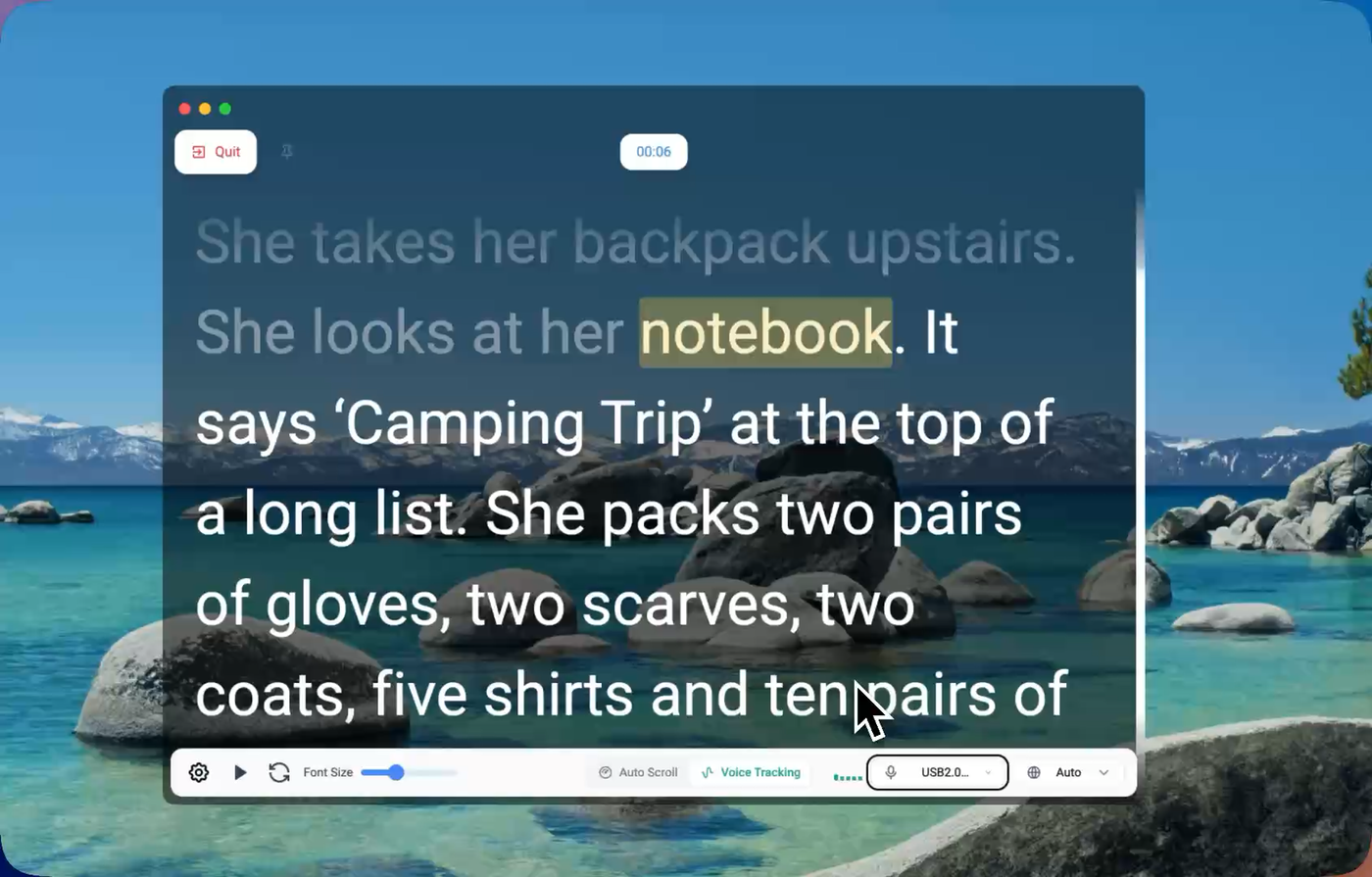
FlowPrompter is a desktop teleprompter for Windows and macOS that runs as a native overlay. It includes a "Visible in screen share" toggle that lets you control whether the window appears in screen captures. Turn it off, and the teleprompter is excluded from capture at the OS level using the Windows display affinity API. Turn it on when you want it visible. The switch takes effect immediately with no restart.
This means you can:
Share your screen on Zoom, Microsoft Teams, or Google Meet without your script appearing to participants.
Record tutorials in OBS or Streamlabs with a clean desktop view while your notes stay visible only to you.
Run webinars and product demos with talking points on screen, confident that your audience sees only the content you intend.
Beyond invisibility, FlowPrompter adds features that matter for professional use:
AI voice tracking. The script scrolls word by word as you speak, pauses when you pause, and resumes when you continue. No fixed scroll speed to chase.
14 languages supported. Voice tracking works in English, Spanish, German, French, Portuguese, Dutch, Russian, Japanese, Korean, Chinese, Arabic, Hindi, and Malay.
Cross-device sync. Scripts written on your Windows desktop sync instantly to your iPhone or Android device for mobile recording.
Privacy-first. Speech recognition and script processing run on your device. No data leaves your local machine.
FlowPrompter is free to start.
FAQ
Can a teleprompter really be invisible during screen sharing on Windows?
Yes, but only if it uses native OS-level window exclusion. Transparency and positioning tricks do not work. FlowPrompter uses the Windows display affinity API to genuinely exclude its window from capture.
Does it work with Zoom, Teams, and Google Meet?
Yes. The invisibility applies to any application that uses standard screen capture APIs, including Zoom, Microsoft Teams, Google Meet, OBS, Loom, and Streamlabs.
Can I make the teleprompter visible again when I want?
Yes. FlowPrompter has a "Visible in screen share" toggle. Turn it off for invisible mode during presentations. Turn it on when you want the script to appear in recordings.
Is this the same as transparency or low opacity?
No. A transparent teleprompter is still captured by screen recording. It just looks faint. True invisibility means the window is excluded from the capture pipeline entirely and does not appear at all.
Present With Confidence on Windows
If you have been searching for a teleprompter that stays invisible during screen sharing on Windows, you have probably noticed most solutions are built for Mac. FlowPrompter brings the same OS-level invisibility to Windows, with AI voice tracking, multi-language support, and cross-device sync.
Try FlowPrompter free today at flowprompter.app and stop worrying about your script appearing in the wrong place at the wrong time.