FeaturesScreen recorder

Record your screen while reading your script

FlowPrompter Desktop is a screen recorder with teleprompter: walk through a screen and follow your notes at the same time. The prompt stays in your sight. With Invisible Window on, or after you choose to hide it and record, the teleprompter does not belong in the finished video.

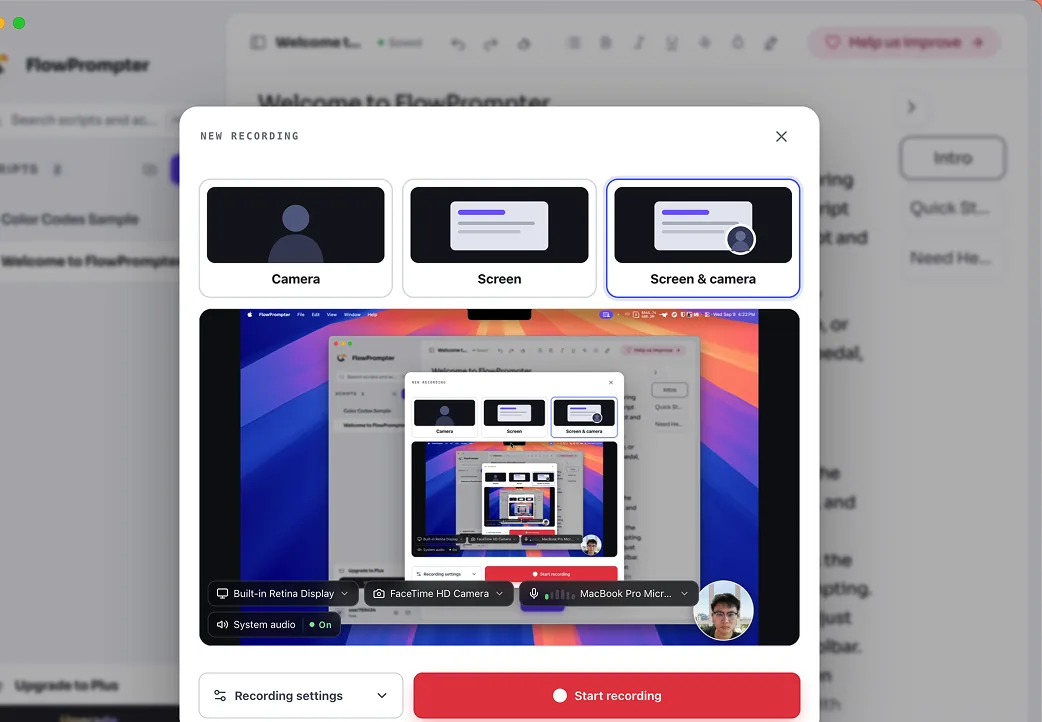
FlowPrompter Desktop with a script open and the recording controls visible
FlowPrompter Desktop recording workspaceThe app interface in this photo is shown in English. These photos were captured on a Mac.

Use this recorder on a Mac or Windows PC. On this device you can still prepare a script online, or pick an installer below for a supported computer.

What you see, and what the file contains

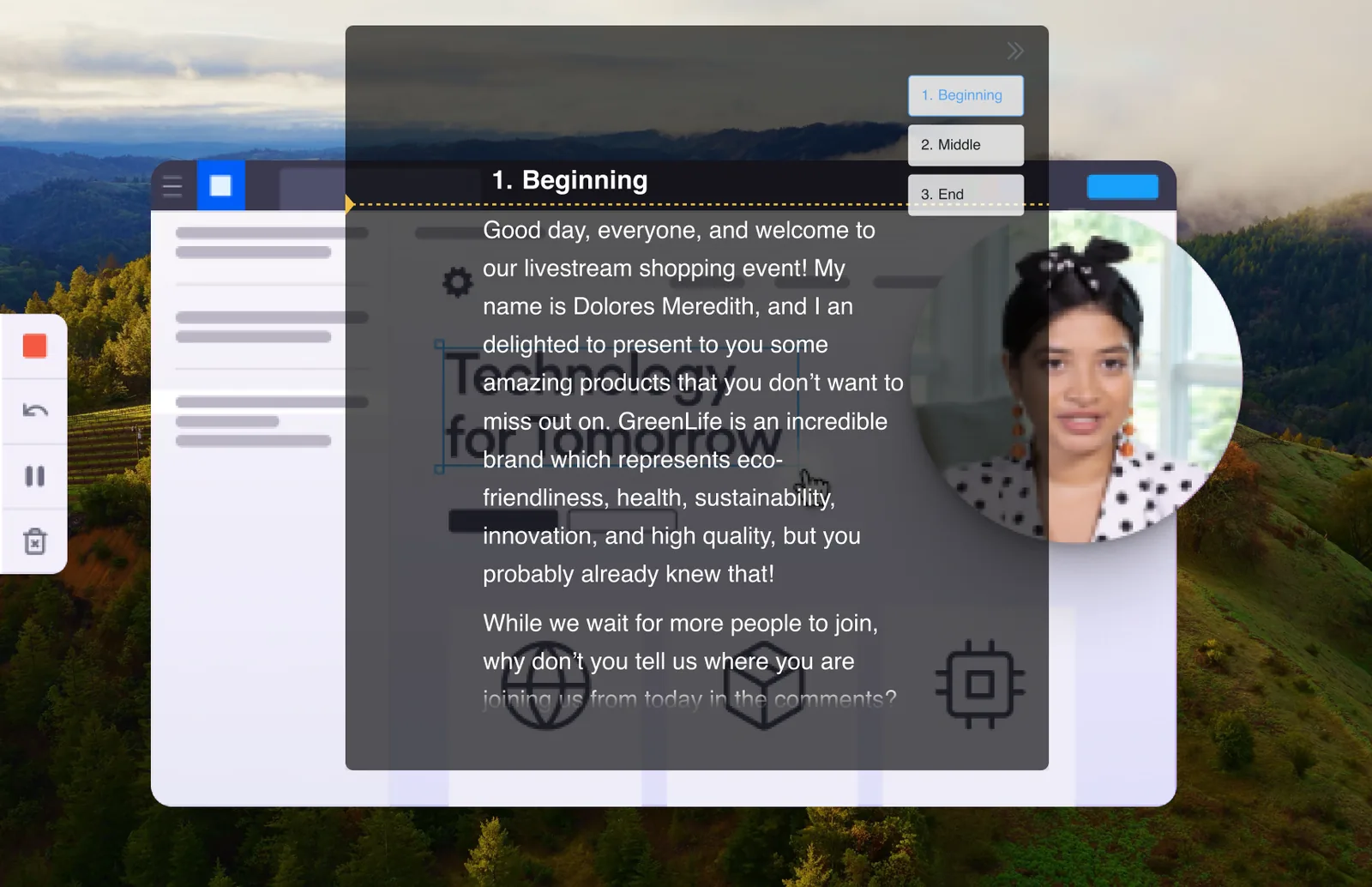
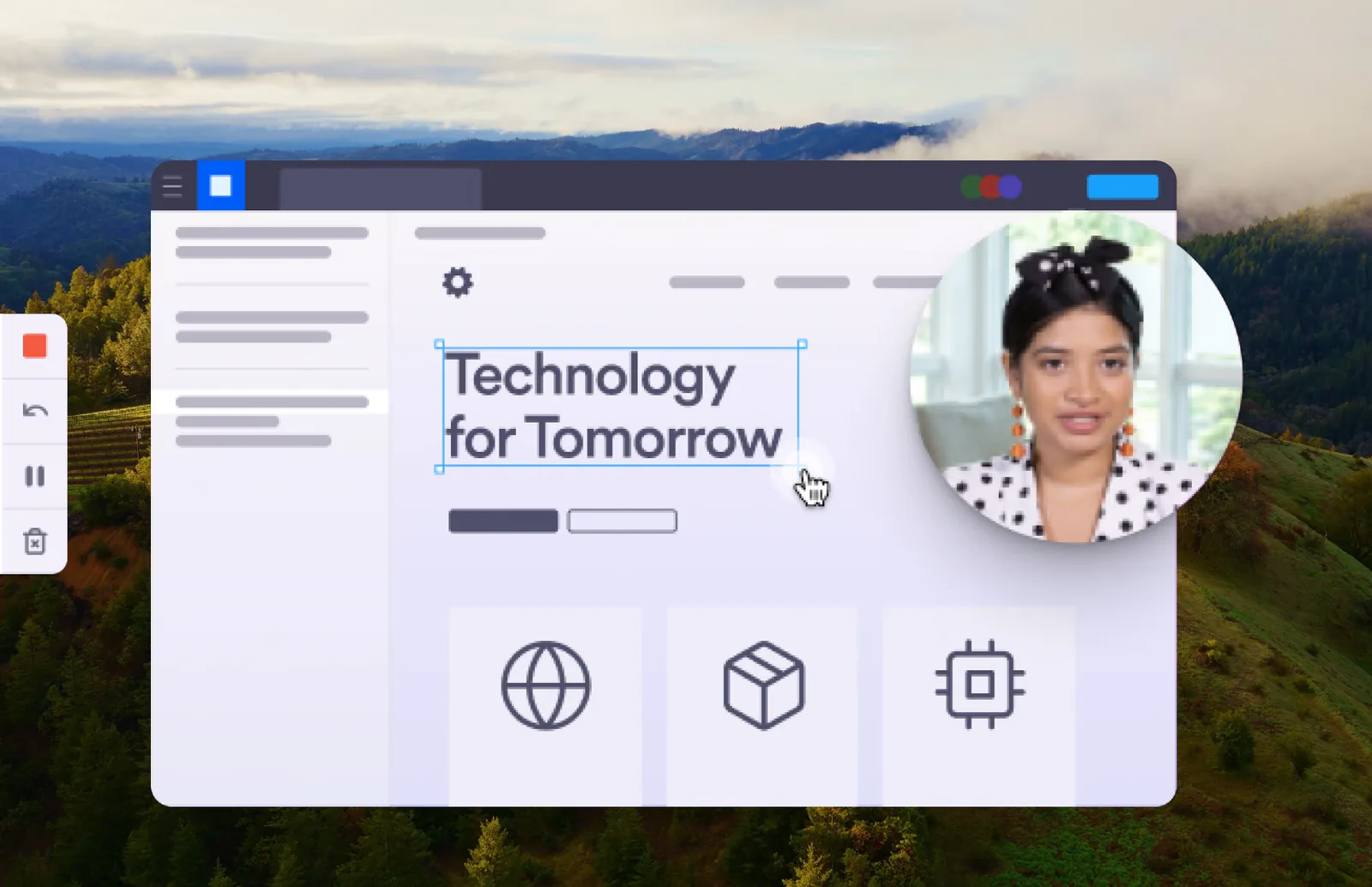
These two frames are the same scene: the presenter’s view with the script still readable, and the exported recording without that prompt.

Presenter view with the teleprompter readable over the demonstration
What you see while recordingThe app interface in this photo is shown in English. These photos were captured on a Mac.
Exported recording of the same demonstration without the teleprompter
The finished recordingThe app interface in this photo is shown in English. These photos were captured on a Mac.

What this recorder is for

Screen capture next to your script

The recorder lives in FlowPrompter Desktop, so you are not pasting notes into one app and capturing the screen in another. Choose the display or window you are demonstrating, then start from the same workspace as the prompt.

A prompt that can stay off the take

Invisible Window is the setting that keeps the teleprompter readable to you and out of the capture. If the prompt is still visible on the display you are recording, Desktop asks you to hide it, keep it, or go back. The honest result depends on that choice.

How to record from Desktop

  1. Open or paste the script you will follow. Keep it to the points you actually need to say; this is a reading aid, not a second slide deck.

  2. Choose the screen or window to capture and grant the microphone or system-audio permissions that apply on your computer. Missing permissions block the start instead of recording silence.

  3. Turn on Invisible Window if you want the prompt out of the file, then start recording and talk through the demonstration at your own pace.

  4. Stop when you are done and wait until Desktop finishes writing the file. Open the MP4 from the save location and confirm the take before you move on.

Where this recording path helps

Software tutorials

You can stay on the clicks in the product while the script keeps the spoken order nearby. The viewer should see the interface, not a strip of notes.

Course lessons

A module that mixes slides, a browser, and a spoken explanation is easier to finish in one take when the outline stays on your screen and out of theirs.

Product walkthroughs

Launch demos and feature tours need accurate names and a clean picture. Read the short script, point at the real UI, and export a file you can send without extra masking.

Platforms, permissions, and files

Desktop recording runs on a Mac or a Windows PC. It is not a Linux app, and a phone cannot capture your computer screen from this page. macOS 13 or later and Windows 10 version 2004 or later (64-bit) are the stated floors. You will be asked for the screen, microphone, or system-audio permissions that the mode needs. The intended file is an MP4 saved on this computer, by default in Movies/FlowPrompter on a Mac and Videos/FlowPrompter on Windows.

TopicWhat to expect
macOSDesktop app, Apple Silicon or Intel installer
WindowsDesktop app, 64-bit installer
LinuxNot supported
Phone or tabletUse the online editor to prepare a script; this recorder needs a supported computer

Limits we will not invent here

This page does not promise unlimited time, a free quota, 4K output, or a watermark policy. Membership details live on the pricing page. If a free take is shortened on your account, Desktop will say so in the app. Recordings are written on this computer; this page does not claim that nothing from FlowPrompter ever leaves the device.

Questions about the built-in recorder

Is this a web screen recorder?

No. This page is about the recorder inside FlowPrompter Desktop. The browser tools on this site, including the webcam recorder, stay in the browser and do not capture your desktop screen.

Will my script appear in the finished video?

Not when Invisible Window is on, or after you choose to hide the prompt and record. If you keep the prompt visible on the display you are capturing, it can be in the file. The two-frame proof on this page is the same-scene check for that setting.

Can I record my camera as well?

Desktop has camera and screen-plus-camera modes in the product. They will be listed here with photos only after the current download is confirmed. Until then this page describes screen recording with the teleprompter.

What audio can I record?

You can record your microphone. Screen recordings can include computer audio when that permission is available on your platform. Camera mode does not assume system audio. This is not a promise that every sound on the machine is captured.

Where does the file go, and what format is it?

Desktop saves an MP4 on this computer. The default folders are Movies/FlowPrompter on a Mac and Videos/FlowPrompter on Windows. You can pick another folder for the current session. Wait until saving finishes before you look for the file.

Which platforms are supported?

Download Desktop for macOS 13 or later, or Windows 10 version 2004 or later (64-bit). Linux is not supported. A phone can open the online editor but cannot run this recorder.

Is recording free? Are there membership limits?

Check the pricing page for the current Desktop plan. This page does not invent a minute count, a watermark rule, or an unlimited promise. If your account has a shorter free take, the app is the place that should show it.

How is this different from the online webcam recorder?

The webcam tool records your camera in the browser and never installs Desktop. This page is for capturing the screen you are demonstrating while you read a script in the desktop app. Use the webcam tool when you only need a camera take in the browser; use Desktop when the lesson is on your screen.

Related pages

Download Desktop and record from the same app as your script

Choose a Mac or Windows installer. This is not an online screen recorder.

Use this recorder on a Mac or Windows PC. On this device you can still prepare a script online, or pick an installer below for a supported computer.