FlowPrompter + Screen Studio
Cinematic motion from Screen Studio. Polished narration from a script.
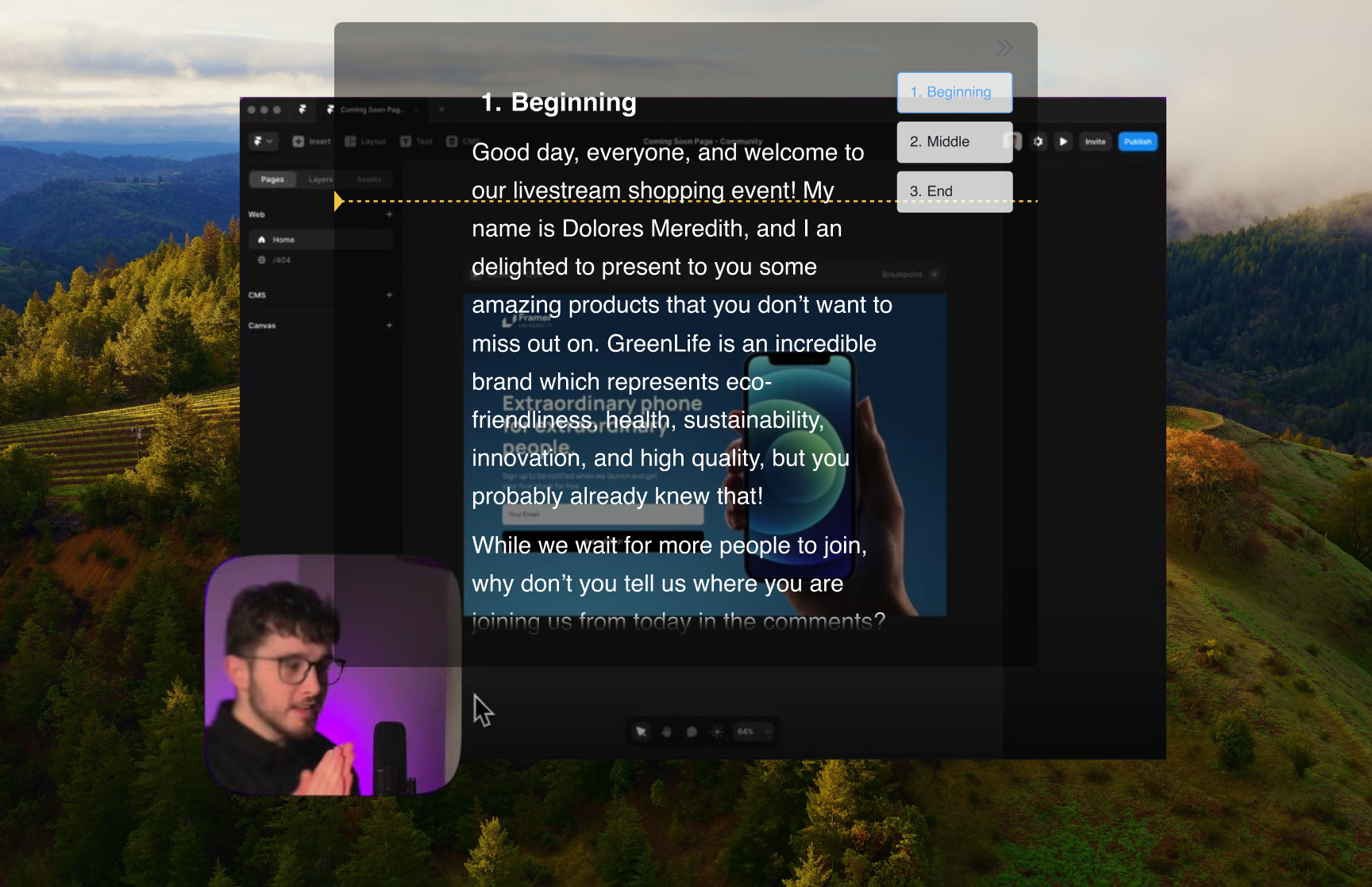
Screen Studio makes Mac screen recordings look cinematic — automatic zooms on your clicks, buttery cursor motion, beautiful backgrounds. That polish cuts both ways: hesitant, rambling narration stands out twice as much over slick visuals. FlowPrompter puts a word-for-word script on the very screen you're recording, and because Window Privacy excludes the prompt window from screen capture, it never appears in the footage — not even inside Screen Studio's auto-zooms.
How to Set Up
Script the narration in FlowPrompter, matching each paragraph to one step you will click through
Turn on Window Privacy so the prompt window is excluded from the screen capture
Start recording your screen in Screen Studio
Keep the prompt floating over the area you are demonstrating — Click-through lets you operate the app underneath it
Walk through the demo; the exported video shows your app and cursor, never the script
Pro Tips
- 💡Screen Studio zooms toward your clicks, and the prompt won't appear even inside the zoom — leave it wherever it's easiest to read
- 💡Pace the reading to your clicks, not the other way around; short paragraphs per action work best
- 💡Recording your camera as well? Park the prompt near the webcam for the talking-head moments
- 💡Use Intelligent Pause so the scroll waits while an animation or page load finishes
Common questions about FlowPrompter + Screen Studio
- Will Screen Studio show the FlowPrompter window in the final video?
- Not when Window Privacy is enabled. You can keep the prompt over the area you are demonstrating, and Screen Studio exports the app, cursor, and motion without the prompt window.
- How should I script a Screen Studio demo?
- Write one short paragraph for each action or screen. Screen Studio makes the visuals polished; FlowPrompter keeps the voiceover just as deliberate.
- Can I click through the prompt while recording?
- Yes. Enable Click-through in FlowPrompter so your clicks go to the app underneath while the script remains readable on top.
Best Use Cases for FlowPrompter + Screen Studio
- →Product launch demos with voiceover
- →Feature walkthroughs for changelogs and release notes
- →App Store and landing-page preview videos
- →Tutorials where the narration must match the cursor exactly
Download FlowPrompter for Desktop and narrate Screen Studio demos cleanly
Download Desktop for invisible screen sharing. Use Online when you only need a quick draft.