FlowPrompter Review: Invisible Teleprompter for Zoom and Screen Recording
FlowPrompter is an invisible desktop teleprompter for people who present or record from a computer. Its defining privacy mode, Invisible Window, lets you keep notes visible near the webcam while excluding the prompt window from supported screen shares, recordings, and screenshots. It also offers speech-following scroll in 14 languages, synced scripts, and a built-in screen recorder on macOS and Windows.
FlowPrompter is best for Zoom presentations, software demos, online courses, webinars, and tutorial videos. It is less suitable if you need Linux support, a studio beam-splitter rig, or a phone app that records your computer desktop.
TL;DR
Choose Desktop when the audience must not see your notes.
Use speech-following scroll when your pace changes during demos or lessons.
Use Online for drafting; the integrated recorder and private prompt are desktop capabilities.
Run a second-device test before every important live session.

FlowPrompter Desktop keeps notes near the webcam while the audience remains focused on the presentation.
FlowPrompter Review Summary
Question | Answer |
|---|---|
What is it? | A browser and desktop teleprompter built for private prompting during meetings and recordings. You also can use it in you phone. |
Standout feature | The private-prompt mode, designed to keep the overlay out of supported captures |
Best for | Zoom calls, screen shares, product demos, lessons, webinars, and tutorials |
Speech control | Voice tracking in 14 languages |
Recording | Desktop screen recorder that saves MP4 files locally |
Platforms | Online editor plus Desktop for macOS 13+ and Windows 10 version 2004+ (64-bit) |
Main limitations | No Linux Desktop app; computer-screen recording requires Desktop; capture privacy should be tested before going live |
What Makes FlowPrompter Different?
Most browser teleprompters solve one problem: they scroll words. FlowPrompter adds a delivery layer for computer-based work. You can draft online, open the same material in Desktop, position a floating overlay beside the webcam, hide it from the capture, and record a walkthrough without changing products.
The distinction between transparency and invisibility matters. A transparent panel may let you see the slide beneath it, but a capture tool can still include that panel. The desktop privacy setting is designed to exclude the overlay from supported screen-sharing and recording workflows. That makes it useful when your notes contain a pitch, teaching outline, demo steps, or internal talking points that viewers should not see.
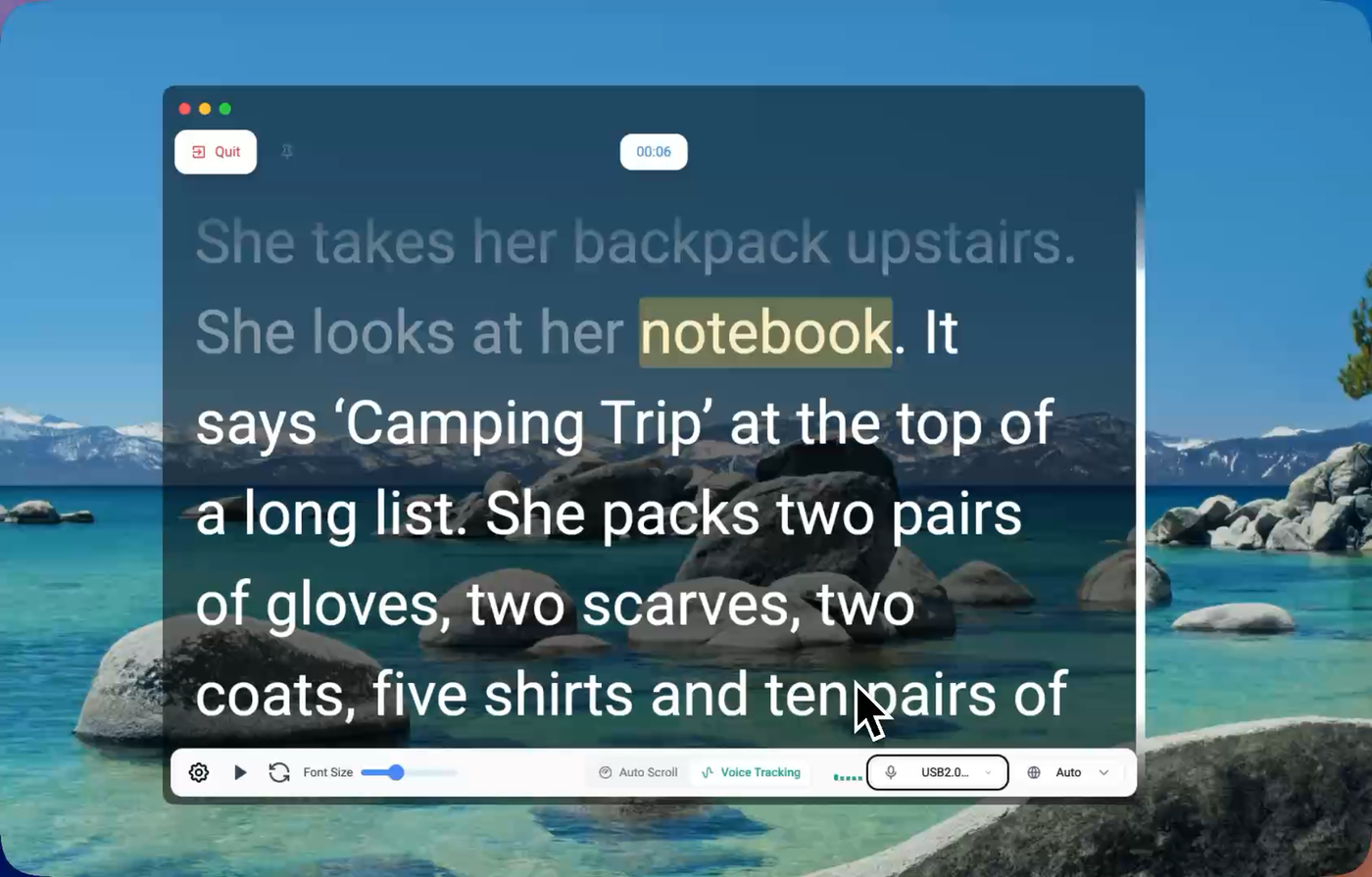
The presenter follows the on-screen notes while the shared or recorded output stays uncluttered.
Does FlowPrompter Stay Hidden on Zoom?
FlowPrompter Desktop is designed to remain visible to the presenter and absent from supported screen shares when the privacy setting is enabled. This is the relevant mode for Zoom, Google Meet, Microsoft Teams, webinars, and similar presentation workflows.
You should still run a private test with the exact conferencing app and sharing mode you plan to use. Sharing one application window is different from sharing an entire display, and capture behavior can vary by operating system. Zoom documents these separate sharing choices in its official screen-sharing guide. Verify the audience view from a second device before an important session.
How Does FlowPrompter Improve Eye Contact?
The movable reading panel can sit immediately under or beside your webcam, which reduces the angle between your reading position and the lens. Keep the reading area narrow so your gaze does not sweep across a full-width document.
For a laptop or desktop recording, a practical starting distance is 60 to 100 cm (24 to 39 inches) from the camera. Display two to four short lines, increase the type size instead of widening the panel, and record a 20-second sample. Silent playback makes repeated horizontal eye movement easier to notice.
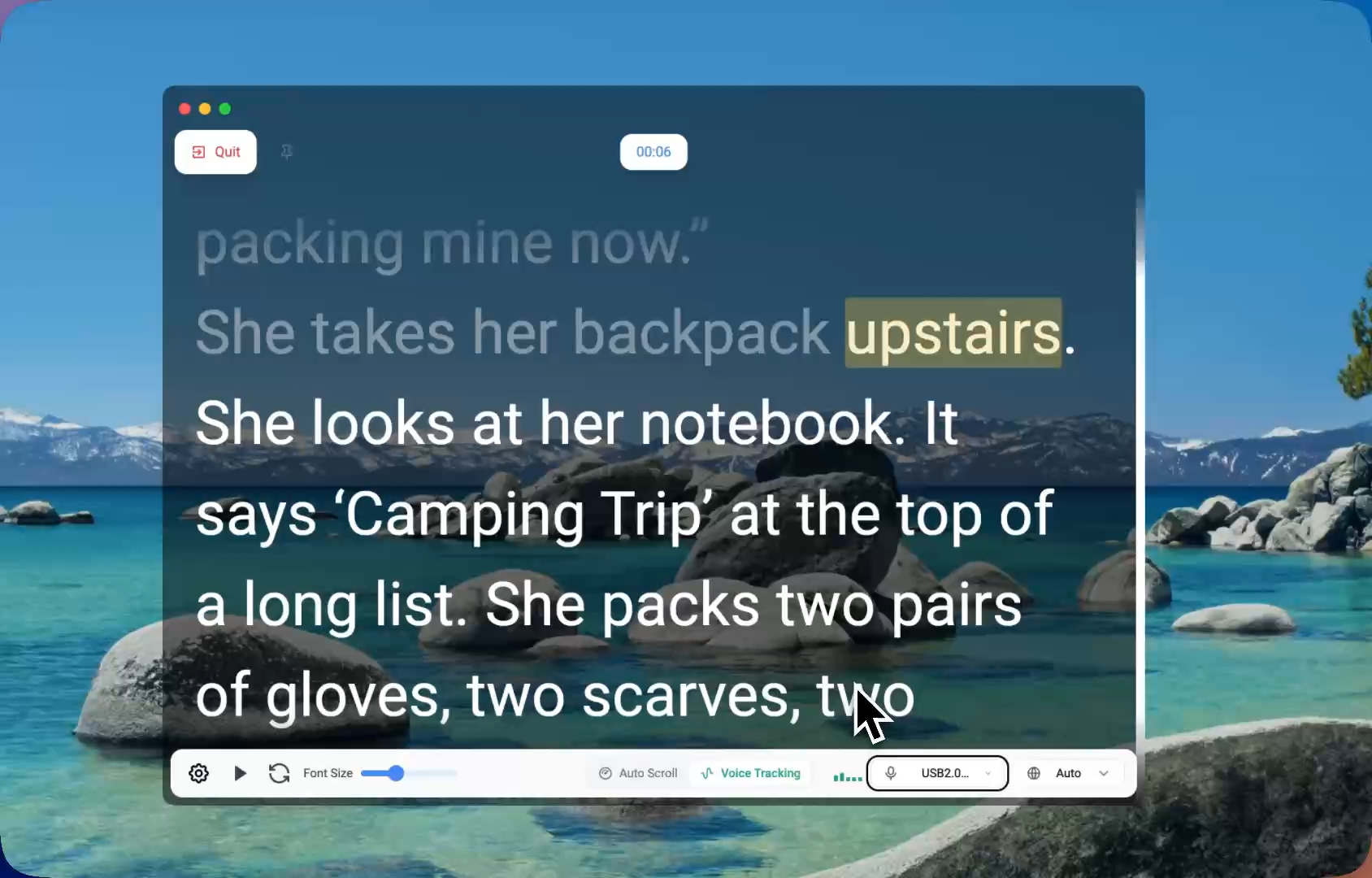
A narrow reading column and short spoken phrases reduce visible scanning.
How Does FlowPrompter Voice Tracking Work?
The speech-control mode listens as you read and moves the text at your actual pace. It waits when you pause and continues when you return to the wording. This removes the pressure to match a fixed timer during demos, lessons, and presentations where you may stop to click or explain something.
Write or paste your material into FlowPrompter.
Enable speech control and grant microphone permission.
Begin speaking; the active lines advance with your delivery.
Pause, breathe, repeat a phrase, or briefly ad-lib; the reading position waits for you.
The supported languages are English, Spanish, German, French, Portuguese, Dutch, Russian, Japanese, Korean, Simplified Chinese, Traditional Chinese, Arabic, Hindi, and Malay. The browser currently provides three free minutes for guests and another three minutes after sign-in. Check the official pricing page for current limits before relying on a plan detail.
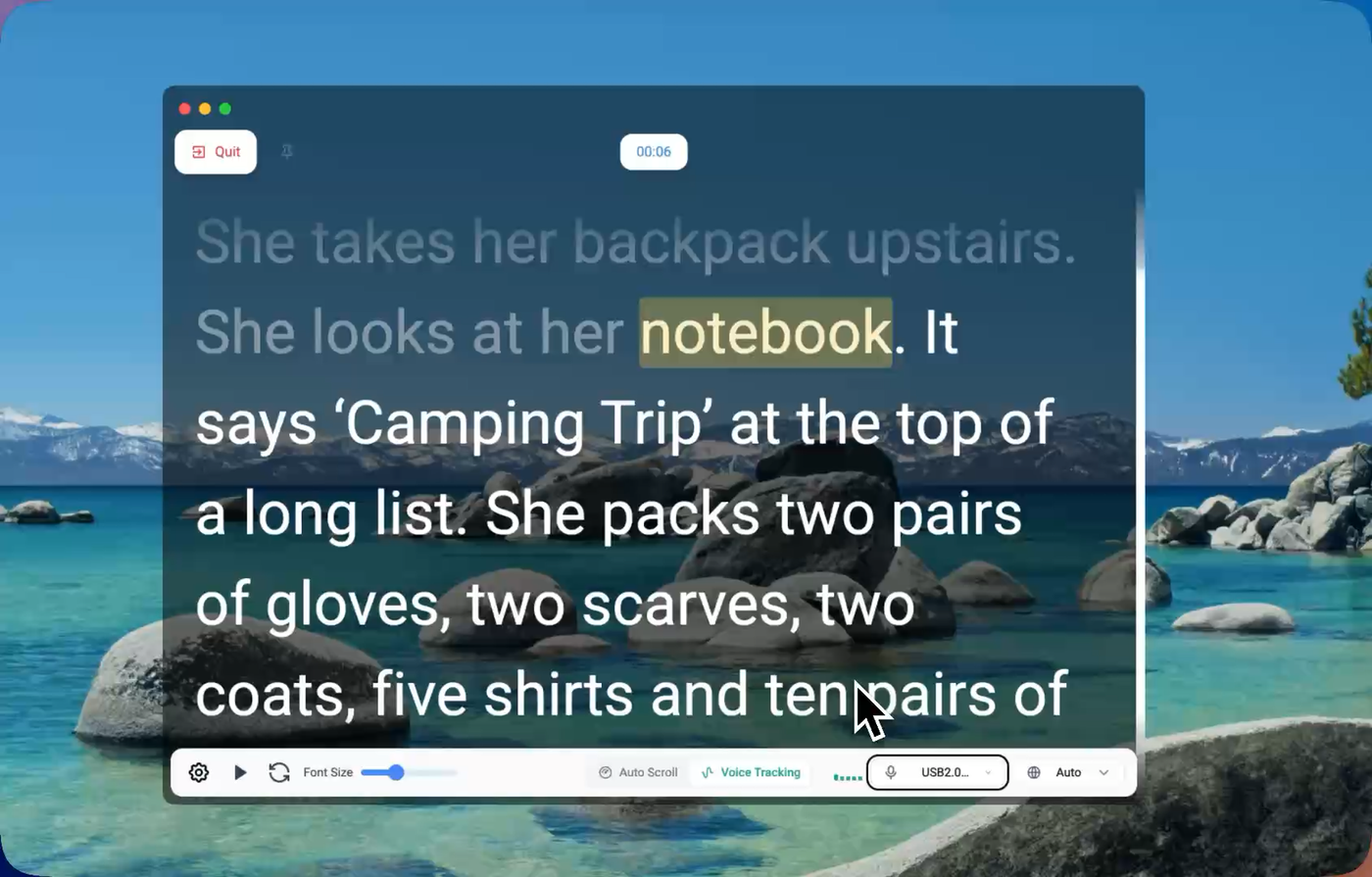
Speech-following movement gives the presenter room to pause instead of racing an automatic timer.
Can FlowPrompter Record a Tutorial?
Yes. FlowPrompter Desktop includes a recorder for software tutorials, course lessons, and product walkthroughs. It captures a selected display or application window while your notes remain available in the same workspace. With private prompting enabled, or after choosing to hide the overlay before recording, the finished video can exclude the reading aid.
Open the material you intend to follow.
Select the display or application window to capture.
Grant the screen, microphone, or system-audio permissions required on your computer.
Enable private prompting if your notes must stay out of the final video.
Record the walkthrough, stop, and wait for the MP4 to finish saving.
Review the file and confirm that no private notes appear.
On macOS, recording applications require user-approved access to screen and system audio. Apple explains how to review that permission in its Screen & System Audio Recording settings guide. Missing permission should be fixed before a live take rather than after a silent or blank recording.
FlowPrompter Online vs Desktop
Capability | Online | Desktop | Mobile |
|---|---|---|---|
Draft, edit, and rehearse | Yes | Yes | Yes |
Speech-following scroll | Yes, subject to plan limits | Yes, subject to plan limits | Yes |
Private overlay during screen sharing | No; move to Desktop | Yes, with Invisible Window | iOS (No) Android(Yes) |
Capture a computer display | No | Yes, with the integrated recorder | -- |
Typical role | Fast drafting and rehearsal | Meetings, delivery, and recording | Meetings, delivery, and recording |
Who Should Use FlowPrompter?
FlowPrompter is a good fit for remote professionals running client calls, educators recording screen-based lessons, creators making tutorials, founders delivering product demos, and webinar hosts who need consistent wording without exposing notes.
Choose another setup if you need Linux, a physical beam-splitter mounted in front of a studio camera, or mobile software that captures a desktop computer. FlowPrompter's strongest case is a Mac or Windows workflow where one person needs to read, share, and often record from the same machine.
How to Set Up FlowPrompter for a Live Presentation
Write for speech with short sentences, contractions, and explicit pause cues.
Open the prepared material in Desktop on the computer used for the call.
Keep two to four short lines close to the webcam.
Choose manual movement for timed remarks or speech control for flexible delivery.
Switch on the capture-hiding setting before sharing or recording.
Join from a second device and confirm that your notes are absent.
Frequently Asked Questions
Can an audience see FlowPrompter during screen sharing?
The desktop privacy feature is designed to keep the desktop prompt out of supported captures. Always test the exact display, window, and conferencing mode before the session.
Does FlowPrompter work with Zoom, Teams, and Google Meet?
Yes. The desktop workflow is intended for meetings and screen sharing rather than one conferencing brand. Position the reading panel near the camera, enable privacy mode, and verify the participant view.
Is FlowPrompter free?
FlowPrompter offers free online use with stated limits. Paid options cover longer use and the professional desktop workflow. Consult the official pricing page because limits and offers can change.
Can I use FlowPrompter on a phone?
You can use the online editor on a mobile device to prepare or access material. Invisible desktop prompting and computer-screen capture require the macOS or Windows app.
What is the main advantage over a basic browser teleprompter?
The main advantage is the complete delivery workflow: cross-device preparation, a movable desktop overlay, capture privacy, speech control in 14 languages, and screen recording in one product.
Final Verdict
FlowPrompter is worth considering when you need private on-screen prompting for Zoom, screen sharing, tutorials, webinars, or product videos. Start with FlowPrompter Online to draft and rehearse. Use FlowPrompter Desktop when Invisible Window or computer-screen recording is the reason you need a teleprompter in the first place.