How to Read Notes on Zoom Without Anyone Knowing (Windows, Mac & Free Options)
You're about to join an important Zoom call — a client pitch, a team all-hands, or maybe a recorded webinar. You have your talking points ready, but the moment you glance down at your notes, it shows. Your eyes shift. Your head tilts slightly. And suddenly, everyone on the call knows you're reading.
It doesn't have to be this way. There's a reliable way to keep your notes visible to you and completely invisible to everyone else on Zoom. Even better, it works on both Windows and Mac — not just one platform.

Why Most "Hidden Note" Methods Fail
Before we get to the solution, let's look at the common workarounds people try and why they fall short:
Sticky notes on your screen — Visible the moment you share your desktop. Plus, you're looking away from the camera.
A second monitor with notes — Your eyes visibly dart to the side. On video, it's obvious.
Phone or tablet below the webcam — Not captured by screen share, but the screen is tiny, scrolling is awkward, and it's still not directly in your line of sight to the camera.
Browser-based teleprompters — Convenient until you share your entire screen. Then the tab is fully visible to everyone.
The real fix needs to solve two problems at once: keeping notes hidden from screen capture and positioning them right where your camera is so your eyes never give you away.
The Invisible Overlay Approach
The most effective solution is a desktop teleprompter that floats as a transparent overlay on top of your screen. It sits right near your webcam — so you maintain natural eye contact while reading — and uses a window layer that screen-sharing software simply doesn't capture.
This isn't a hack. It's a legitimate window rendering technique. Apps that use this approach are invisible to Zoom, Google Meet, Microsoft Teams, OBS, and any other screen-recording tool. Your audience sees only what you choose to share. You see your script, positioned exactly where you need it.
FlowPrompter works this way. Its desktop app for Windows and macOS creates a floating overlay that stays hidden during screen sharing, with a simple toggle if you ever want it visible. You can drag it to sit directly under your webcam — minimizing eye movement and keeping you looking natural on camera.
Step-by-Step: Setting Up Hidden Notes for Zoom
Step 1: Choose a Cross-Platform Tool
Make sure your teleprompter actually supports your operating system. Several popular "invisible" teleprompters are Mac-only, which leaves Windows users out entirely.
FlowPrompter offers native desktop apps for Windows and macOS, plus an Online version for quick drafting. If you need invisibility during screen sharing, use the Desktop app — the Online version is great for writing and practicing, but the overlay invisibility feature is a desktop-native capability.
Step 2: Position the Overlay Near Your Camera
Open your script in the teleprompter and drag the window so the text sits just below your webcam lens. On most laptops, that's the top-center bezel area.
The closer your notes are to the camera, the less your eyes move when reading. Even a few inches of offset is noticeable on video. Get it as close as possible.

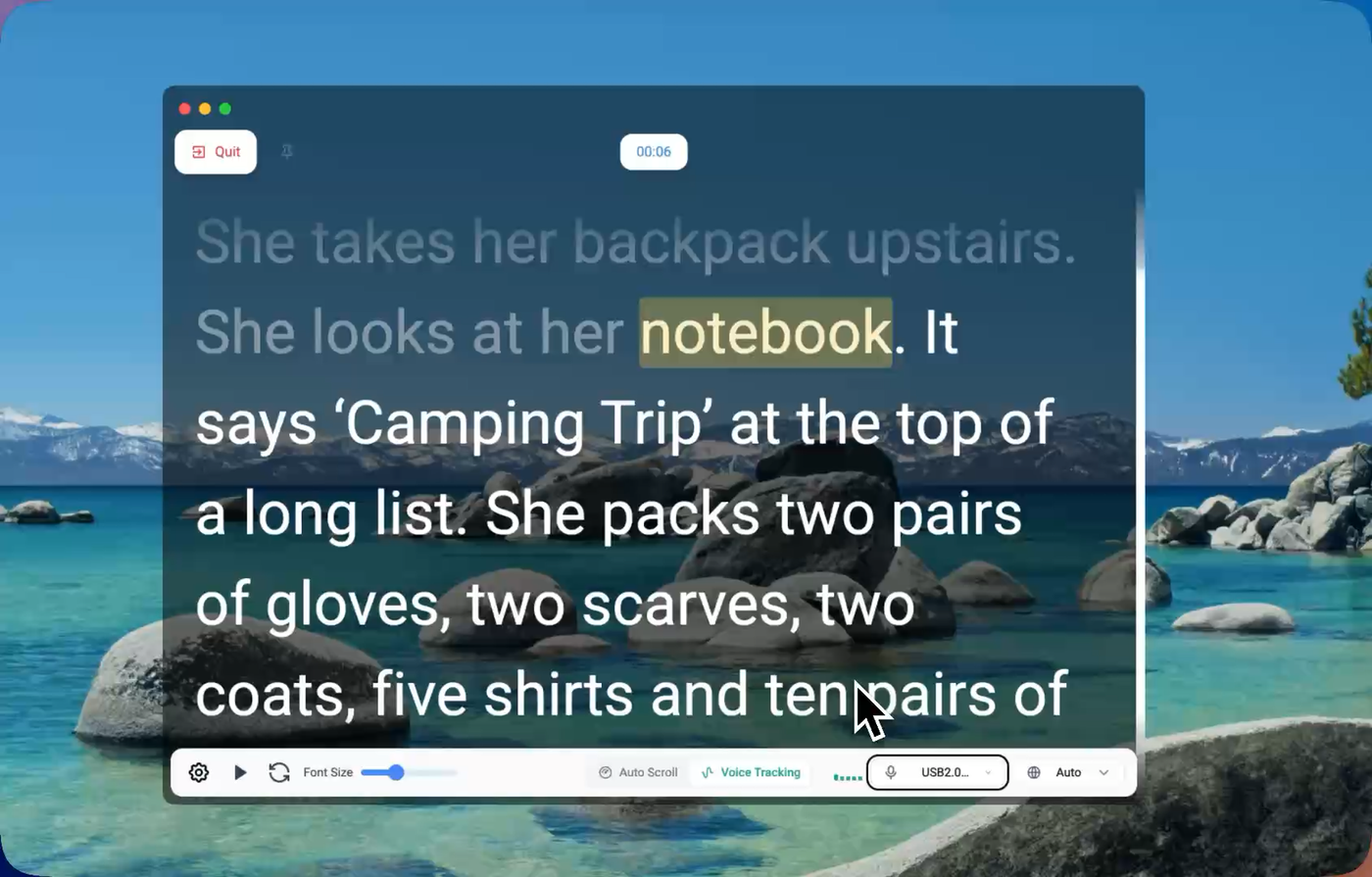
Step 3: Enable Voice-Activated Scrolling
This is where a good teleprompter becomes a great one. Instead of manually controlling scroll speed — which forces you to divide attention between speaking and clicking — let the app follow your voice.
FlowPrompter's AI voice tracking scrolls as you speak, pauses when you pause, and waits when you go off-script to answer a question. When you return to your script, it picks up right where you left off. It supports 14 languages, so it works whether you're presenting in English, Spanish, German, Japanese, or others.
 Step 4: Test Screen Share Invisibility
Before your real call, start a solo Zoom meeting and hit "Share Screen." Select your entire screen. Check the preview — your teleprompter overlay should not appear. If it does, you're using the wrong tool.
FlowPrompter's desktop app hides from screen capture by default. There's also a "Visible in screen share" switch if you ever need the opposite behavior — for example, when teaching someone how to use the app.
Step 5: Do a 2-Minute Dry Run
Open your script, start the teleprompter, join a test Zoom meeting, and practice your first two minutes. Verify that:
Your notes are not visible in the shared screen preview
The voice tracking keeps pace with your natural speaking speed
You can glance at the text without obvious eye movement
Two minutes of testing prevents an entire meeting of embarrassment.
What About Built-In Zoom Features?
Zoom offers a few native options that people try:
Speaker notes with PowerPoint as Virtual Background — Only works for slides. Useless for demos, browser walkthroughs, or anything non-PowerPoint.
Share a specific window instead of full screen — Hides your notes, but locks you to one window. Switching apps requires stopping and restarting screen share.
Portion of Screen sharing — Keeps notes outside the green border, but you're constantly looking away from what you're actually sharing.
None of these solve the eye-contact problem. A proper invisible teleprompter overlay does both: hides your notes and keeps them at camera level.
Honest Limitations: Who Shouldn't Switch?
If you only present slides and never demo software or share your browser, Zoom's built-in speaker notes are fine — no extra tool needed.
If you have a dedicated prompter hardware setup with a beamsplitter glass and a separate monitor, you already have a professional solution. Software overlays complement but don't replace that level of equipment.
For everyone else — anyone who shares their screen, switches between apps, or simply wants to look directly at the camera while reading — a desktop overlay teleprompter is the most practical upgrade.
FAQ
Can Zoom detect that I'm using a teleprompter?
No. Zoom has no way to detect what apps are running on your computer. An invisible overlay simply renders on a window layer that screen capture APIs don't see. It's not hidden by any hack — it's just on a different rendering layer.
Will my notes appear in Zoom recordings?
If your teleprompter is truly invisible to screen capture, it won't appear in local or cloud recordings either. The recording captures exactly what your audience sees.
Does this work on Windows, or only Mac?
It works on both — but only if you choose a cross-platform tool. FlowPrompter's desktop app runs natively on Windows and macOS. Many competing invisible teleprompters are Mac-only, so check your platform before committing.
Can I use this for Google Meet and Microsoft Teams too?
Yes. The invisible window layer approach works with any screen-sharing app on both Windows and macOS — Zoom, Meet, Teams, Webex, OBS, Streamlabs, and others.
Ready to Present with Confidence?
Stop splitting your attention between your notes and your audience. With the right setup, you can read every word while looking straight into the camera — and nobody will ever know.