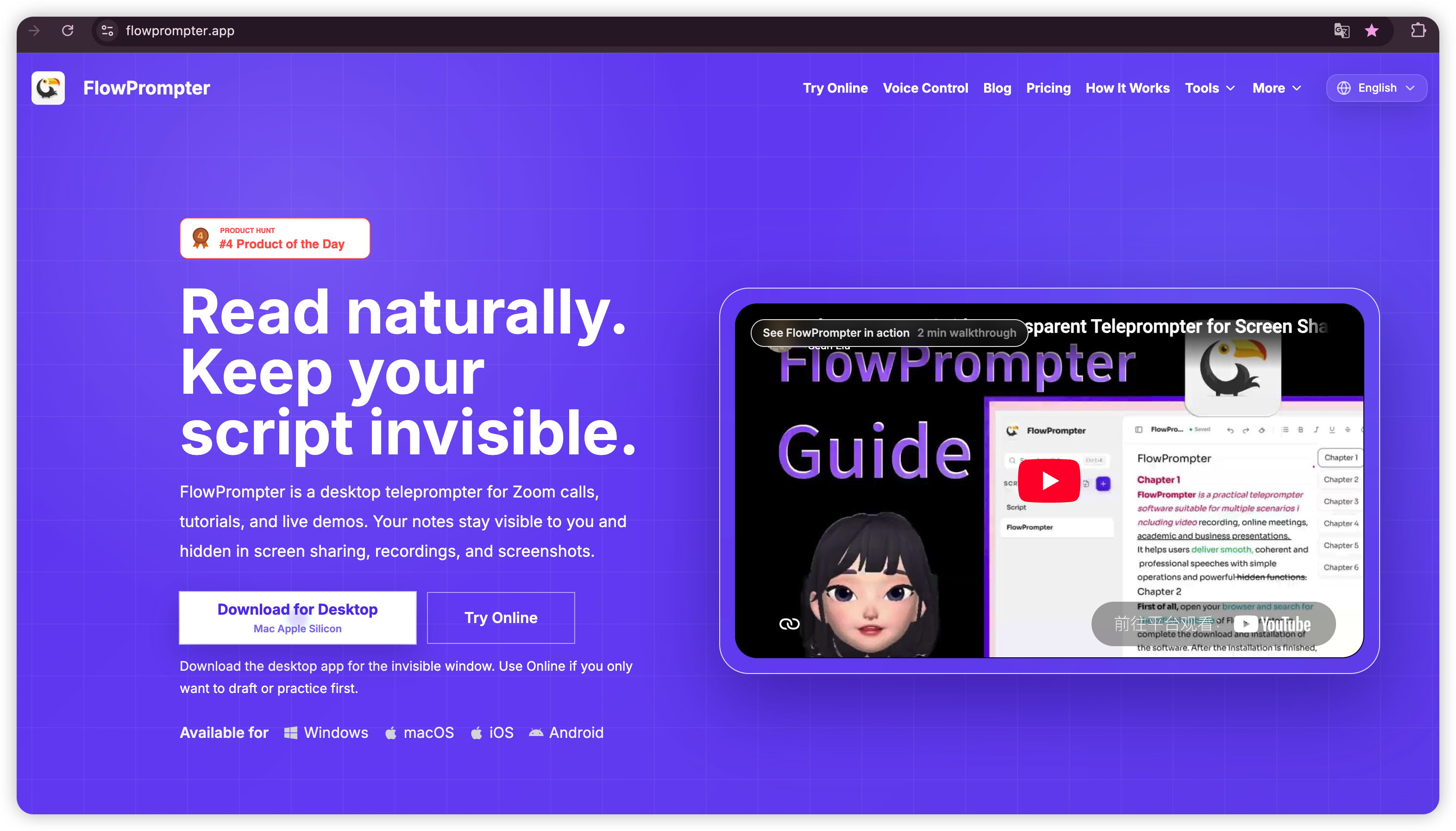
FlowPrompter Review: One Teleprompter for Windows, Mac, iPhone, and Android
Quick verdict: FlowPrompter now supports Windows, macOS, iPhone, and Android, but the four apps are not interchangeable. Windows and Mac are better for Zoom, Google Meet, Microsoft Teams, Loom, OBS, presentations, and screen recordings because they can place a transparent prompt beside the webcam.
iPhone and Android are better when the phone itself is the camera: they put the script over the camera preview and let you record while reading. Supporting 4 operating systems creates 2 distinct workflows, desktop presentation and mobile camera recording, without asking users to learn a different product.
This review compares the current platform roles, setup, prompting controls, recording workflow, and practical limitations. It does not claim that every feature is identical on every device. A transparent desktop overlay and a phone camera teleprompter solve different production problems.
FlowPrompter at a Glance
Platform | Best use | Distinctive advantage | Important limitation |
|---|---|---|---|
Windows | Zoom, Microsoft Teams, Google Meet, Loom, OBS, PowerPoint, tutorials | Movable transparent overlay and desktop delivery workflow | Screen-capture privacy should be tested with the exact app and capture mode |
Mac | Meetings, presentations, product demos, lessons, screen recordings | Lens-adjacent prompt that stays above the working window | macOS may require screen-recording, microphone, or camera permissions |
iPhone | Talking-head video, Reels, Shorts, TikTok, field recording | Camera recording with the script over the preview and voice-follow prompting | A phone screen offers less room for long scripts and production controls |
Android | Mobile explainers, social video, rehearsals, on-the-go recording | Script library, full-screen prompting, camera recording, and display controls | Camera and performance behavior can vary across Android devices |
Best overall fit: choose Desktop when the audience sees your computer screen; choose Mobile when the audience sees video recorded by your phone.
What Is FlowPrompter?
FlowPrompter is a software teleprompter for writing or importing a script, positioning the words near a camera, and controlling how the text moves while you speak. It is available as a desktop app for Windows and Mac and as a mobile app for iPhone and Android. FlowPrompter also provides an online workspace for drafting and rehearsal.
The product addresses two separate search intents. A transparent teleprompter for Windows or Mac helps a presenter maintain eye contact during a meeting, screen share, or computer recording. A teleprompter app for iPhone or Android helps a creator read while recording with the phone camera. Calling both a “teleprompter” is correct, but the camera, screen, and audience relationship is different.
How We Evaluated the Four Versions
Rather than scoring 4 operating systems as if they offered the same job, this review uses 6 practical questions:
Where can the prompt sit relative to the camera?
Can the speaker still see the meeting, slides, or camera preview?
How can the script move: fixed scrolling, manual control, or voice following?
Can the workflow record video or the computer screen?
What must be tested before a live presentation or paid recording?
Which production scenario is each version best suited to?
This task-based method matters because a long feature checklist can hide the most important distinction: desktop prompting is usually about reading privately over another app, while mobile prompting is usually about reading into the same device that records you.
FlowPrompter for Windows Review
Verdict: the Windows app is the most practical FlowPrompter version for people who present, demonstrate software, or record a computer screen. It behaves like a teleprompter overlay rather than a separate full-screen document, so the reading area can stay narrow and close to the webcam while Zoom, Google Meet, Microsoft Teams, Loom, OBS, PowerPoint, or a browser remains visible beneath it.
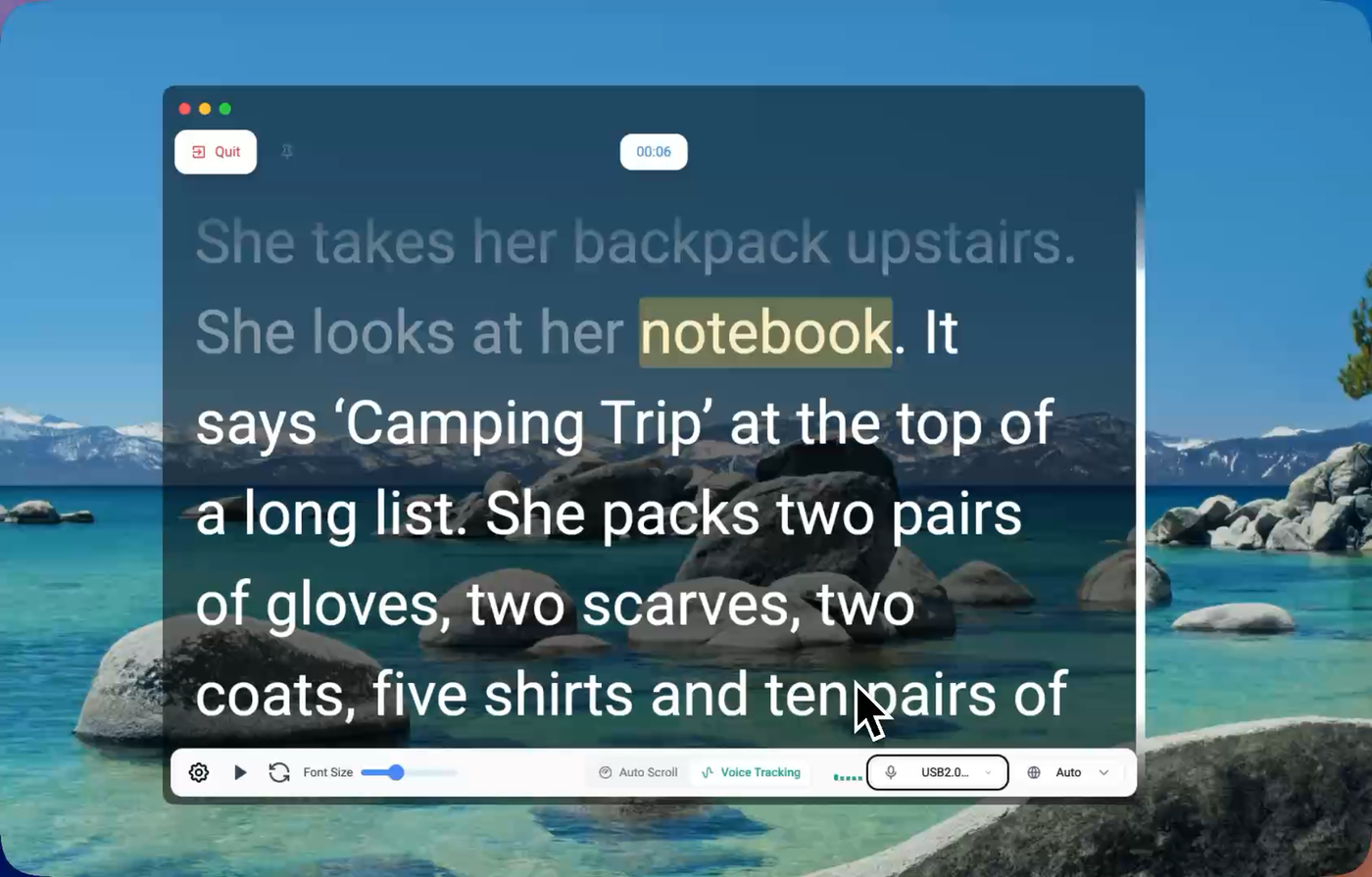
The desktop overlay keeps a compact prompt near the webcam while the presenter works in another application.
For a natural setup, place the prompt directly beneath or beside the webcam, reduce the window width until each line contains a short spoken phrase, and raise the font size instead of stretching the script across the monitor. Transparency lets you keep visual context from the meeting or presentation behind the text. This is the main reason FlowPrompter works better as a Windows meeting teleprompter than a conventional document window.
Using FlowPrompter with Zoom, Teams, or Google Meet
The useful workflow is simple: open the meeting, position the participant or preview window near the webcam, then place FlowPrompter in the same lens-adjacent area. You can see both the audience and the script without repeatedly looking toward notes at the bottom of the display. For screen sharing, use the desktop privacy or invisible-window workflow and verify the audience view from a second device before the call.
A transparent overlay is not automatically invisible to every capture method. Zoom can share a full screen, a particular window, or other selected content; OBS can capture a display, window, or scene. The exact result depends on the operating system and capture choice. FlowPrompter is designed for private prompting, but a 20-second test is still the responsible step before a live webinar, interview, sales call, or client recording.
Using FlowPrompter with Loom or OBS
A Loom teleprompter or OBS teleprompter must solve two tasks at once: keep the words readable to the speaker and keep the final video uncluttered. FlowPrompter Desktop is suited to this because the prompt can float over the application being demonstrated, while the capture is configured for the intended screen or window. For tutorials, the built-in desktop screen recorder is another option when you want prompting and capture in one workspace.
Windows is best for: software walkthroughs, course lessons, sales demos, scripted webinars, PowerPoint presentations, and any recording where the computer rather than the phone is the production surface.
FlowPrompter for Mac Review
Verdict: the Mac version serves the same core purpose as Windows: an invisible or transparent teleprompter near the camera during meetings, presentations, and screen recordings. It is the right choice for a MacBook presenter who needs notes in view without switching between a script document and the audience.
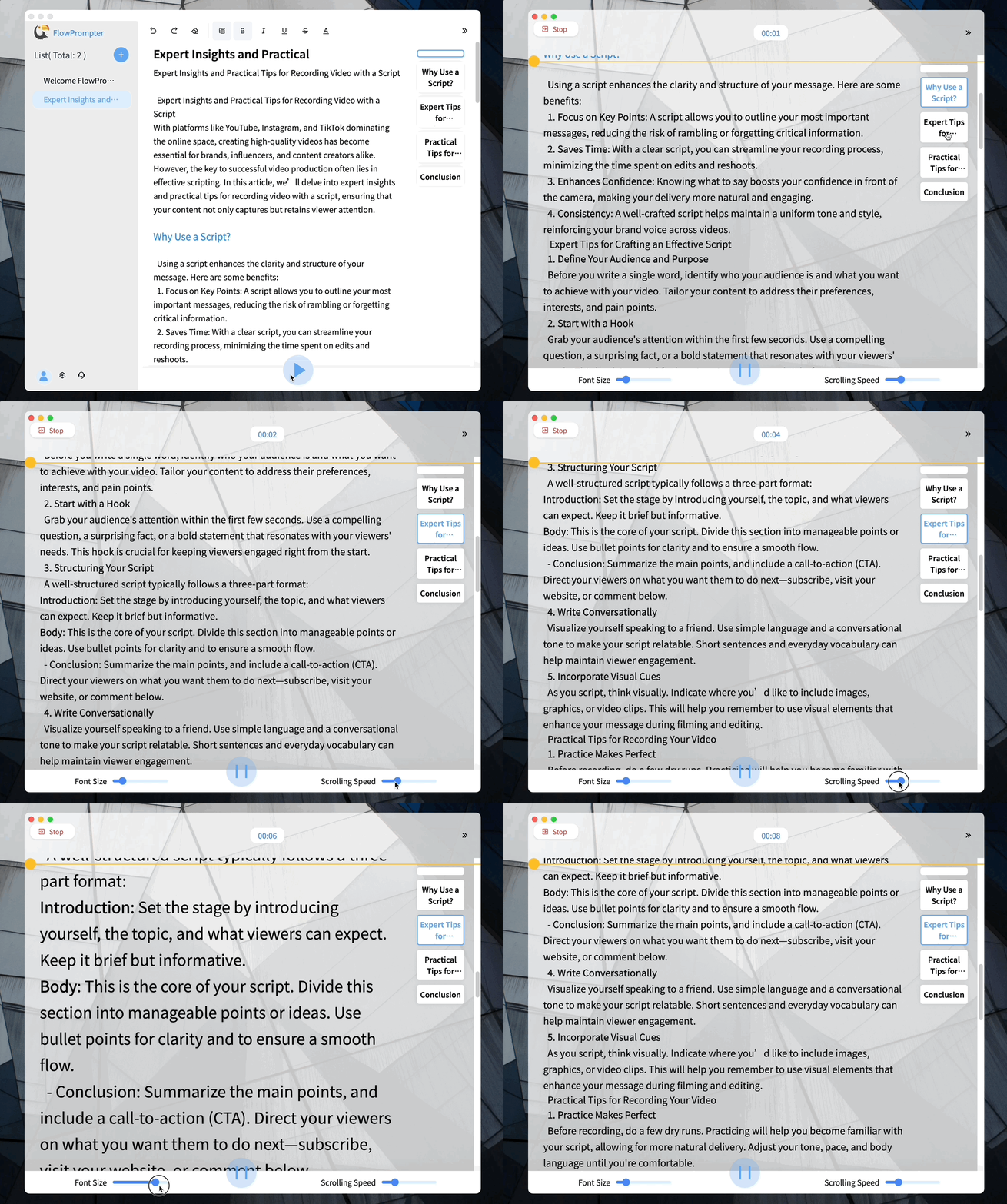
Prepare the script, then use the desktop prompt as a compact reading layer for delivery.
On a MacBook, the camera sits at the top center of the display, so a narrow prompt immediately below the lens generally creates less visible eye movement than a full-width script lower on the screen. On a desktop Mac with an external camera, the same principle applies: move the prompt toward the physical lens, not merely toward the center of the monitor.
The first-run difference is permissions. Recording a display, using a microphone, or accessing a camera may require approval in macOS privacy settings. Grant only the permissions needed by your workflow, then restart the relevant app if macOS requests it. Do this before an important call rather than during it.
Mac is best for: remote meetings, coaching sessions, online teaching, product demonstrations, recorded presentations, and creators whose editing and delivery workflow already runs on macOS.
FlowPrompter for iPhone Review
Verdict: the iPhone app is the best FlowPrompter option when you want to record yourself directly on the phone. Instead of placing text over Zoom or another desktop application, it combines a phone camera preview with a readable script so the words remain close to the lens.
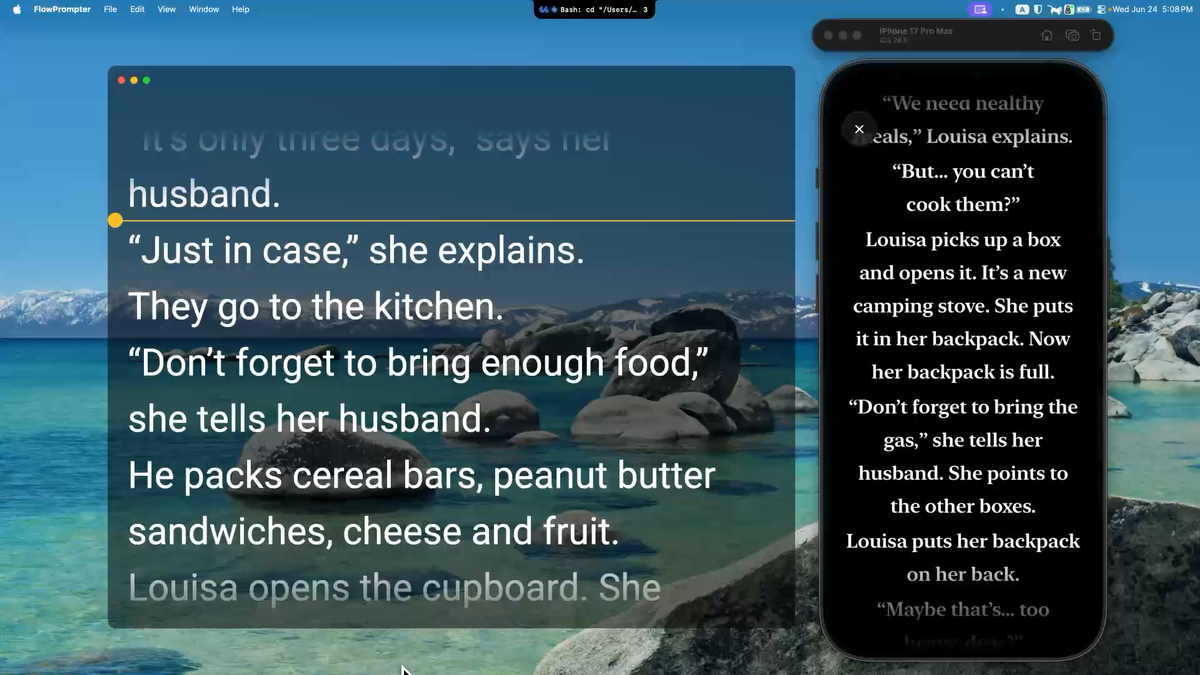
The iPhone version turns the phone into a portable prompting setup for rehearsing or recording away from a desk.
That makes it suitable for YouTube Shorts, TikTok, Instagram Reels, course introductions, social updates, and talking-head clips. The script can appear over the live camera view, reducing the distance between the words and the front-facing lens. As with any phone teleprompter, shorter lines and a small active reading area are more valuable than displaying a large block of text.
Voice-follow prompting lets the text respond to the speaker instead of forcing the speaker to chase fixed scrolling.
Voice following is particularly useful for mobile recording because reaching for the screen can shake the phone or interrupt eye contact. When you pause, emphasize a sentence, or change pace, speech-aware movement is more forgiving than a timer. For a tightly timed advertisement or announcement, fixed scrolling may still be preferable because it makes the total duration predictable.
On iPhone, the camera and teleprompter share one interface, which is useful for direct-to-camera video.
iPhone is best for: vertical social video, travel or field production, quick talking-head recordings, and creators who want a camera teleprompter without carrying a laptop.
FlowPrompter for Android Review
Verdict: the Android app provides the same broad mobile workflow, manage scripts, open a full-screen prompt, adjust reading controls, and record against a camera preview, but on a wider range of phones and tablets.
The dedicated script list is useful when you create recurring videos rather than one-off clips. Open a script, adjust the text for the distance between you and the phone, then choose a prompting or recording workflow. The settings include controls for scroll speed, font size, line spacing, alignment, text color, and background color.
Android hardware varies more than iPhone hardware. Camera position, display size, manufacturer power controls, and OS version can affect the experience. Before recording a long script, test the camera orientation, microphone, text size, and whether the device prevents screen dimming during prompting.
Android is best for: mobile educators, sales updates, social clips, portable rehearsal, and teams that use a mix of Android phones or tablets.
Compatibility and Setup Facts
FlowPrompter currently covers 4 operating systems: Windows, macOS, iOS, and Android. According to the official Desktop documentation, the screen recorder supports macOS 13 or later and 64-bit Windows 10 version 2004 or later. The current Apple App Store listing requires iOS 15.2 or later. Android requirements can vary by device and store listing, so confirm compatibility on the Google Play page from the phone you plan to use.
The first compatibility check is not a feature score. Confirm the operating system, camera, microphone, and capture permissions on the device you plan to use. Then record a short sample and inspect the final output. This is more reliable than assuming that a setup that worked on one computer or phone will behave identically on another.
Desktop vs Mobile: Which FlowPrompter Version Should You Choose?
If your task is... | Use... | Why |
|---|---|---|
Presenting in Zoom, Google Meet, or Microsoft Teams | Windows or Mac | The prompt can sit near the webcam while the meeting remains visible |
Recording a Loom tutorial or OBS scene | Windows or Mac | A desktop overlay fits the same screen-based workflow |
Delivering from PowerPoint | Windows or Mac | The script can stay above or beside the presentation workspace |
Recording a vertical talking-head video | iPhone or Android | The camera preview and script share the phone screen |
Recording away from a desk | iPhone or Android | The phone is a self-contained camera and teleprompter |
Writing on a computer and filming on a phone | Desktop/Online plus Mobile | Prepare in a larger workspace, then open the script on the recording device |
The wrong comparison is “Is desktop better than mobile?” The correct question is “Which screen contains the work my audience needs to see?” If viewers need to see your slides, browser, app, or computer demonstration, use Desktop. If viewers need to see a video recorded by the phone camera, use Mobile.
Transparent Teleprompter vs Invisible Teleprompter
These phrases are related but not identical. A transparent teleprompter reduces the opacity of the prompt window so the presenter can see content behind it. An invisible teleprompter describes a prompt that the presenter can see but the audience or capture should not see. Transparency is a reading-interface setting; invisibility is an output or capture behavior.
FlowPrompter Desktop supports the workflow users are usually seeking with searches such as “transparent teleprompter Windows,” “transparent teleprompter Mac,” “invisible prompter,” and “teleprompter overlay.” For any confidential script, however, test the exact share or recording path. Do not assume that lowering opacity alone hides a window from capture.
Pros and Limitations
What FlowPrompter does well
Four native platform choices: Windows, Mac, iPhone, and Android cover both computer presentation and phone-camera production.
Task-specific interfaces: Desktop focuses on overlays and screen-based delivery; Mobile focuses on reading and recording with a phone.
Camera-adjacent reading: movable or over-camera text can reduce repeated glances toward separate notes.
Flexible pacing: manual or fixed controls work for predictable timing, while voice following accommodates pauses and changing delivery speed.
Useful crossover: a creator can prepare a script in a larger workspace and use a phone for the final recording.
What to consider before choosing it
Feature parity is not the goal: a mobile camera teleprompter cannot replace a desktop overlay for sharing slides, and a desktop overlay cannot replace the convenience of direct phone recording.
Capture privacy requires verification: test Zoom, Loom, OBS, or any other capture tool with the exact source you plan to share.
Permissions can interrupt first use: camera, microphone, and screen-recording permissions should be configured before a live session.
Mobile space is limited: long paragraphs need editing into shorter spoken phrases to avoid visible eye scanning.
Android devices differ: camera placement and system behavior should be checked on the actual phone or tablet.
Practical Setup Recommendations
Write for speech. Use contractions, short sentences, and explicit pauses rather than copying a report into the prompt.
Keep the active line near the lens. Start with the lens about 60 to 100 cm from the speaker for a desktop recording, or 45 to 75 cm for a phone recording. These are setup baselines, not universal requirements.
Narrow the line length. Show 2 to 4 short lines and keep roughly 5 to 9 words per line as a starting point; adjust for language, eyesight, camera distance, and font size.
Choose pacing by task. Use fixed scrolling for strict timing and voice following when your delivery includes pauses or demonstrations.
Record a 20-second test. Review eye movement, audio, framing, scroll behavior, and whether the prompt appears in the output.
Use the platform that owns the camera. Desktop for computer meetings and captures; Mobile for phone-camera video.
Frequently Asked Questions
Is FlowPrompter available for Windows?
Yes. FlowPrompter offers a Windows desktop app for teleprompter overlays, meetings, presentations, tutorials, and screen-based recording workflows.
Does FlowPrompter work on Mac?
Yes. FlowPrompter has a macOS desktop app. It can keep a movable reading area near the camera while you use a meeting, presentation, or recording application.
Does FlowPrompter have an iPhone app?
Yes. The official FlowPrompter iPhone app is listed on Apple's App Store. It supports mobile prompting and direct camera-recording workflows.
Is FlowPrompter available on Android?
Yes. FlowPrompter is available for Android through Google Play. The Android app includes script management, display controls, full-screen prompting, and camera recording.
Can I use FlowPrompter with Zoom, Google Meet, or Microsoft Teams?
Yes. Use the Windows or Mac app, position the prompt near the webcam, and test the audience view before the meeting. Desktop is more suitable than Mobile when you need to see meeting participants or share computer content.
Can I use FlowPrompter as a Loom teleprompter?
Yes. A compact desktop overlay can remain near the webcam while you record a Loom walkthrough. Verify the selected Loom capture source to make sure the final video contains only the windows and content you intend to show.
Can I use FlowPrompter with OBS?
Yes. FlowPrompter can provide the reading overlay while OBS records or streams a scene. Because OBS sources may capture a display or a specific window, run a private test and inspect the program output before going live.
Will viewers see the teleprompter during screen sharing?
FlowPrompter Desktop is designed for private or invisible prompting in supported workflows, but the result depends on the operating system and whether the meeting or recorder captures a display, window, or other source. Always verify with the exact configuration you will use.
Should I use FlowPrompter on Desktop or Mobile?
Use Desktop if you are presenting or recording work on a computer. Use Mobile if the iPhone or Android camera is recording you. Use both when you prefer to prepare scripts on a larger screen and film on a phone.
Final Verdict
FlowPrompter is most compelling for people who move between two kinds of on-camera work. On Windows and Mac, it functions as a transparent or invisible teleprompter overlay for Zoom, Google Meet, Microsoft Teams, Loom, OBS, presentations, and tutorials. On iPhone and Android, it becomes a portable camera teleprompter for recording direct-to-camera video.
The four-platform story is therefore more useful than a compatibility badge. It lets the production task determine the device: computer screen for meetings and demonstrations, phone camera for mobile video. If your work spans both, FlowPrompter provides a consistent script-and-prompt workflow without forcing one interface to do every job.
Start at the official FlowPrompter website, use the Desktop guide for Windows and Mac prompting, or download the mobile app from the official store for your phone.