How to Use a Teleprompter for Sales Demos Without Exposing Your Script
Quick answer: For a remote sales demo, do not put your full script inside the deck or scatter notes across several windows. Build a short, claim-checked talk track, place it close to the webcam, share only the product or presentation window when the meeting platform allows it, and run a private test recording before the call. FlowPrompter Desktop can keep a prompt visible to the presenter and, with Invisible Window enabled, keep that prompt out of supported screen shares, recordings, and screenshots.
The important qualification is that capture behavior depends on the exact meeting app and share mode, so a final audience-view test is essential.
This guide approaches teleprompting from a sales-operations angle rather than another “best teleprompter apps” list. The goal is a repeatable demo that keeps pricing, customer claims, security language, and next steps accurate without making the presenter sound memorized.
Why a sales demo script should be a control system, not a speech
A live demo has two competing demands. The presenter must follow the buyer’s questions, yet still state product facts correctly and reach the agreed next step. A useful prompt therefore contains decision points and verified claims, not a word-for-word speech. In a 30-minute call, a practical outline is five parts: opening, discovery recap, demo path, risk-sensitive claims, and close.
Use the script to protect the parts where improvisation creates risk:
the one-sentence problem statement;
the names of features shown on screen;
approved pricing or packaging language;
security, privacy, integration, and availability qualifications;
the transition from discovery to demonstration;
the final recap and next-step question.
Leave discovery questions, follow-up questions, and objections as short prompts. Reading a fixed answer while the buyer is describing a different problem is worse than pausing to respond naturally.
A practical sales demo talk-track template
Section | What belongs in the prompt | What should remain flexible |
|---|---|---|
Opening | Purpose of the call, agenda, and time check | Small talk and participant introductions |
Discovery recap | Two or three buyer needs already confirmed | New information raised during the call |
Demo path | Feature name, outcome, proof to show, and transition | The order, if the buyer changes priorities |
Risk-sensitive claims | Exact approved wording plus a qualification or source | Nothing: do not improvise facts |
Close | Recap, open questions, owner, and next date | The commercial next step appropriate to this buyer |
A compact five-part pattern for each product moment is: buyer problem, feature, visible proof, limitation, and question. For example: “You said handoffs are hard to audit. Here is the activity history. I will create one item so you can see the record appear. Access depends on the user’s role. Is this the level of traceability your team needs?” Replace every sentence with facts verified for your own product.
How to build the script without inventing claims
Start from primary sources. Use the current product interface, official documentation, approved pricing, security documentation, and the signed scope for that customer.
Attach a source to every sensitive statement. Internally annotate lines such as “[pricing page checked 23 Sep]” or “[security review required].” Remove those annotations from the spoken version only after review.
Write limitations beside benefits. If a feature is desktop-only, plan-specific, permission-dependent, or not supported on Linux, say so at the relevant point.
Delete unsupported numbers. Do not use a conversion statistic, time-saving percentage, customer count, or performance claim unless a current source supports it.
Recheck the demo account. A script can be factually correct while the staged account, permissions, or sample data no longer matches it.
This source-first method is deliberately stricter than marketing copy. A live demonstration is interactive, so attendees can ask for evidence immediately.
Set up a private prompt for screen sharing
Meeting platforms distinguish between sharing an entire screen and sharing a particular window. Microsoft’s official Teams documentation, for example, lists two relevant share targets: the entire screen and a window. That choice matters because sharing one product window reduces the number of unrelated windows intentionally included in the share. Window sharing reduces the intended capture area, but it is not proof that every overlay will remain private.
Open the deck, browser tab, or application you intend to demonstrate.
Open the prompt in FlowPrompter Desktop and place the reading area close to the webcam.
Reduce your notes to short blocks so your eyes do not travel across long lines.
Enable Invisible Window if you want the notes excluded from the capture.
In Zoom, Google Meet, or Microsoft Teams, select the specific presentation or product window when that option fits the demo.
Join a test call from a second device or record a short test using the same platform, operating system, display arrangement, and sharing mode.
Inspect the audience view. Confirm that notes, notifications, private tabs, customer names, and credentials are absent.
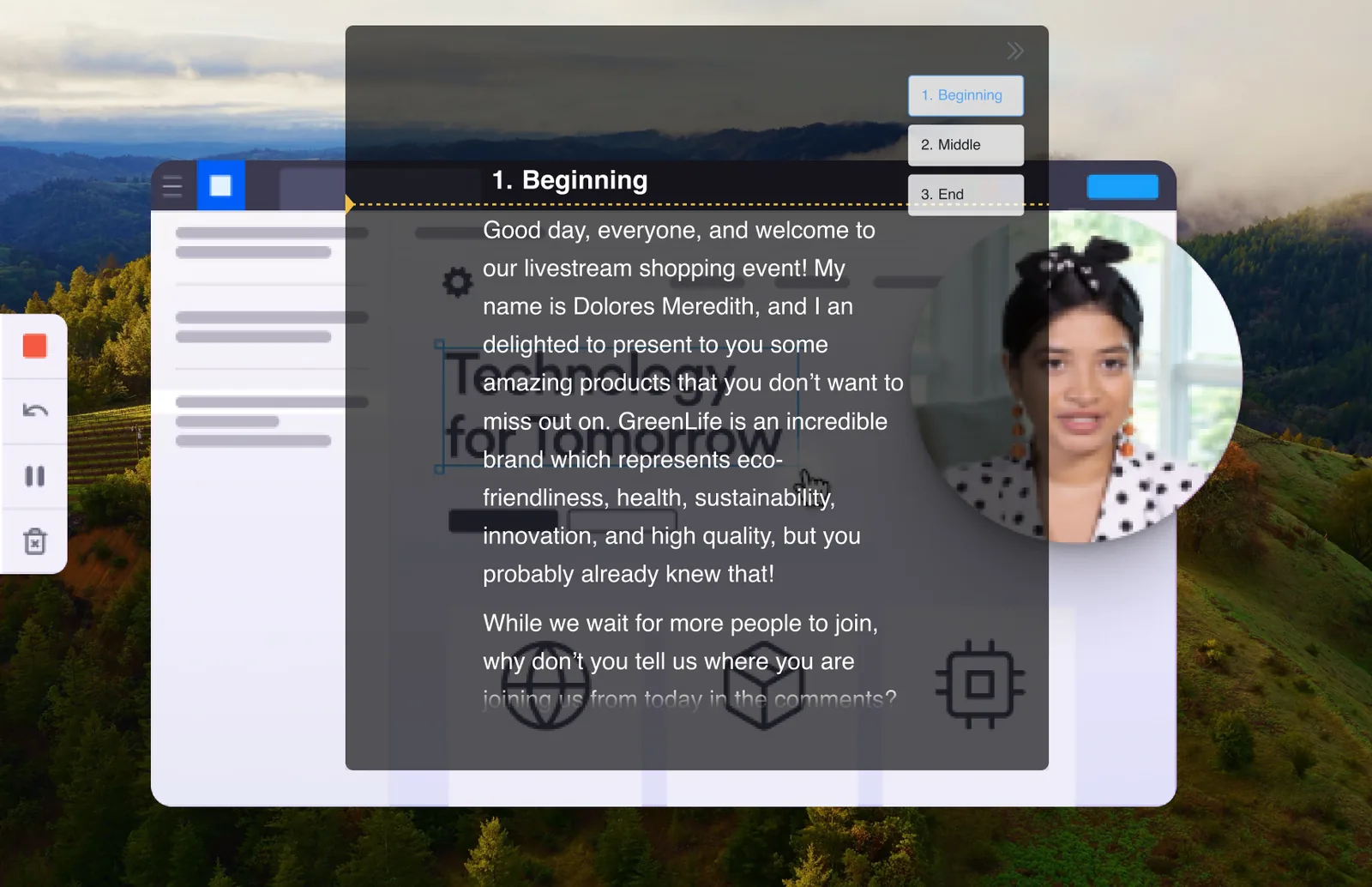
Presenter view: the notes remain readable to the speaker. Source: FlowPrompter’s official screen-recorder documentation.
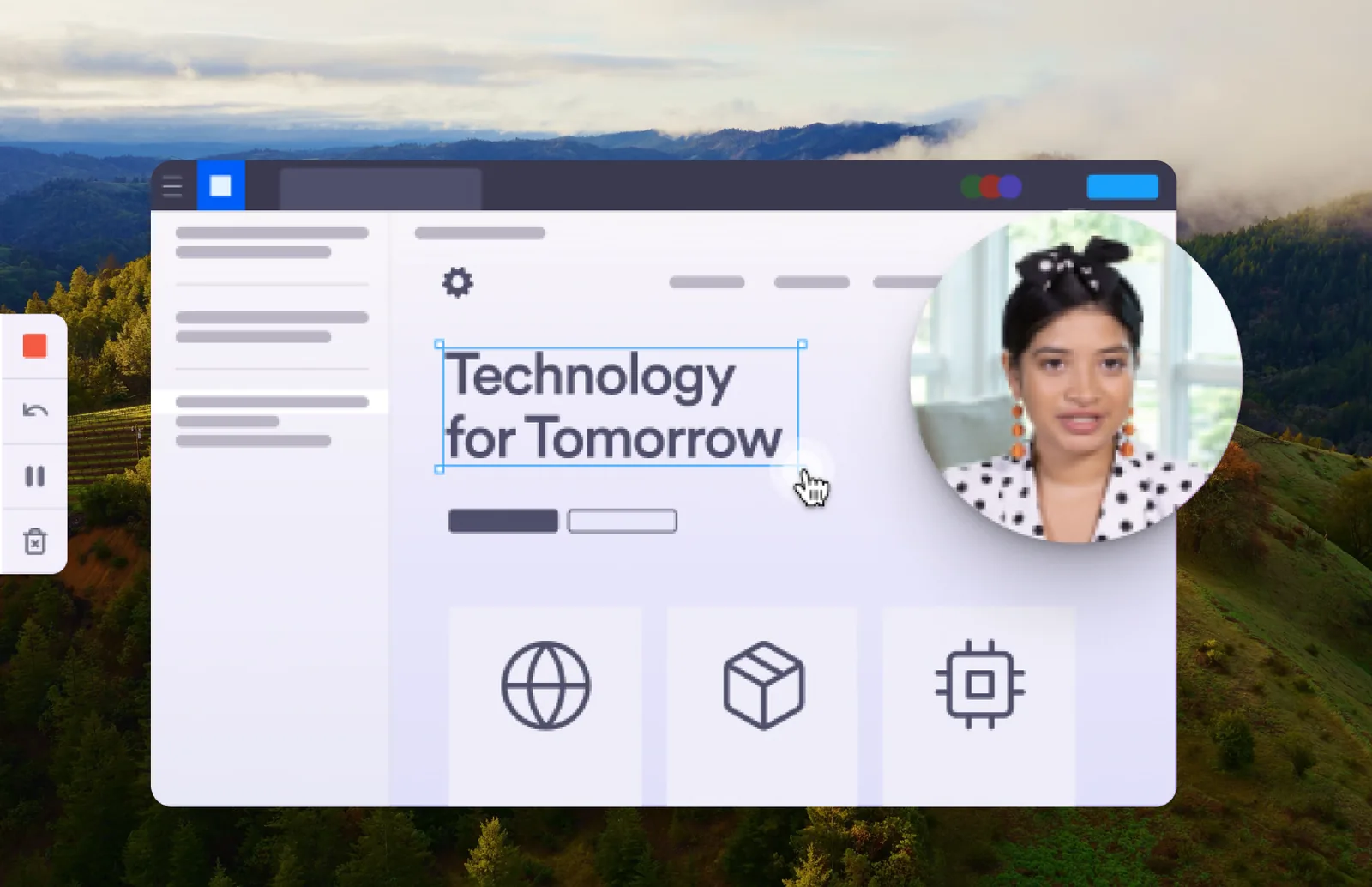
Recorded output from the same documented scene without the notes. FlowPrompter notes that this result requires Invisible Window or choosing to hide the prompt before recording.
FlowPrompter’s documentation is explicit about the boundary: if the teleprompter remains visible on the display being recorded and you choose to keep it visible, it can appear in the file. The correct operational rule is therefore configure, test, then present;not “assume the overlay is always hidden.”
Choose speech-following or auto scroll based on the demo
FlowPrompter offers manual control, auto scroll, and a speech-following mode. Its official feature page says that mode can follow the speaking pace, wait during a pause, and continue when speech resumes. That makes it useful for a talk track with short digressions or buyer questions. A fixed scroll speed is more predictable for a tightly timed opening or recorded product tour.
Use speech-following when you expect pauses, questions, or changes of pace.
Use auto scroll when the sequence and timing are stable.
Use manual control when you frequently jump between non-linear demo paths.
Speech-following requires microphone access. Apple’s macOS documentation confirms that microphone permission is controlled per app under Privacy & Security. Teams also documents that screen sharing on a Mac requires screen-recording permission. Check these permissions before the buyer joins, not during the first minute of the call.
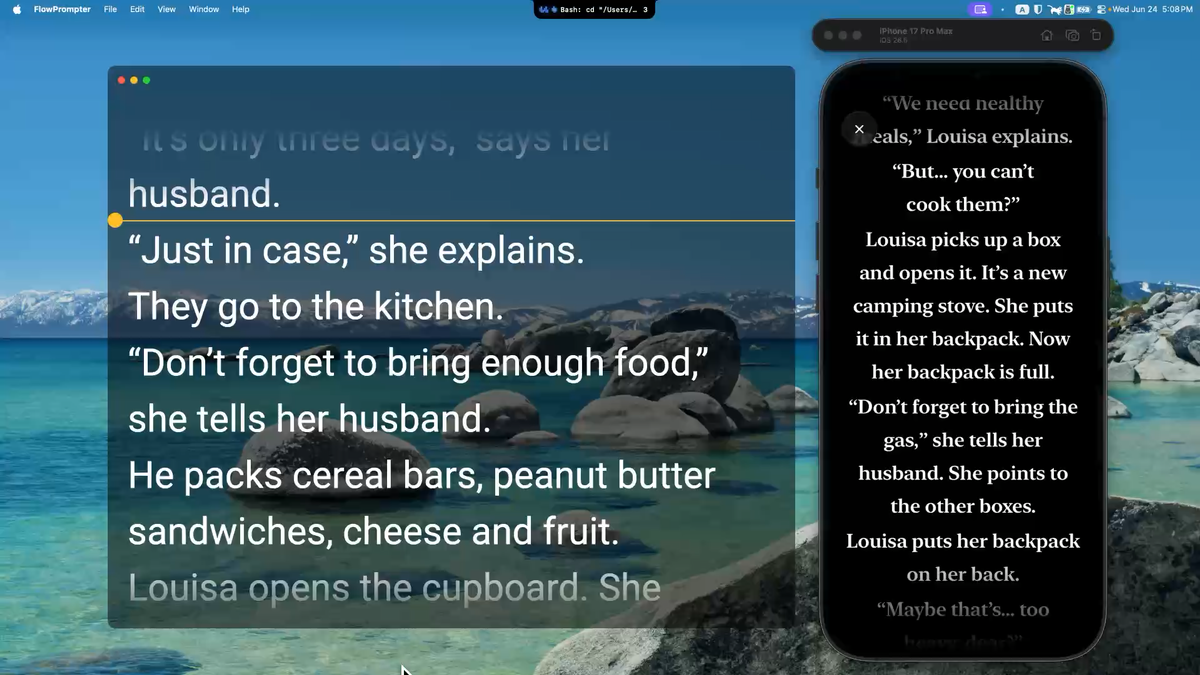
FlowPrompter’s official product image. Use the Desktop app;not only the browser editor;when the workflow requires invisible prompting during screen sharing.
Place the prompt so reading is less visible
Position matters more than font decoration. Put the reading window immediately below or beside the webcam and narrow the text column. Use a font size that lets you read without leaning forward. Keep each paragraph short, because a dense block produces longer eye movements and makes it harder to respond to the buyer.
Do not chase the impossible standard of staring continuously at the lens. In a sales conversation you also need to inspect the interface, read participant reactions, and answer questions. The teleprompter should reduce unnecessary searching for notes. It should not prevent normal interaction.
Run a seven-point pre-demo check
Claims: prices, availability, integrations, and security statements match current primary sources.
Environment: the demo account contains only safe sample data and has the correct permissions.
Reading copy: the script uses short cues, not long essay paragraphs.
Capture: the exact window or screen to be shared has been selected.
Privacy: notifications are silenced and private tabs, passwords, tokens, and customer data are closed.
Permissions: camera, microphone, and screen-recording access work on the current computer.
Audience proof: a second-device test or short recording confirms what attendees will actually see and hear.
Verified FlowPrompter boundaries at the time of writing
FlowPrompter’s official recorder documentation states that Desktop recording supports macOS 13 or later and 64-bit Windows 10 version 2004 or later. It states that Linux is not supported, that a phone cannot run the Desktop screen recorder, and that the intended output is an MP4 saved on the computer.
The current pricing page lists the Free plan with up to 3 scripts, 10,000 characters per script, 20 minutes of auto scrolling per day, and 3 minutes of voice tracking per day. Those limits can change, so verify the pricing page instead of copying them permanently into a sales claim.
What not to promise
Do not claim that a teleprompter is invisible in every capture tool, browser, operating system, or sharing configuration. Do not claim that speech recognition is error-free. Do not promise recording resolution, unlimited duration, a watermark policy, or a particular plan entitlement unless the current pricing and product documentation states it. FlowPrompter’s own recorder page avoids those unsupported promises and directs users to the current pricing page for membership details.
Frequently asked questions
Can I use this process in Zoom, Google Meet, and Microsoft Teams?
Yes, the preparation method applies to all three: use a short verified talk track, position it near the camera, choose the intended share target, and test the audience view. The exact sharing controls and overlay behavior vary by platform and operating system, so do not reuse a test result from a different setup.
Should I write every word of a sales demo?
No. Script the opening, transitions, verified claims, limitations, and close. Keep discovery and objection handling as prompts so you can respond to what the buyer actually says.
Will FlowPrompter always stay out of the shared screen?
FlowPrompter documents Invisible Window for keeping the prompt out of supported screen shares, recordings, and screenshots. It also warns that a visible prompt can enter a recording if you choose to keep it on the captured display. Test the exact meeting app, operating system, and share mode before a real call.
Is speech-following better than auto scroll?
Neither is universally better. Speech-following fits variable pacing and pauses; auto scroll fits predictable timing; manual control fits demos that jump between branches.
Sources and further reading
FlowPrompter Features ; official description of invisible prompting, voice tracking, script workflow, and Desktop availability.
How to Use FlowPrompter Desktop ; official setup and positioning guidance.
FlowPrompter Screen Recorder with Teleprompter ; official capture workflow, supported platforms, permissions, output, and stated limitations.
Microsoft Support: Present content in Teams meetings ; screen-versus-window sharing and macOS permission details.
Apple Support: Control access to the microphone on Mac ; per-app microphone permission guidance.
Bottom line: A good sales-demo teleprompter does not turn the call into a recital. It keeps verified claims and transitions within sight while the presenter stays free to listen. Build the talk track from primary sources, configure the exact sharing path, and verify the audience view before the real meeting.